
Download the DreamFace App to Create Anywhere

Download on
App Store

Download on
Google Play

Install APK on
Android
Language
English- English
- Português
- 简体中文
- 繁體中文
- 日本語
- Español
- Bahasa Indonesia
- ไทย
- Tiếng Việt
- हिन्दी
- Русский
- Italiano
- 한국어
- मराठी
- Nederlands
- Norsk
- ਪੰਜਾਬੀ
- Polski
- Dansk
- Suomi
- Français
- Deutsch
- Svenska
- Kiswahili
- తెలుగు
- Türkçe
- বাংলা
- اردو
- العربية
- فارسی
- Ελληνικά
Language
1970s Portraits
Upload Image
Click to upload an image
Try with our sample images
Sample Filter


4.9

Chrome Store

Global Users

4.9
Apple Store
Trusted by Leading Institutions Worldwide












How to Make a 1970s Portrait
step 1 Upload One Clear Portrait
Add a well-lit headshot or head-and-shoulders photo with the face centered and easy to see.
step 2 Choose 1970s Portraits
Select the 1970s Portraits filter to add sepia tone, vintage texture, and classic studio mood.
step 3 Generate and Save
Create your retro portrait, then download it or share it anywhere you want.
Why Try the 1970s Portraits Filter
Faded Sepia Archive Texture
Create a soft sepia finish with gentle grain, light paper-wear detail, and the aged depth that makes a portrait feel pulled from a 1970s photo archive.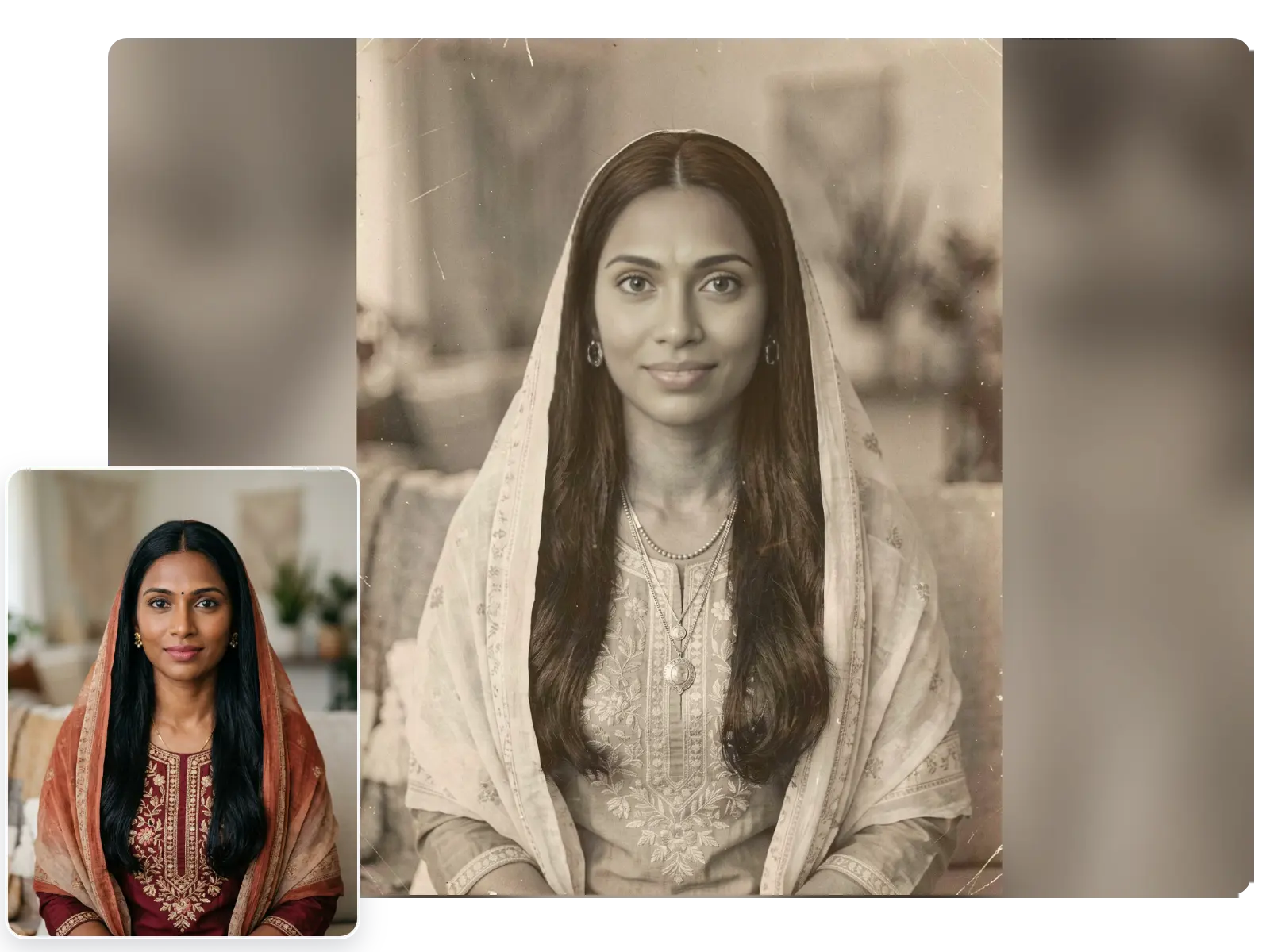
Classic Studio Headshot Framing
Keep the face centered in a calm head-and-shoulders composition that matches traditional studio portraits and preserves clear eyes, jewelry, and fabric detail.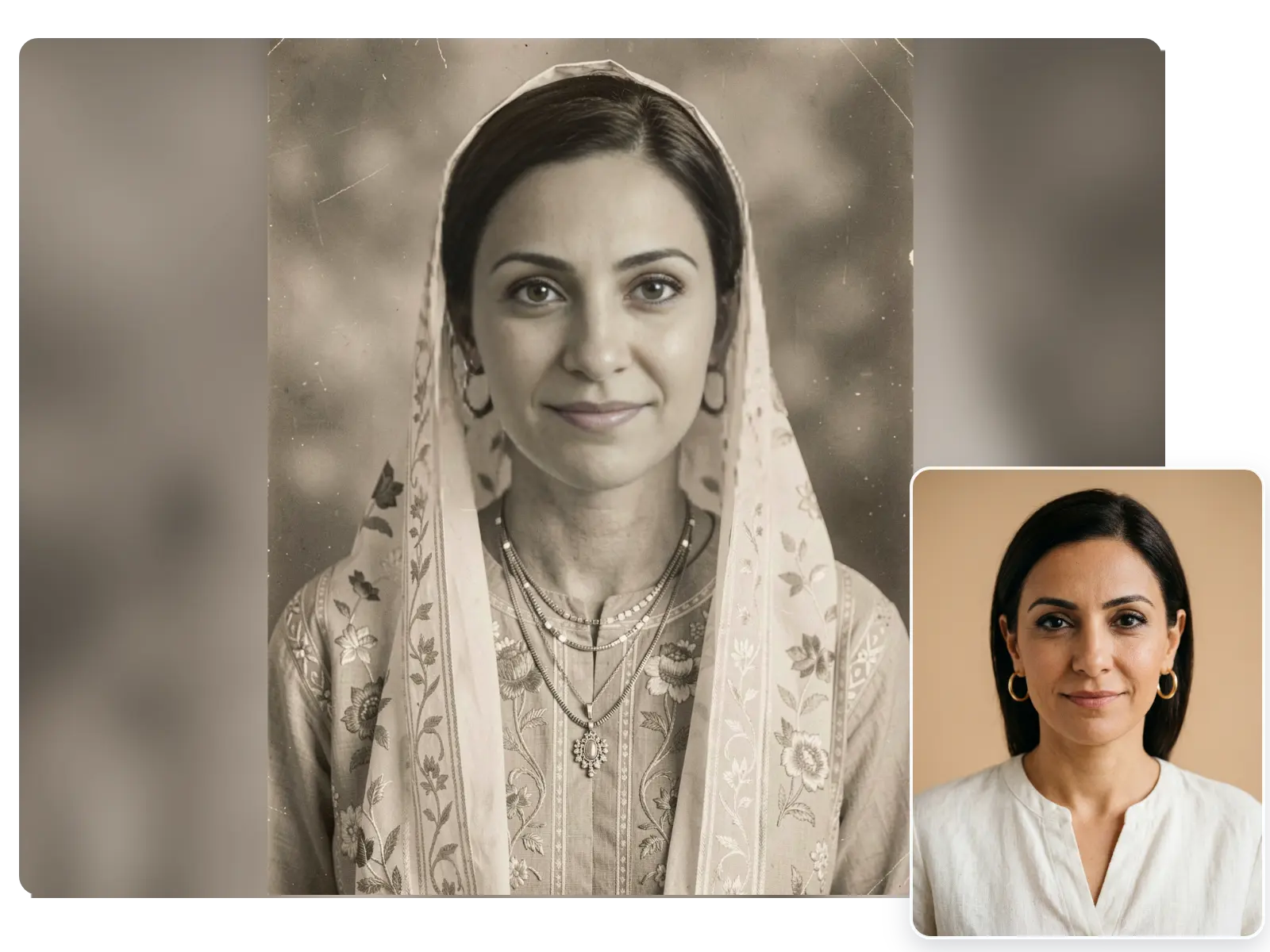
Heritage Styling That Still Reads Clearly
The look suits embroidered outfits, dupattas, layered necklaces, and other classic styling cues while keeping the final portrait polished instead of overly theatrical.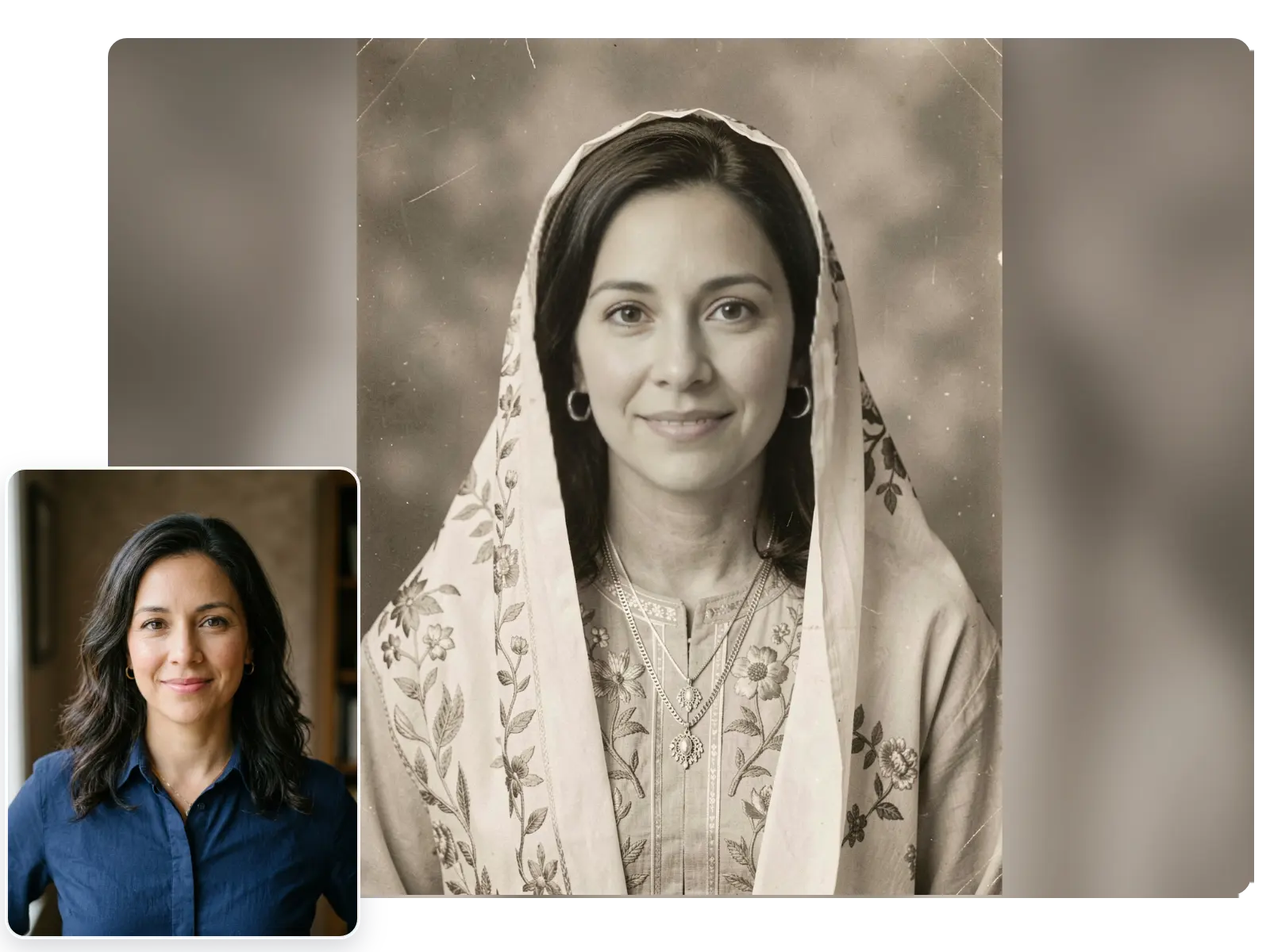
One-Photo Vintage Makeover
Upload a clear portrait, choose 1970s Portraits, and generate a shareable retro result in seconds without needing a full studio shoot.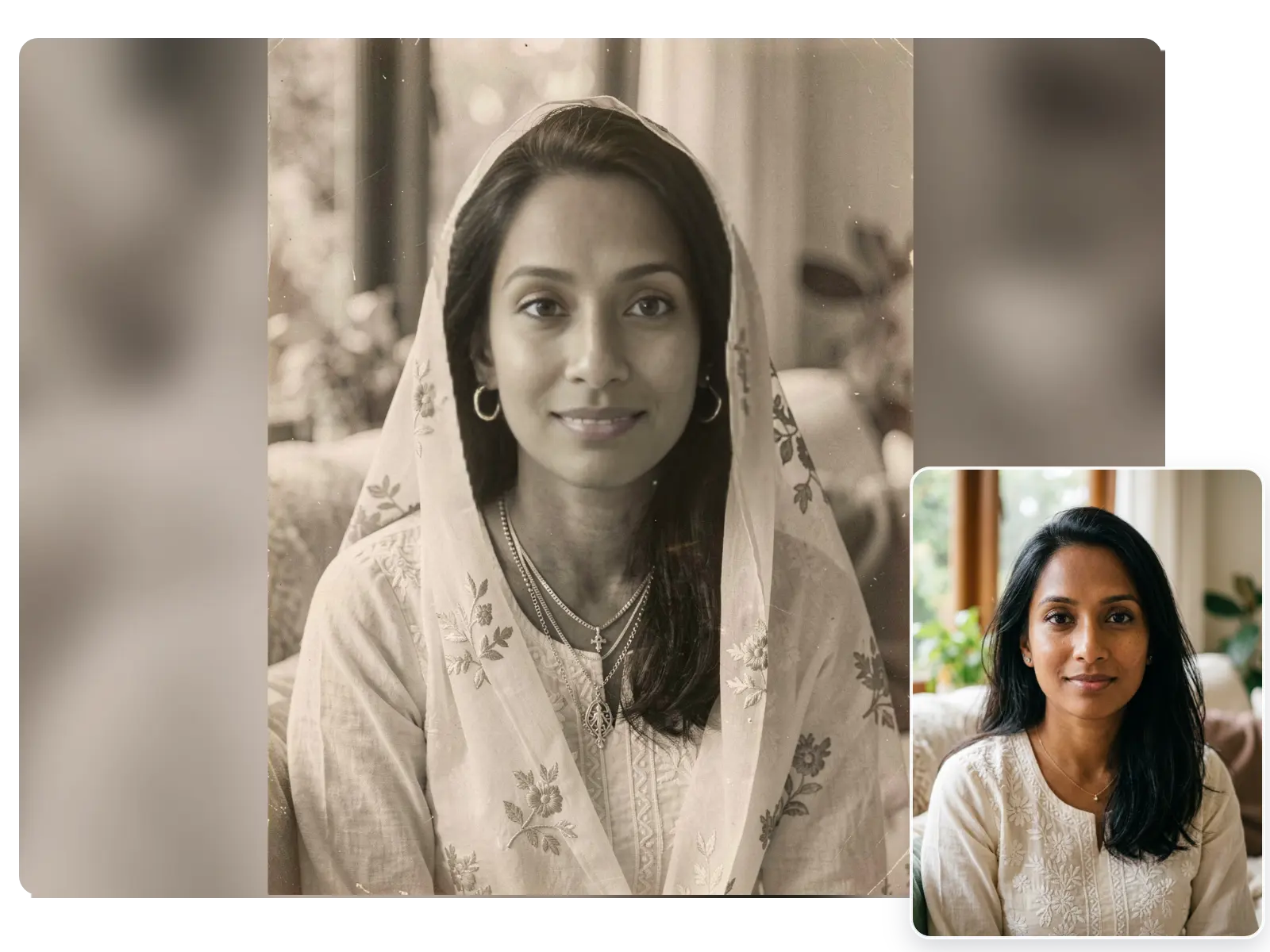
More Valuable Features from Dreamface
AI Filter
Try more anime, illustrated, and stylized looks on the same photo when users want to compare this filter with other visual transformations.
Background Remover
Remove busy backgrounds before generation so portraits, couple shots, and pet photos keep more focus on the main subject.
Photo Enhance
Sharpen blurry photos and recover detail before using the filter for cleaner faces, textures, and more polished final results.
AI Hug
Create warm hugging animations when the template leans more comforting, sweet, reunion-like, or emotionally soft than overtly romantic.
Frequently Asked Questions
Can a modern selfie still work for the 1970s Portraits filter?
Yes. A centered selfie with clear facial detail works well, especially when the background is simple and the lighting is soft or even.
Does this filter look better on close-up portraits or wider photos?
Close-up or head-and-shoulders photos usually give the best result because the vintage studio framing keeps the face as the main focus.
Will traditional clothing and jewelry still show in the final image?
Usually yes. Embroidery, earrings, scarves, and layered necklaces can still read clearly when the original photo is sharp and not too dark.
Does the sepia effect make skin tones look unnatural?
The goal is a soft old-photo finish, not a muddy result. Well-lit input photos tend to keep facial features clear while still picking up the faded sepia mood.
How many photos do I need to use 1970s Portraits?
This template needs one input image, so you only have to upload a single clear portrait to get started.
Is 1970s Portraits free to try?
You can check the current DreamFace access and trial options on the tool page before generating your final vintage portrait.