
Download the DreamFace App to Create Anywhere

Download on
App Store

Download on
Google Play

Install APK on
Android
Language
English- English
- Português
- 简体中文
- 繁體中文
- 日本語
- Español
- Bahasa Indonesia
- ไทย
- Tiếng Việt
- हिन्दी
- Русский
- Italiano
- 한국어
- मराठी
- Nederlands
- Norsk
- ਪੰਜਾਬੀ
- Polski
- Dansk
- Suomi
- Français
- Deutsch
- Svenska
- Kiswahili
- తెలుగు
- Türkçe
- বাংলা
- اردو
- العربية
- فارسی
- Ελληνικά
Language
biceps brachii
Upload Image
Click to upload an image
Try with our sample images
Sample Filter


4.9

Chrome Store

Global Users

4.9
Apple Store
Trusted by Leading Institutions Worldwide












How to Use the AI Biceps Brachii Filter
step 1 Upload One Clear Portrait
Select a photo of one person with one clearly visible face. Keep your upper arms in the frame so the biceps effect is easy to see.
step 2 Generate Your Biceps Transformation
Click Generate to apply the Biceps Brachii template to your uploaded photo.
step 3 Review Your New Look
View the generated portrait and compare the appearance of your upper arms with your original photo.
What the AI Biceps Brachii Filter Does
Give Your Biceps a Fuller Appearance
Create a portrait with more prominent upper arms. This dedicated effect focuses on the biceps area to give your photo a stronger, more muscular look.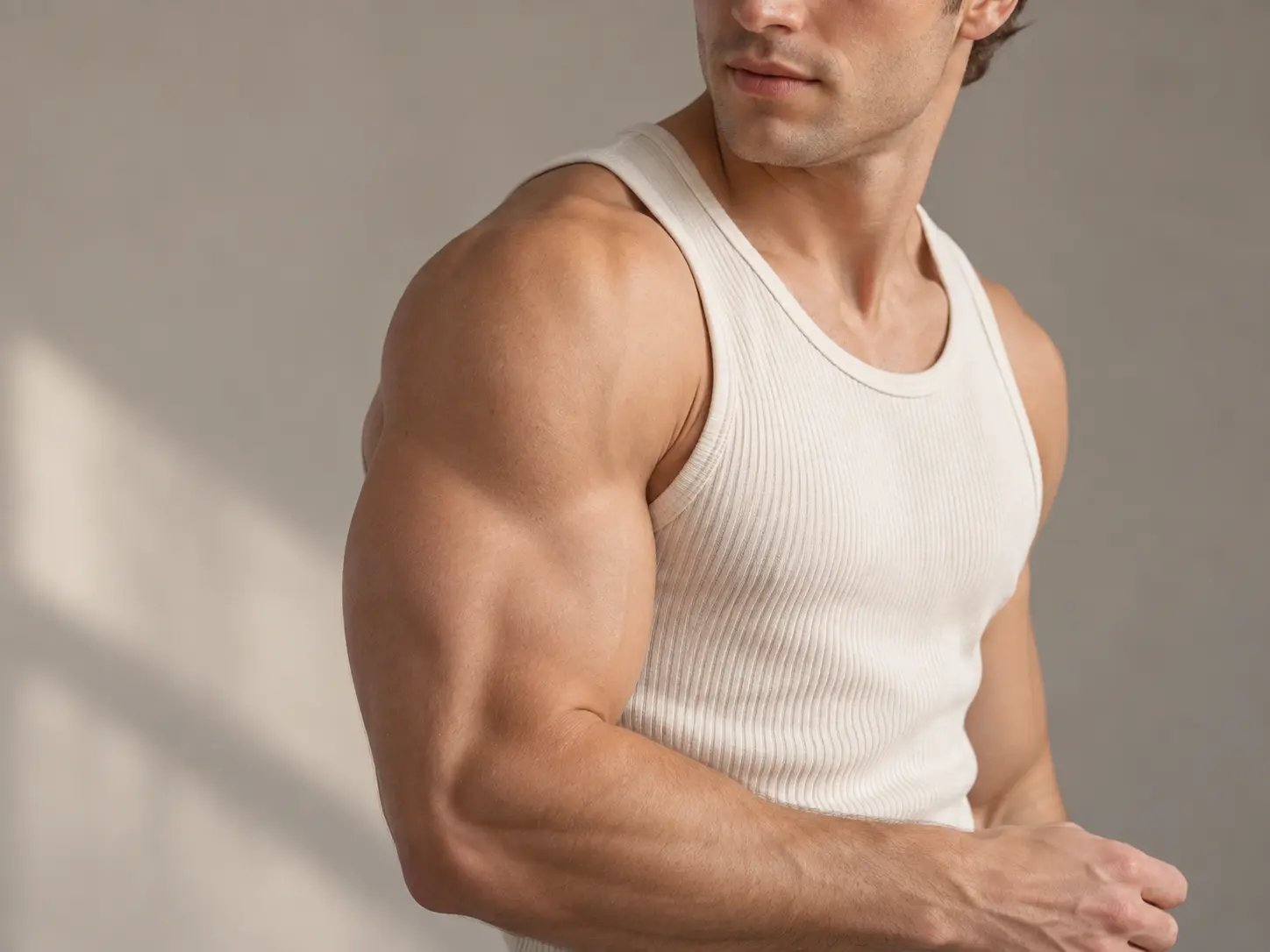
Add Visible Upper-Arm Definition
Explore a more sculpted arm shape with an AI photo effect. The template emphasizes upper-arm contours for a fitness-inspired transformation.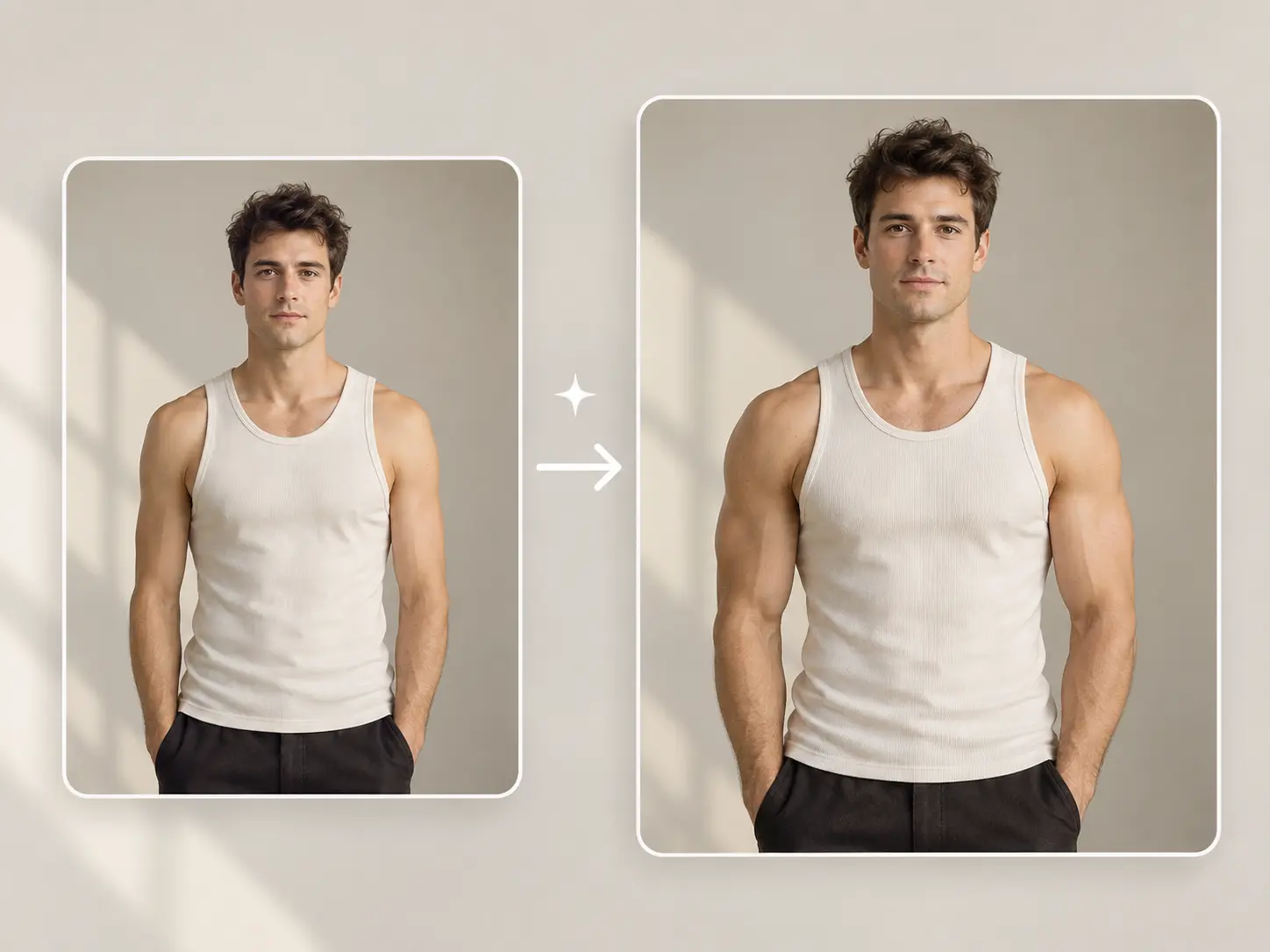
Use One Photo to Try the Effect
Start with a single-person portrait. For a clearer view of the transformation, choose a photo with your face and upper arms visible, such as a picture in a sleeveless top.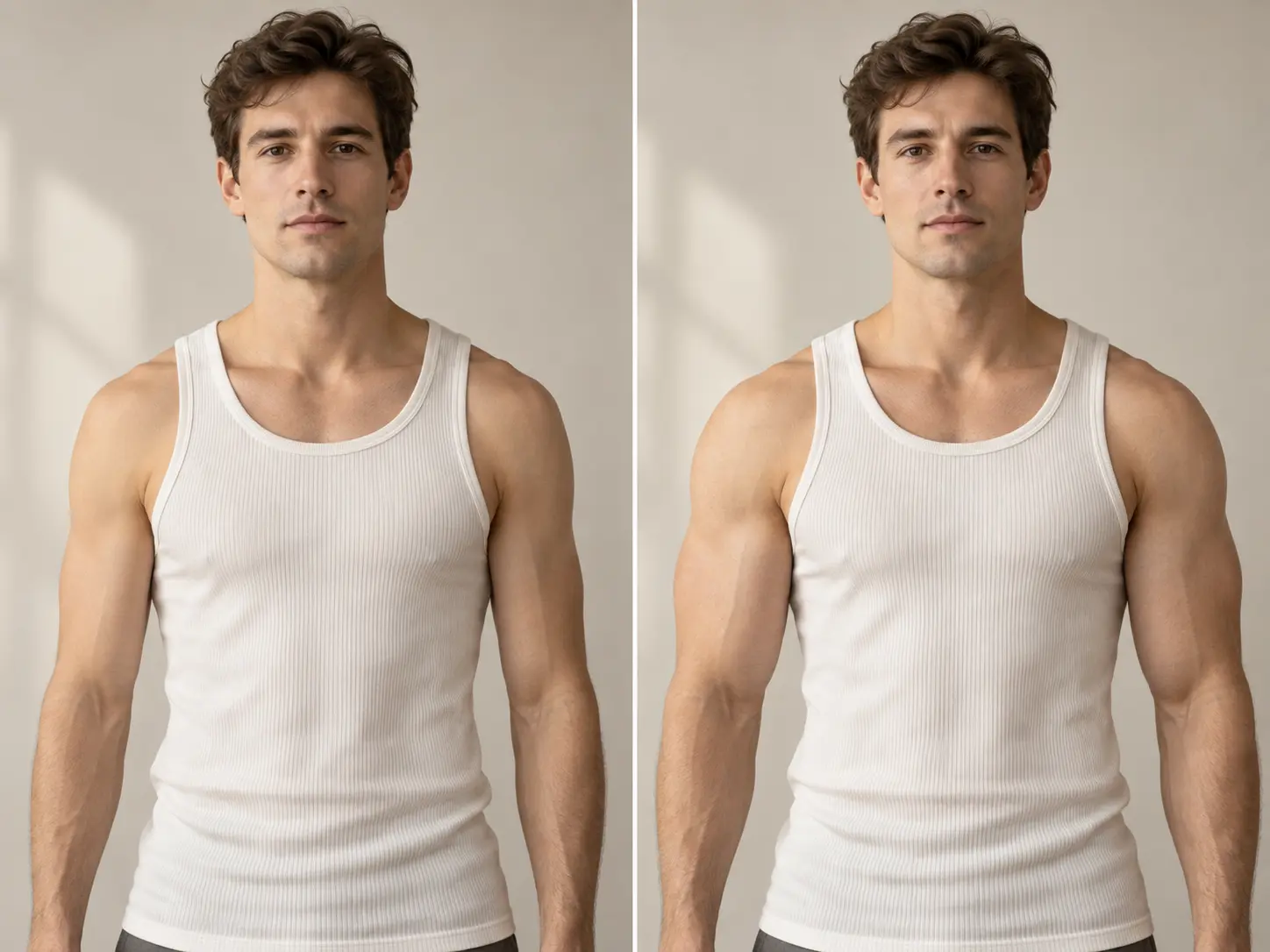
Skip Manual Muscle Retouching
Apply a preset biceps effect without manually reshaping your arms or painting in shadows. Upload your photo and click Generate to try the look.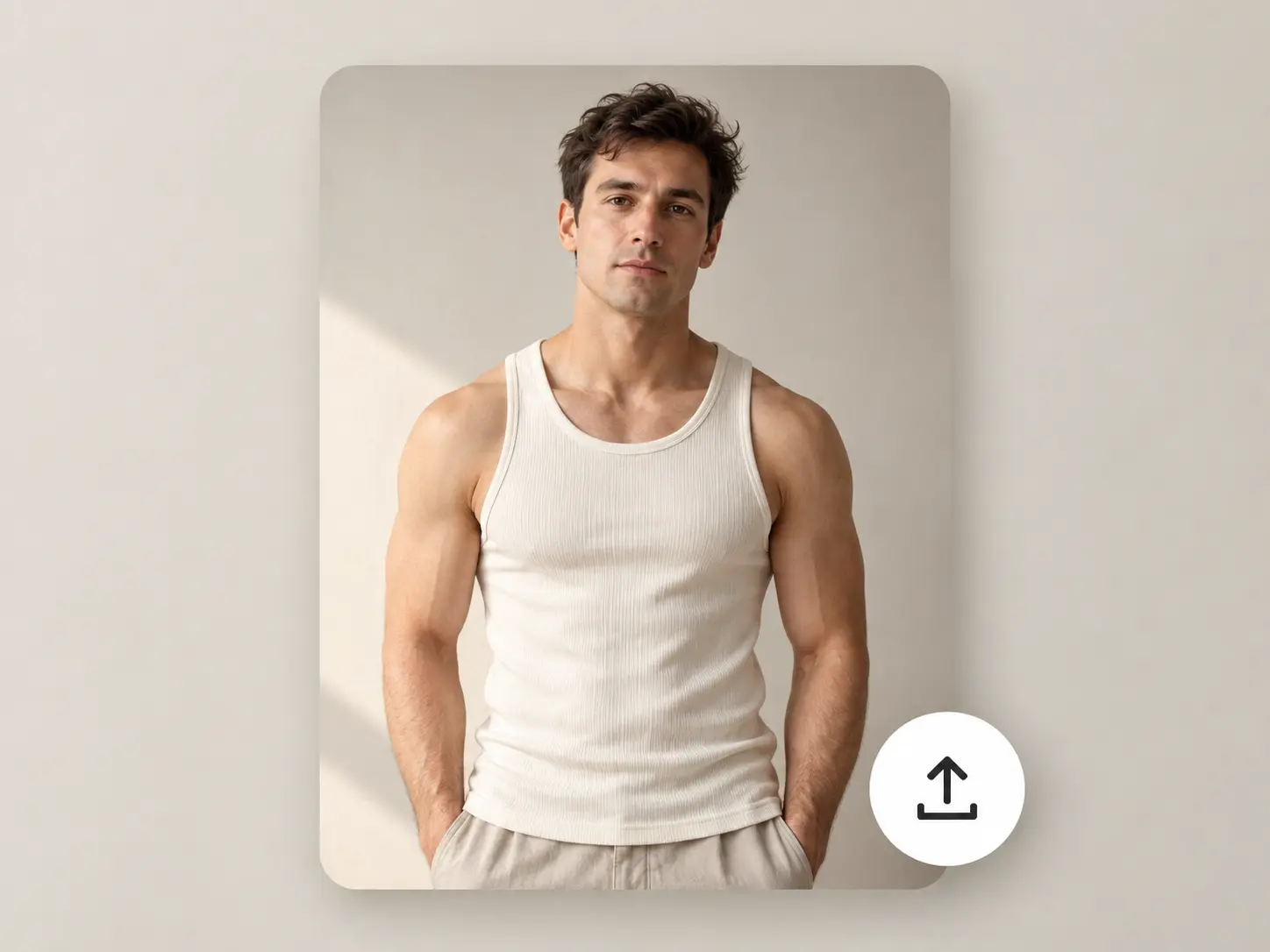
More Valuable Features from Dreamface
AI Kiss
Create AI kiss animations from photos.
AI Hug
Bring photos together in an AI-generated virtual hug.
Pet Video Animation
Turn pet photos into animated video content.
AI Video Maker
Explore AI tools for creating video content.
Frequently Asked Questions
What is the AI Biceps Brachii Filter?
The AI Biceps Brachii Filter is a single photo effect that gives your upper arms a fuller, more muscular appearance. It focuses on the biceps area to create a fitness-inspired portrait.
What kind of photo should I upload?
Upload a clear portrait of one person with your face and upper arms visible. A sleeveless top and an unobstructed view of your arms make the transformation easier to see.
Can I upload multiple photos or a group photo?
This template accepts one image containing one face. Use a solo portrait instead of a group photo.
Do I need muscular arms to use this filter?
No. You can try the effect on your existing portrait to explore a more muscular upper-arm appearance. The visible result will depend on your starting photo, clothing, and pose.
Does the filter change only my biceps?
This template is designed around a biceps-focused look. Other parts of the image may also change during AI generation, so review the complete result.
Does the generated photo show a real fitness result?
No. The filter creates a visual photo edit for creative use. It does not predict how your body would change through exercise or represent an actual fitness result.