DreamFace

Language

En
    Language
  • English
  • Português
  • 简体中文
  • 繁體中文
  • 日本語
  • Español
  • Bahasa Indonesia
  • ไทย
  • Tiếng Việt
  • हिंदी
  • Русский
  • Italiano
  • 한국어
  • मराठी
  • Nederlands
  • Norsk
  • ਪੰਜਾਬੀ
  • Polski
  • Dansk
  • Suomi
  • Français
  • Deutsch
  • Svenska
  • Kiswahili
  • తెలుగు
  • Türkçe
  • বাংলা
  • اردو
  • العربية
  • فارسی
  • Ελληνικά
Start Now
Chrome Store
4.9

Chrome Store

20,000,000+

Global Users

Apple Store
4.9

Apple Store

Trusted by Leading Institutions Worldwide

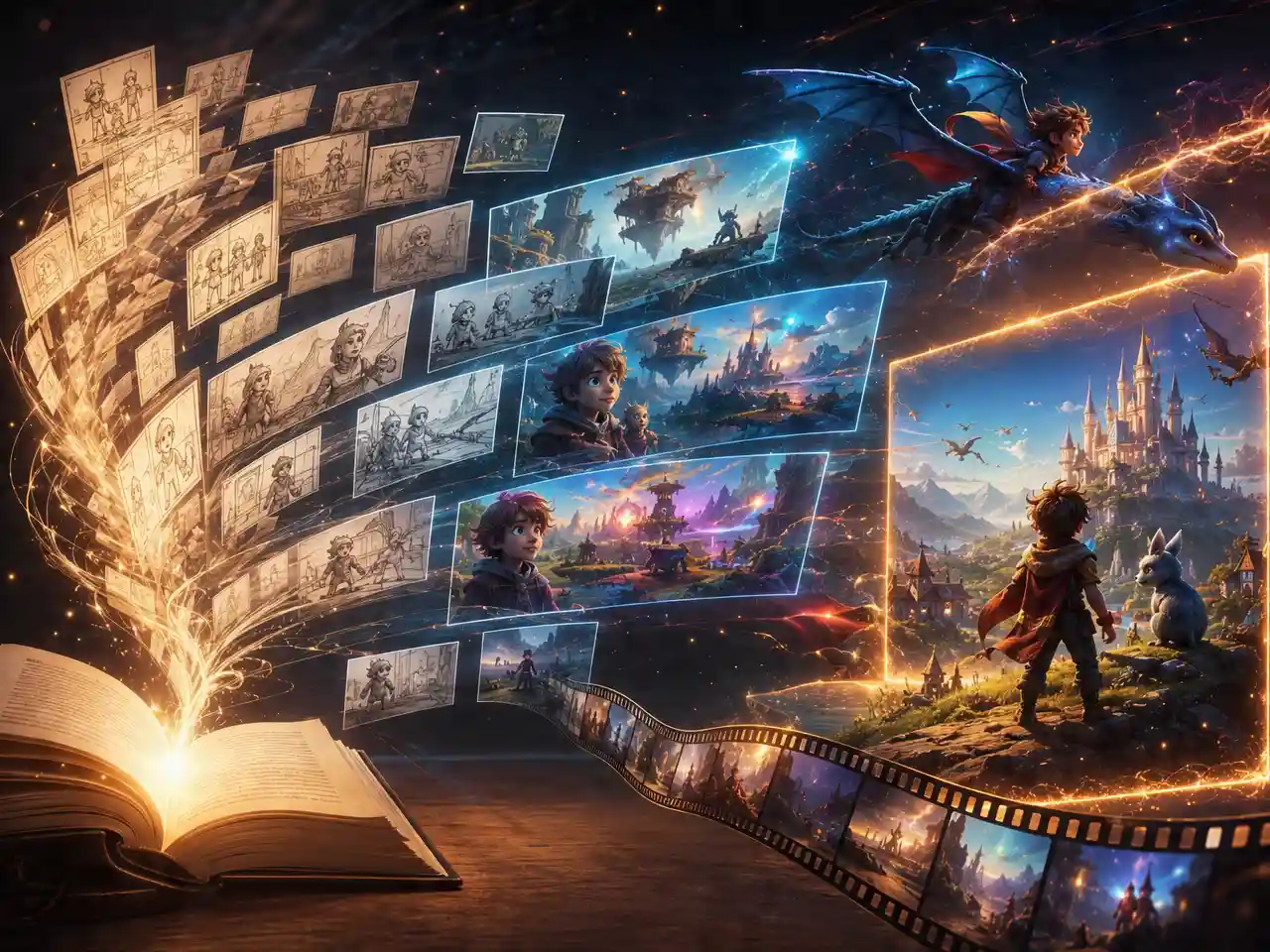
How to Generate a Cartoon-Style Video

step 1

Describe the Scene or Upload a Photo

Write what you want to see, or bring an existing photo to restyle.

step 2

Generate the Cartoon Version

DreamFace applies the cartoon look and generates the video.

step 3

Review and Export

Preview the result and download once the style fits.

AI Cartoon Generator Features

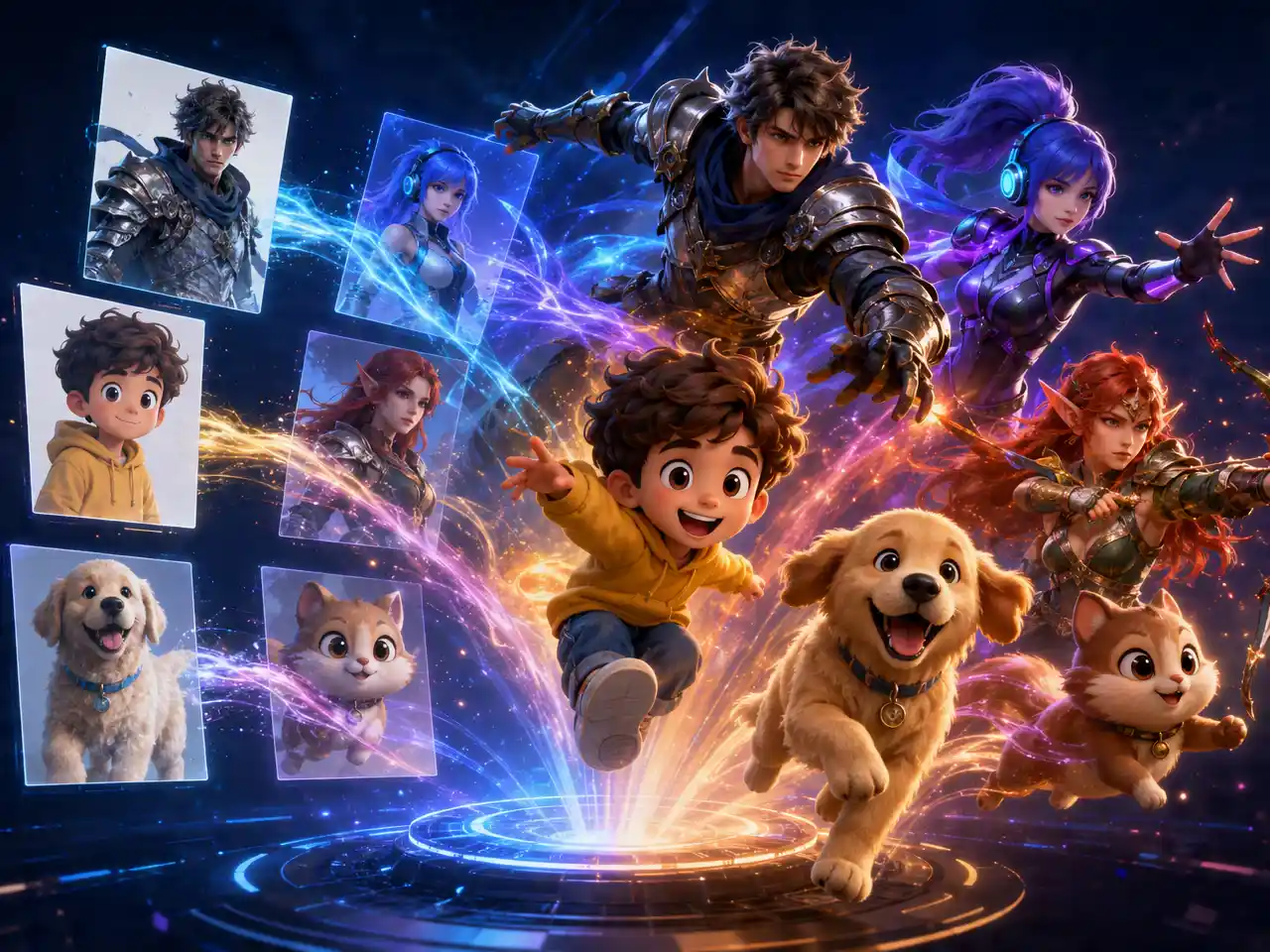
Cartoon Look From a Prompt or Photo

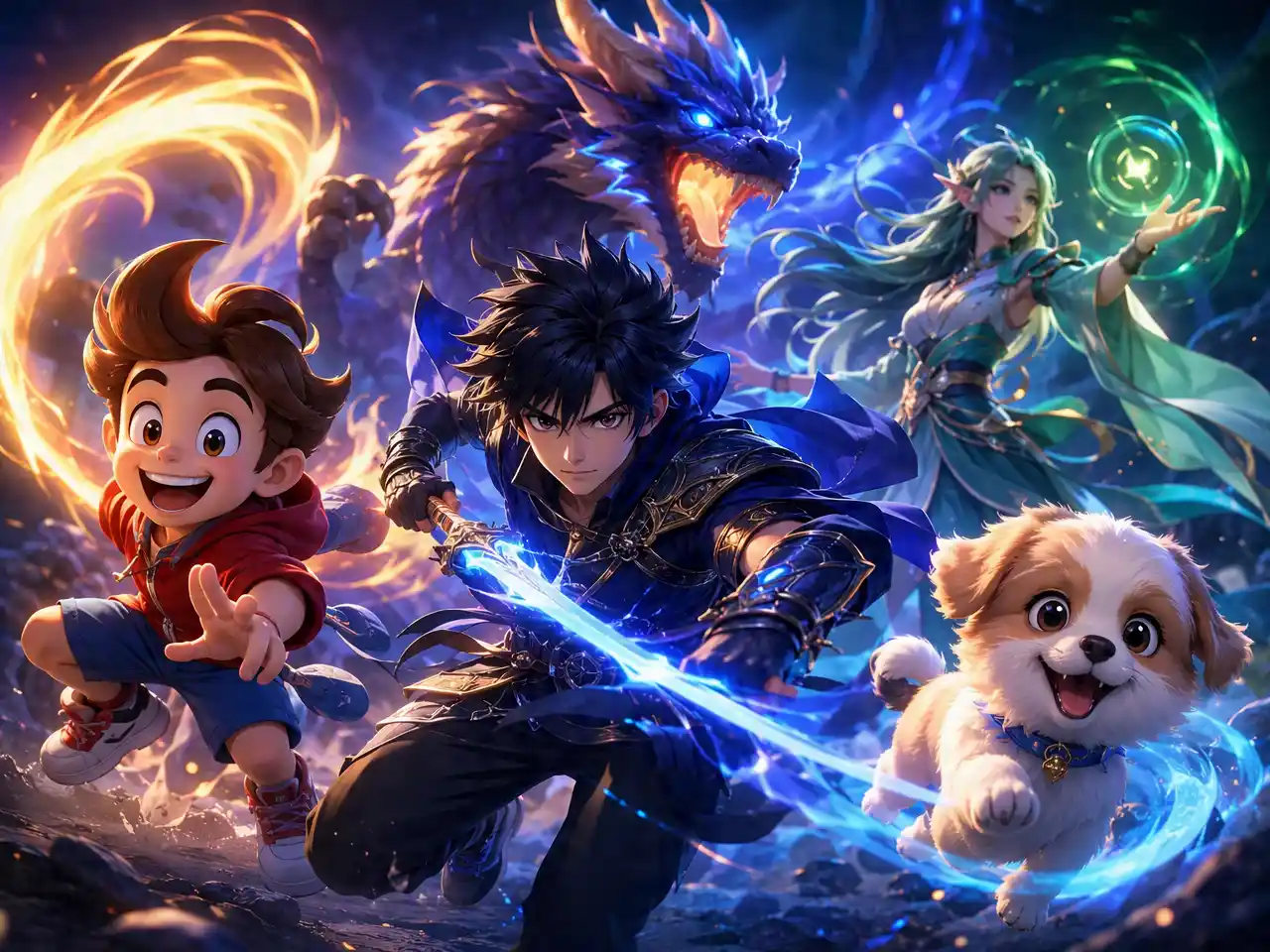
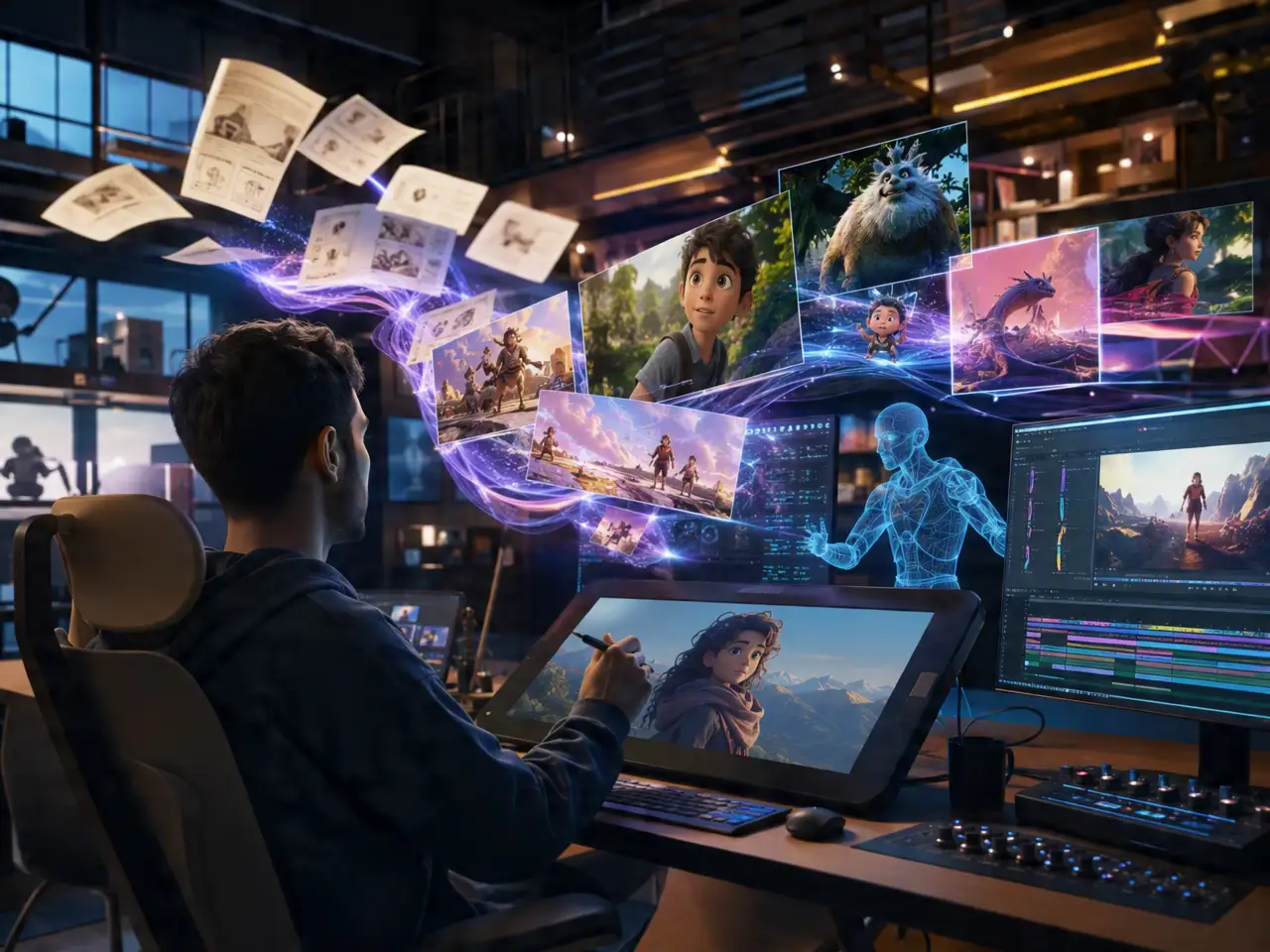
Describe a scene in text, or upload a photo to restyle, and get video back with a cartoon look instead of a photorealistic render.
Cartoon Look From a Prompt or Photo

Simplified Shapes and Bold Color

Output leans into flatter color and cleaner outlines rather than fine photographic detail, matching a classic cartoon look.
Simplified Shapes and Bold Color

Style Applies to People and Scenes Alike

Cartoon styling works whether the source is a portrait, a full scene, or a written description with no photo involved.
Style Applies to People and Scenes Alike

Compare a Few Style Variants

Regenerate the same prompt or photo to see a different take on the cartoon look before settling on one.
Compare a Few Style Variants

Frequently Asked Questions

Why Use DreamFace for Cartoon Video?

Style and Motion in One Generation

Applies the cartoon look and the video motion together instead of stylizing a photo first and animating it as a separate step.

Clean Lines Stay Clean

Bold outlines and flat color areas stay crisp through the motion instead of breaking up or smearing.

Try More Than One Look

Generate a couple of variants on the same input and pick the one that fits best.

Prompts and Photos Stay Yours

Source material used to generate a cartoon-style video isn't published or reused on DreamFace's end.

More Valuable Features from Dreamface

AI Video Generator
Create AI product videos, ad clips, launch teasers, ecommerce demos, and social product content from prompts, images, or templates.
AI Video
Use DreamFace AI Video to turn static product images or text into lifelike video animations with templates, references, and start or end frames.
Video Enhancer
Enhance product clips with AI upscaling, sharper details, better color, and higher-resolution output before publishing ads or ecommerce videos.
Background Remover
Remove product photo backgrounds and prepare clean cutouts for product video scenes, ads, marketplace clips, and branded social promos.

They Love Dreamface

Not What I Expected, in a Good Way

Wanted something less realistic for a kids project, the cartoon look was exactly the shift I needed.

Outlines Stayed Clean

Worried bold linework would get messy once it started moving, it held up well.

Photo Restyle Worked Better Than Prompt Alone

Uploaded a photo instead of describing it from scratch, likeness came through better that way.

Tried a Couple Variants

Regenerated the same scene twice and picked the version with better color balance.

Good for a Non-Realistic Intro

Used it for a channel intro where photorealistic footage felt like the wrong tone.

Simple Enough for a Quick Test

Didn't need to learn any new settings, described a scene and got a usable cartoon clip back.

Not What I Expected, in a Good Way

Wanted something less realistic for a kids project, the cartoon look was exactly the shift I needed.

Outlines Stayed Clean

Worried bold linework would get messy once it started moving, it held up well.

Photo Restyle Worked Better Than Prompt Alone

Uploaded a photo instead of describing it from scratch, likeness came through better that way.

Tried a Couple Variants

Regenerated the same scene twice and picked the version with better color balance.

Good for a Non-Realistic Intro

Used it for a channel intro where photorealistic footage felt like the wrong tone.

Simple Enough for a Quick Test

Didn't need to learn any new settings, described a scene and got a usable cartoon clip back.