DreamFace

Language

En
    Language
  • English
  • Português
  • 简体中文
  • 繁體中文
  • 日本語
  • Español
  • Bahasa Indonesia
  • ไทย
  • Tiếng Việt
  • हिन्दी
  • Русский
  • Italiano
  • 한국어
  • मराठी
  • Nederlands
  • Norsk
  • ਪੰਜਾਬੀ
  • Polski
  • Dansk
  • Suomi
  • Français
  • Deutsch
  • Svenska
  • Kiswahili
  • తెలుగు
  • Türkçe
  • বাংলা
  • اردو
  • العربية
  • فارسی
  • Ελληνικά
Start Now
Chrome Store
4.9

Chrome Store

20,000,000+

Global Users

Apple Store
4.9

Apple Store

Trusted by Leading Institutions Worldwide

How to Generate an HD AI Video

step 1

Start With a Prompt or a Photo

Describe the scene, or upload an image to animate.

step 2

Render in HD

Generation runs at the higher resolution baseline by default.

step 3

Review and Export

Check the full-size preview before downloading. Regenerating a section is usually faster than correcting it after export.

AI HD Video Generator Features

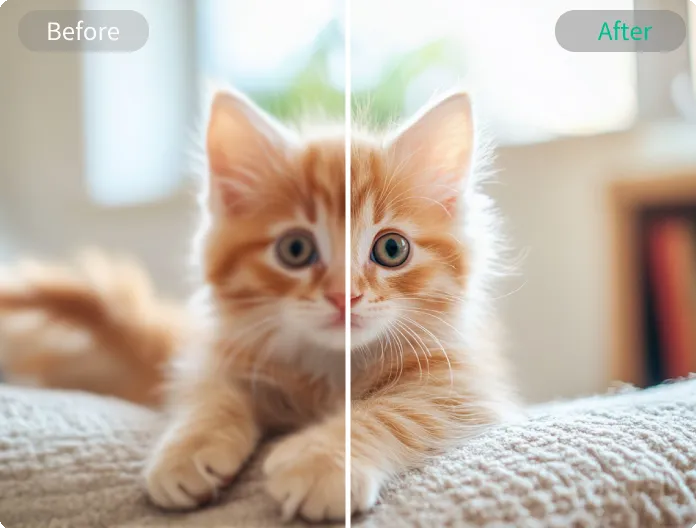
High-Definition From the First Render

Detail and edge clarity are part of the generation itself rather than a filter applied afterward, so the first preview is already close to a finished, upscaled result.
High-Definition From the First Render

Detail Holds Through Motion

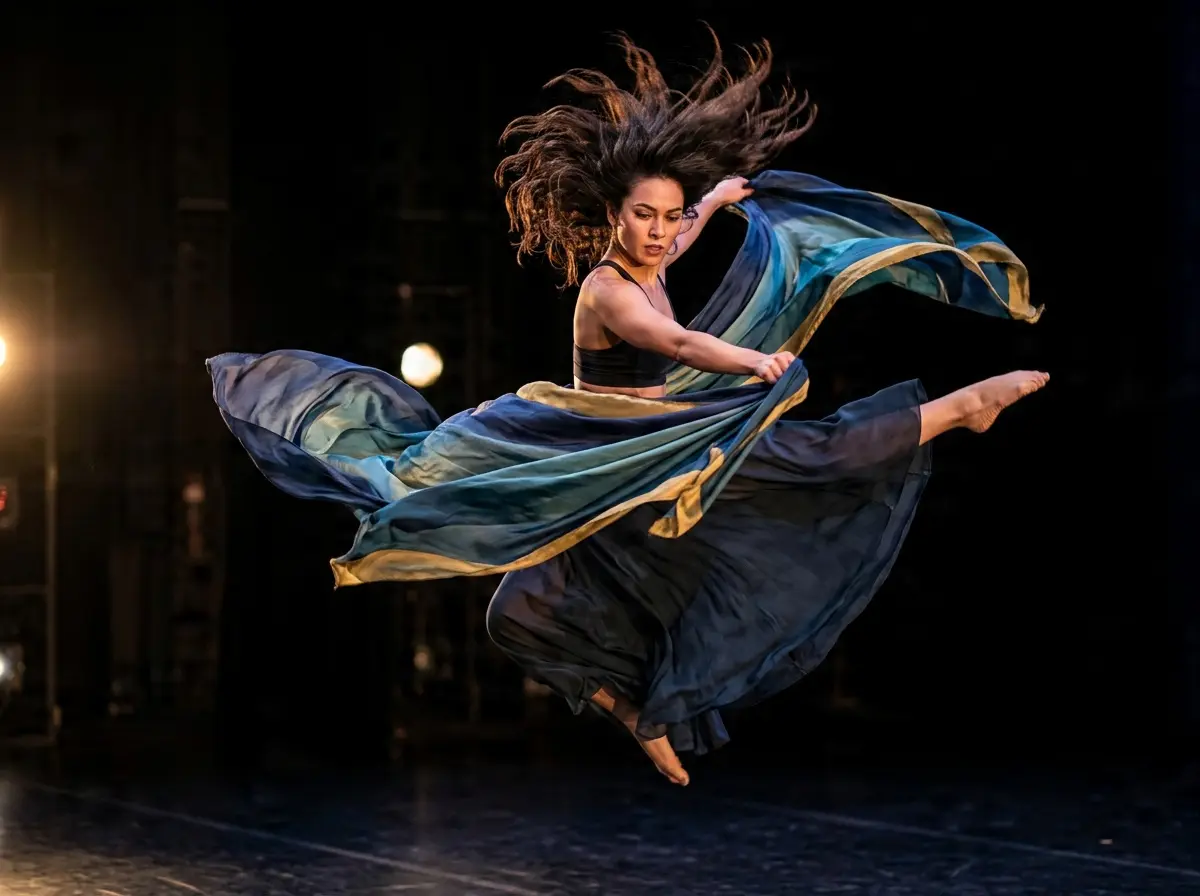
Camera pans, hand movement, and fabric in motion are common places where AI video loses definition. Output here maintains sharpness through those moments instead of blurring into approximate shapes.
Detail Holds Through Motion

Consistent Resolution Across Prompt and Photo Input

Text-to-video and image-to-video generations render at the same resolution baseline, so the input method doesn't determine output quality.
Consistent Resolution Across Prompt and Photo Input

Fewer Regenerations Needed

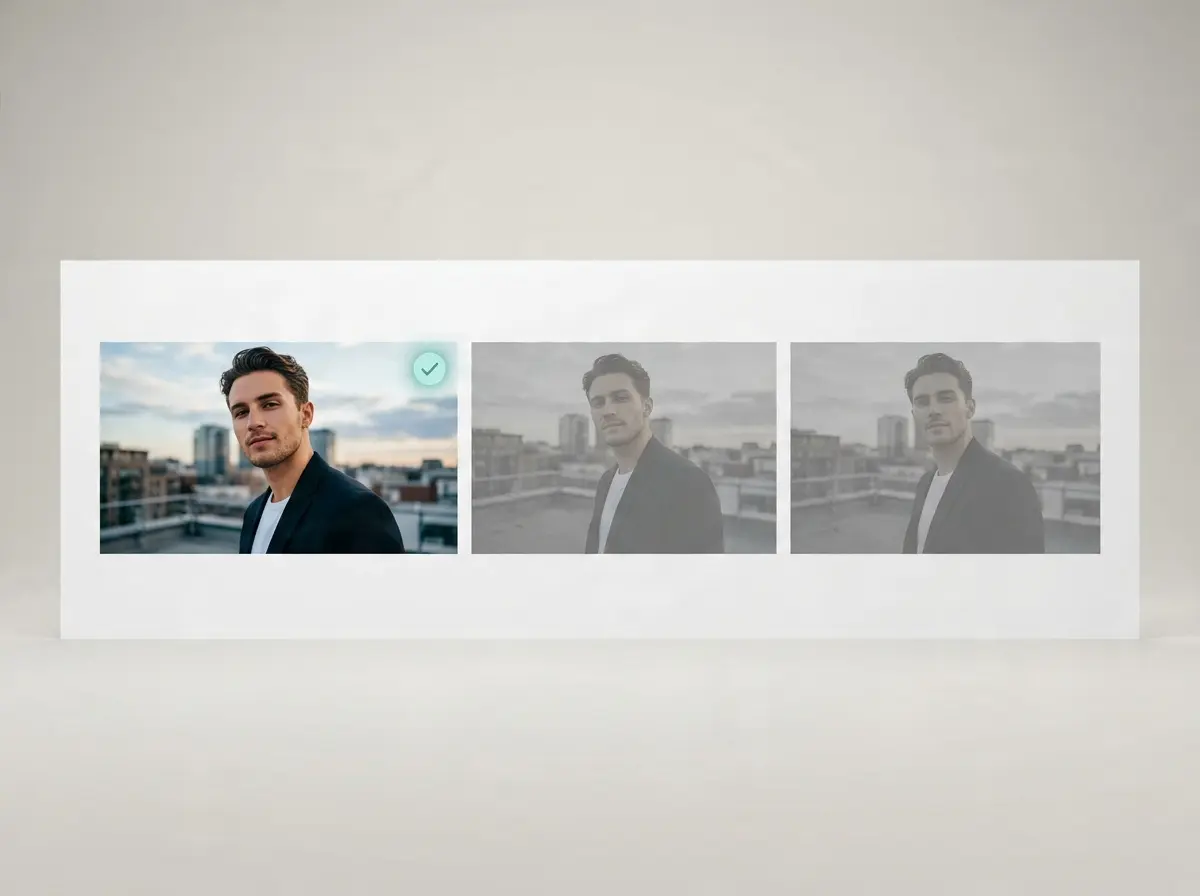
Because the first take is already clean, fewer retries are typically required to reach a version worth exporting.
Fewer Regenerations Needed

Frequently Asked Questions

Why Generate in HD With DreamFace?

Resolution Built Into the Model, Not Added After

Clarity comes from a higher native rendering resolution, not a post-processing sharpen pass layered on top of a lower-quality base.

Quality Holds to the Final Frame

Resolution stays consistent across the full length of a clip rather than tapering off after the opening seconds.

Fast to Compare Multiple Takes

Without a separate enhancement step between generation and review, testing several versions of a prompt takes less time overall.

Prompts and Uploads Aren't Reused

Material submitted to generate a clip is used only for that generation and isn't stored for training or displayed elsewhere.

More Valuable Features from Dreamface

AI Video Generator
Create AI product videos, ad clips, launch teasers, ecommerce demos, and social product content from prompts, images, or templates.
AI Video
Use DreamFace AI Video to turn static product images or text into lifelike video animations with templates, references, and start or end frames.
Video Enhancer
Enhance product clips with AI upscaling, sharper details, better color, and higher-resolution output before publishing ads or ecommerce videos.
Background Remover
Remove product photo backgrounds and prepare clean cutouts for product video scenes, ads, marketplace clips, and branded social promos.

They Love Dreamface

No Upscaling Needed Afterward

I typically run generated clips through a separate upscaler before publishing. That step wasn't necessary here, the export was already clean.

Small Text Stayed Legible

A sign in the background of the scene stayed readable instead of turning into a smear, which is usually the first thing that breaks in AI-generated video.

Held Up Better Than Other Tools I've Tested

After comparing a few other generators this week, this one preserved noticeably more detail once the subject started moving.

Photo-Based Generation Matched the Quality

Most of my work starts from an existing photo rather than a written prompt. Output quality was consistent with the prompt-based clips.

One Regeneration Resolved It

An early take had a minor issue with a hand. Regenerating once produced a clean result, faster than anticipated.

No Upscaling Needed Afterward

I typically run generated clips through a separate upscaler before publishing. That step wasn't necessary here, the export was already clean.

Small Text Stayed Legible

A sign in the background of the scene stayed readable instead of turning into a smear, which is usually the first thing that breaks in AI-generated video.

Held Up Better Than Other Tools I've Tested

After comparing a few other generators this week, this one preserved noticeably more detail once the subject started moving.

Photo-Based Generation Matched the Quality

Most of my work starts from an existing photo rather than a written prompt. Output quality was consistent with the prompt-based clips.

One Regeneration Resolved It

An early take had a minor issue with a hand. Regenerating once produced a clean result, faster than anticipated.