DreamFace

Language

En
    Language
  • English
  • Português
  • 简体中文
  • 繁體中文
  • 日本語
  • Español
  • Bahasa Indonesia
  • ไทย
  • Tiếng Việt
  • हिन्दी
  • Русский
  • Italiano
  • 한국어
  • मराठी
  • Nederlands
  • Norsk
  • ਪੰਜਾਬੀ
  • Polski
  • Dansk
  • Suomi
  • Français
  • Deutsch
  • Svenska
  • Kiswahili
  • తెలుగు
  • Türkçe
  • বাংলা
  • اردو
  • العربية
  • فارسی
  • Ελληνικά
Start Now
Chrome Store
4.9

Chrome Store

20,000,000+

Global Users

Apple Store
4.9

Apple Store

Trusted by Leading Institutions Worldwide

How to Use the AI Image Editor for Free

step 1

Open GPT Images 2.5 and Upload

Select the page's edit button to open GPT Images 2.5 on DreamFace. Follow the account steps shown, review your free credits, and add the picture you want to revise.

step 2

Write One Specific Editing Request

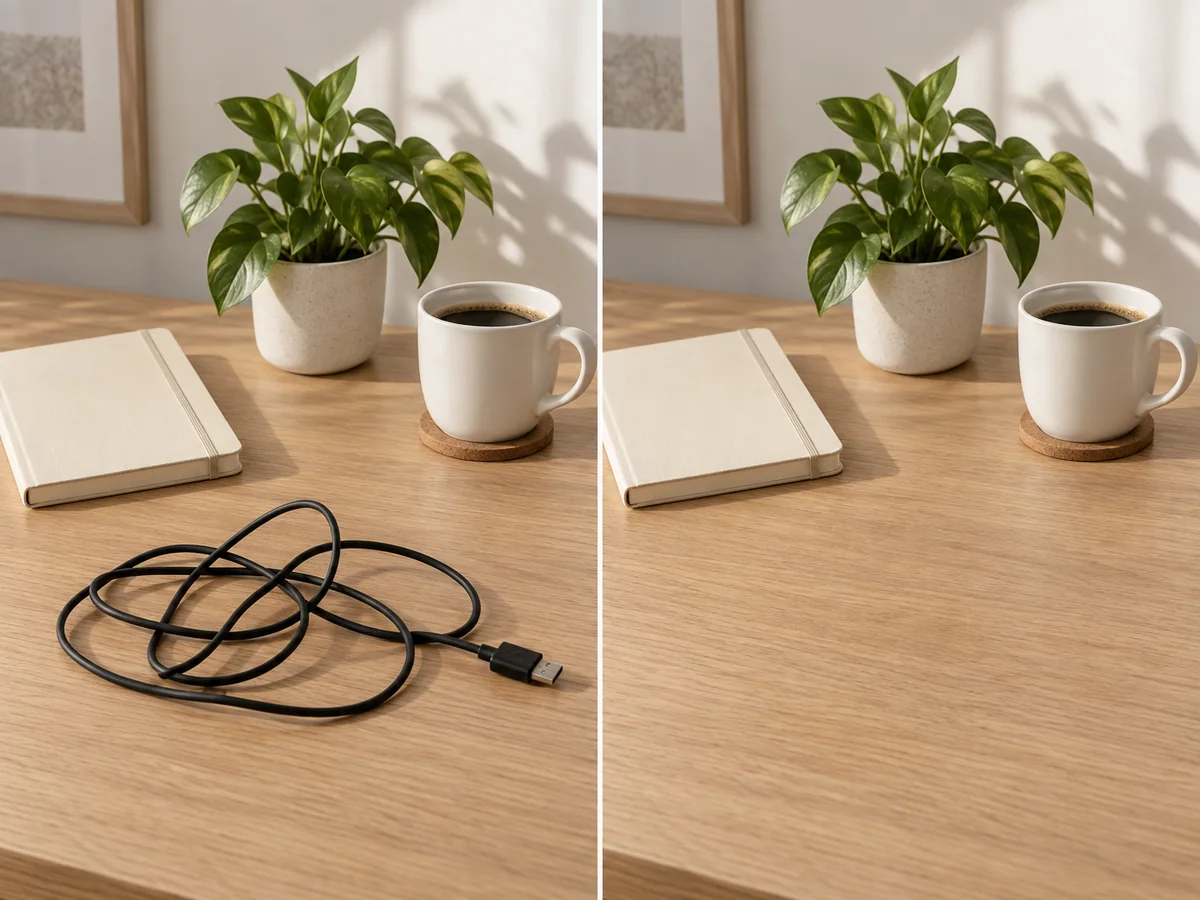
Describe the target and the desired result. For example: "Remove the black charging cable in the foreground. Fill the area with matching wood grain. Keep the notebook, cup, plant, and camera angle unchanged."

step 3

Inspect the Revision and Save

Check the edited area, the subject, and any text at a useful viewing size. If another adjustment is needed, refine your instruction and check the credit cost before continuing. Download the version that works for your project.

Four Practical Edits to Try on Your Next Image

Remove What Pulls Attention Away

A loose cable across a desk or an unwanted prop can distract from the picture you meant to take. Identify the object and ask GPT Images 2.5 to remove it while keeping the surrounding scene. Inspect the filled area afterward, especially where wood grain, edges, or shadows need to continue naturally.
Remove What Pulls Attention Away

Add the Finishing Touch

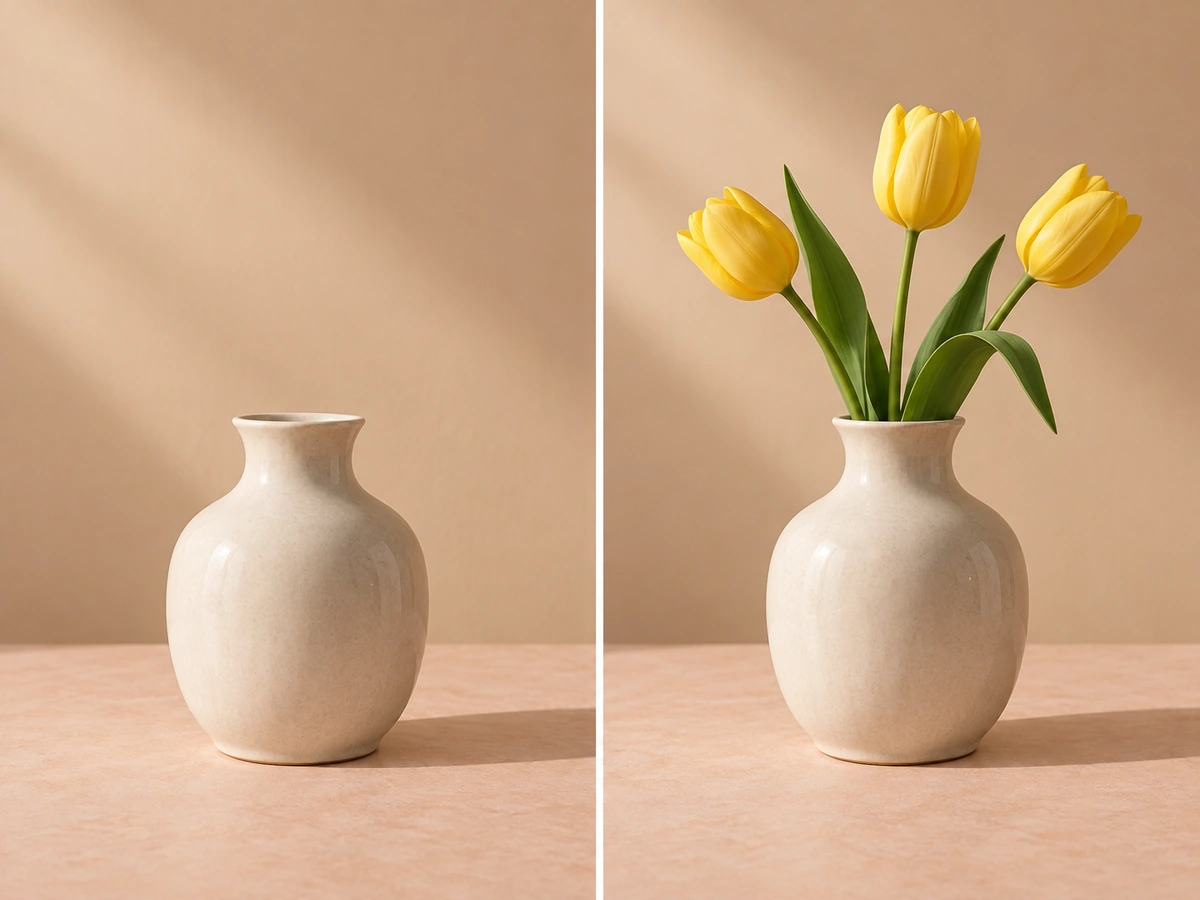
Put a few yellow tulips in an empty vase or add a small decorative object to a sparse tabletop. Specify the item's size, location, and appearance, then ask for lighting and shadows that suit the photo. Use the result to explore a styling idea without arranging a new shoot.
Add the Finishing Touch

Replace a Material or Visual Detail

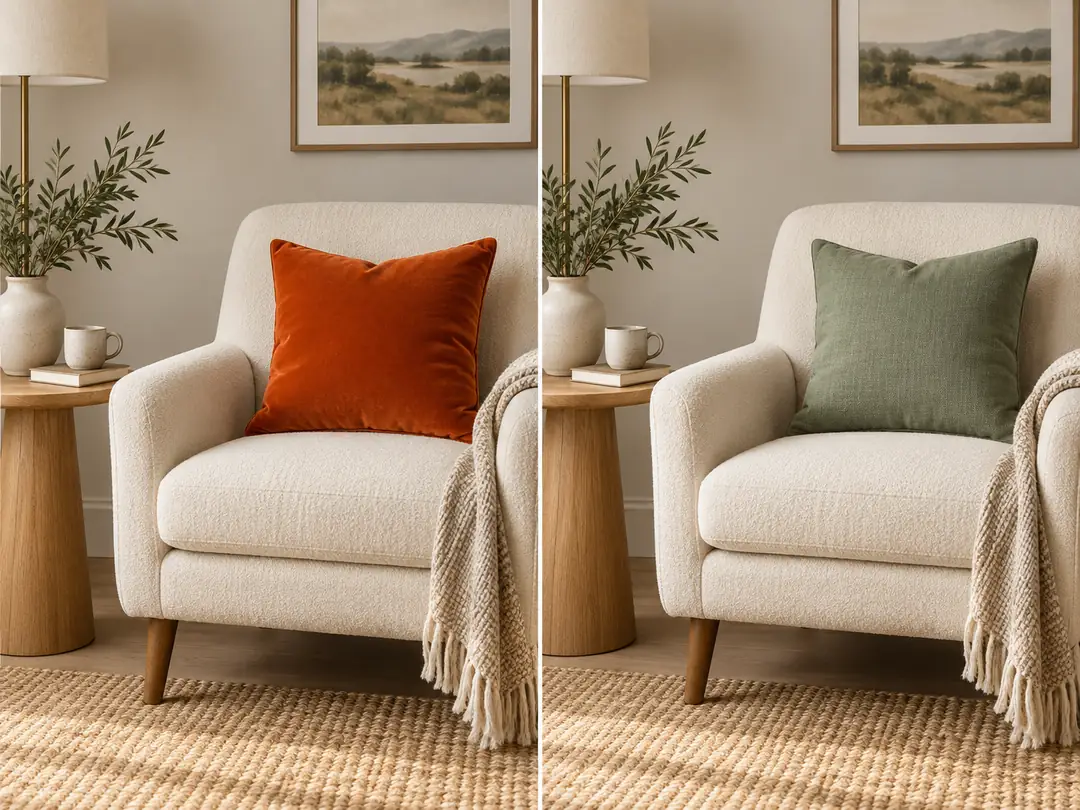
Trade an orange velvet cushion for sage linen, or explore a different finish on a decorative object. Name the item precisely and describe the replacement's color and texture. Ask to retain its position and the wider composition so you can assess how the new detail changes the scene.
Replace a Material or Visual Detail

Update Short Text Inside an Image

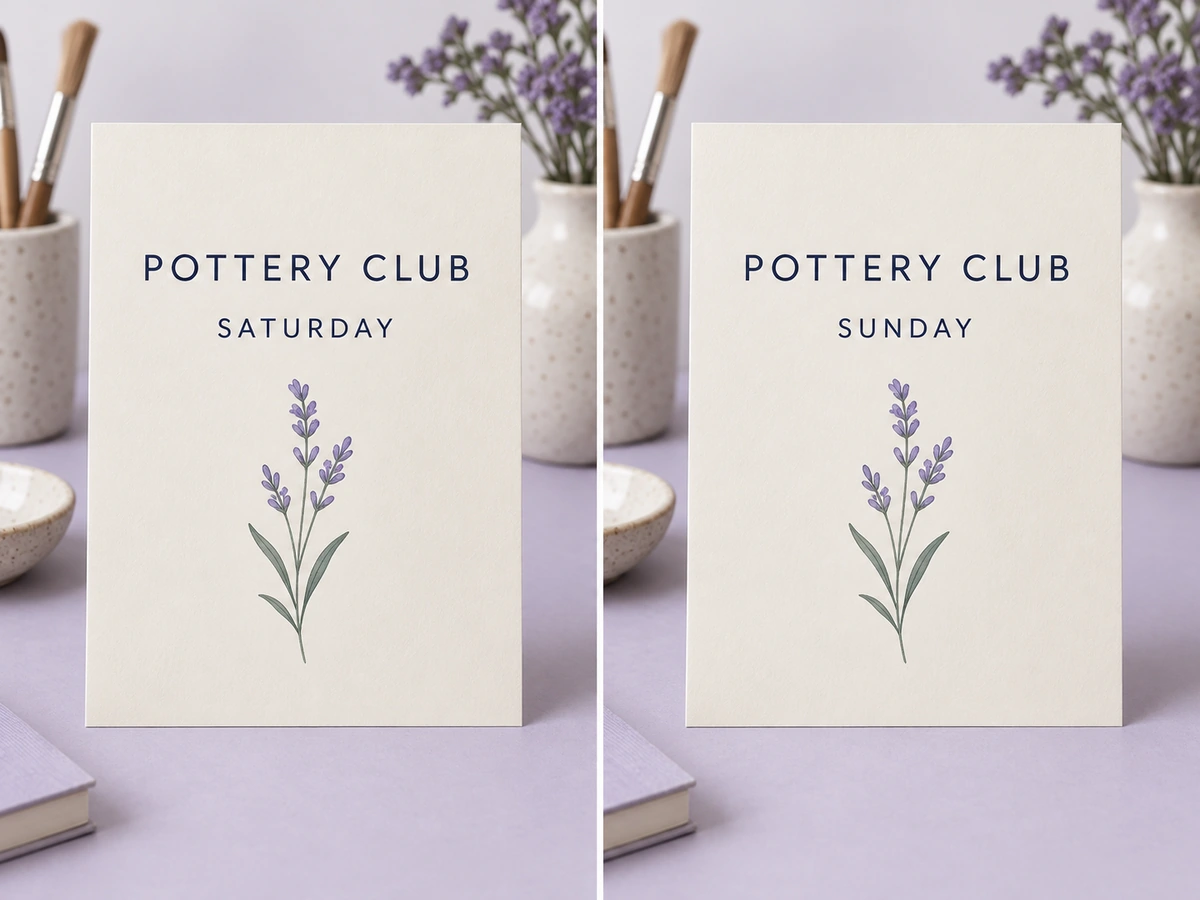
Request a new day on an invitation or replace a short heading in a simple graphic. Quote the original text and its replacement, and describe the layout you want to keep. Check every letter and the surrounding artwork before sharing; generated text and exact typography can need another pass.
Update Short Text Inside an Image

Frequently Asked Questions

An Editing Workflow Built Around Your Intent

Tell the Editor What Needs Changing

Start with the outcome: remove this cable, add three tulips, or replace that cushion. A plain-language request gives you a way to direct a generative edit without describing manual retouching steps.

Work From Your Existing Picture

Upload the image you want to revise so the model can use its visible content as a reference. A clear source makes it easier to identify the object, area, or wording your instruction refers to.

Review an Edit You Can Compare

Begin with one defined change. Compare the revised picture with the original, then decide whether the edit fits your project. Check surrounding details too, because generation can alter more than the requested area.

Try the Workflow With Free Credits

DreamFace provides free credits for trying GPT Images 2.5. Review your allowance and the request cost in the platform before editing. Further requests use credits according to the account options shown.

More Valuable Features from Dreamface

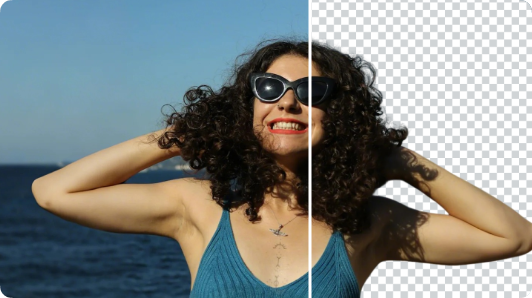
Background Remover
Create a separate subject cutout when your next layout needs one.
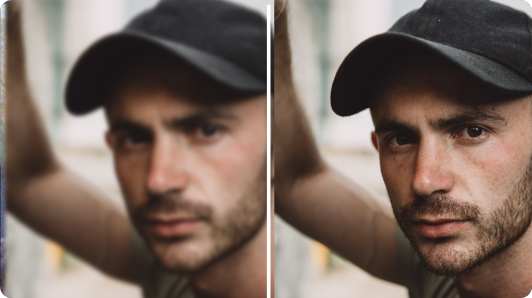
Photo Enhancer
Explore clarity improvements for a photo before deciding which details to edit.
AI Filter
Explore stylized treatments when your goal is a different overall visual look.
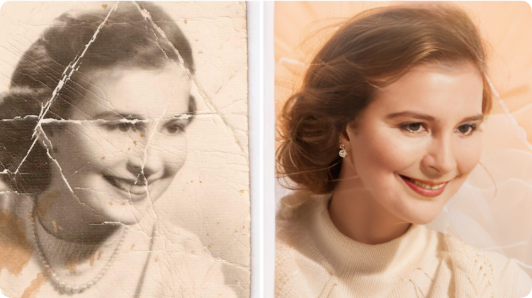
Old Photo Restoration
Find a dedicated starting point for working on an aged family photograph.

They Love Dreamface

Sample Review: The Desk Looked Less Busy

The charging cable was the first thing I noticed in an otherwise useful desk photo. I asked to remove it and keep the notebook and cup. Checking the wood grain afterward helped me decide whether to keep the revision.

Sample Review: I Could Test a Styling Idea

I wondered whether yellow flowers would work in my vase photo. Adding a few tulips gave me a visual to compare with the empty arrangement. It helped me think through the composition before setting it up.

Sample Review: A Texture Change Was Worth Trying

I liked the chair in my room photo but wanted a softer cushion. I described sage linen instead of orange velvet. Seeing the combination made the direction easier to discuss.

Sample Review: A Short Text Update

I tried changing the day on a simple invitation image. I quoted both words in the prompt and checked the new spelling afterward. I also looked over the illustration to see whether it had changed.

Sample Review: One Request Was Easier to Review

I started by asking for several changes at once and found the result hard to judge. Focusing on one object gave me a clearer comparison and a better idea of what to ask for next.

Sample Review: A Useful First Experiment

I checked the available credits and chose one small edit to try. Starting with a photo I already knew made it easier to spot both the improvement and the details that still needed attention.

Sample Review: The Desk Looked Less Busy

The charging cable was the first thing I noticed in an otherwise useful desk photo. I asked to remove it and keep the notebook and cup. Checking the wood grain afterward helped me decide whether to keep the revision.

Sample Review: I Could Test a Styling Idea

I wondered whether yellow flowers would work in my vase photo. Adding a few tulips gave me a visual to compare with the empty arrangement. It helped me think through the composition before setting it up.

Sample Review: A Texture Change Was Worth Trying

I liked the chair in my room photo but wanted a softer cushion. I described sage linen instead of orange velvet. Seeing the combination made the direction easier to discuss.

Sample Review: A Short Text Update

I tried changing the day on a simple invitation image. I quoted both words in the prompt and checked the new spelling afterward. I also looked over the illustration to see whether it had changed.

Sample Review: One Request Was Easier to Review

I started by asking for several changes at once and found the result hard to judge. Focusing on one object gave me a clearer comparison and a better idea of what to ask for next.

Sample Review: A Useful First Experiment

I checked the available credits and chose one small edit to try. Starting with a photo I already knew made it easier to spot both the improvement and the details that still needed attention.