DreamFace

Language

En
    Language
  • English
  • Português
  • 简体中文
  • 繁體中文
  • 日本語
  • Español
  • Bahasa Indonesia
  • ไทย
  • Tiếng Việt
  • हिन्दी
  • Русский
  • Italiano
  • 한국어
  • मराठी
  • Nederlands
  • Norsk
  • ਪੰਜਾਬੀ
  • Polski
  • Dansk
  • Suomi
  • Français
  • Deutsch
  • Svenska
  • Kiswahili
  • తెలుగు
  • Türkçe
  • বাংলা
  • اردو
  • العربية
  • فارسی
  • Ελληνικά
Start Now
Chrome Store
4.9

Chrome Store

20,000,000+

Global Users

Apple Store
4.9

Apple Store

Trusted by Leading Institutions Worldwide

How to Use DreamFace as a ComfyUI Alternative

step 1

Describe What You Want to Create

Open DreamFace Canvas and start with your creative goal. For example, ask for a product advertisement, a cinematic video concept, a character transformation, or social content instead of beginning with an empty node graph.

step 2

Add Images and Reference Materials

Upload useful images or references and explain how they should influence the result. You might identify a subject to preserve, a visual style to explore, a product to feature, or a setting that should guide the creative direction.

step 3

Let the AI Agent Move the Project Forward

Continue through conversation and use the tools available for your task. Review the output, describe what should change, and refine the direction without manually rebuilding a complex node workflow for every iteration.
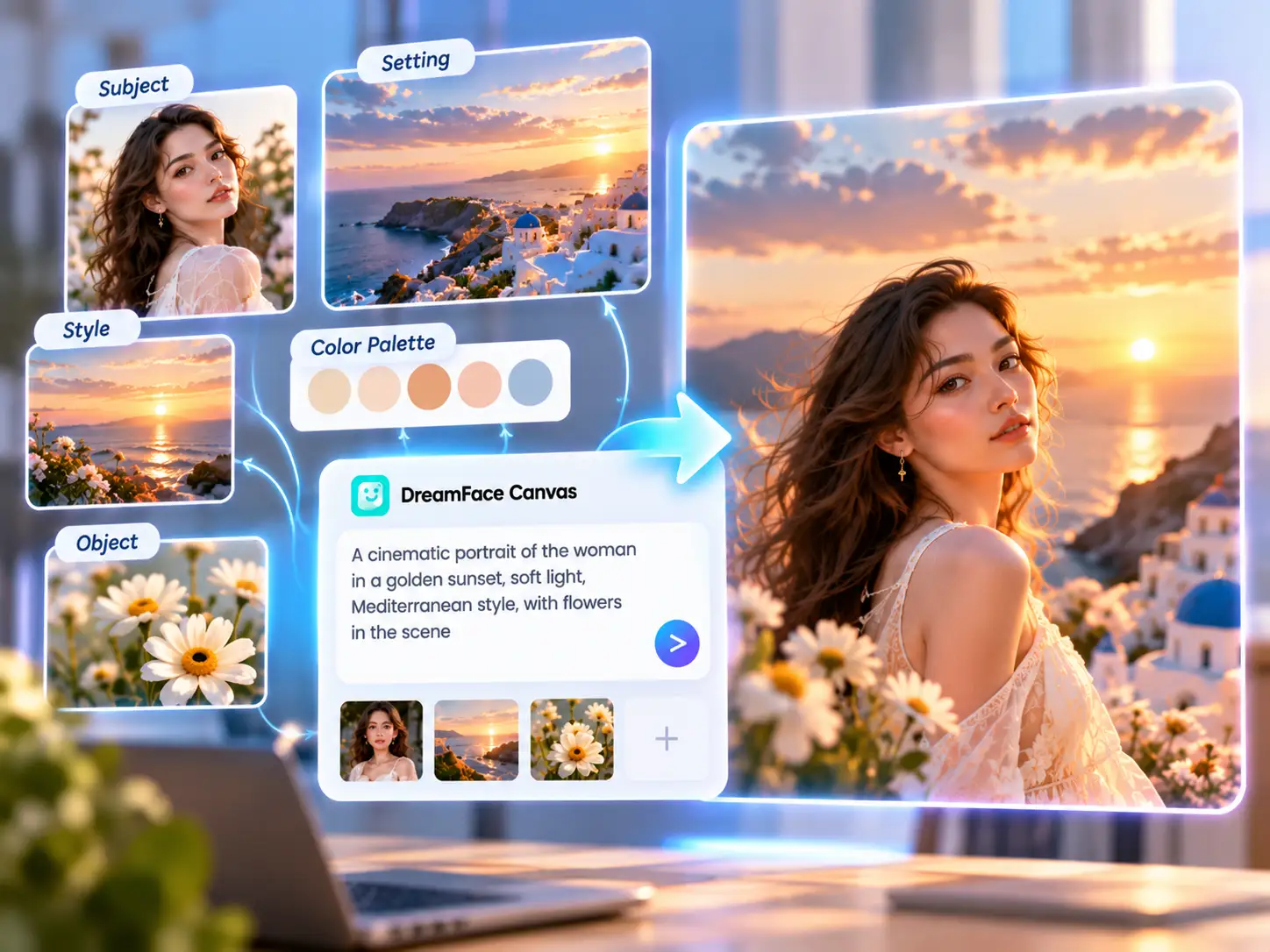
Why Choose DreamFace as a ComfyUI Alternative?

Create Without Connecting Nodes

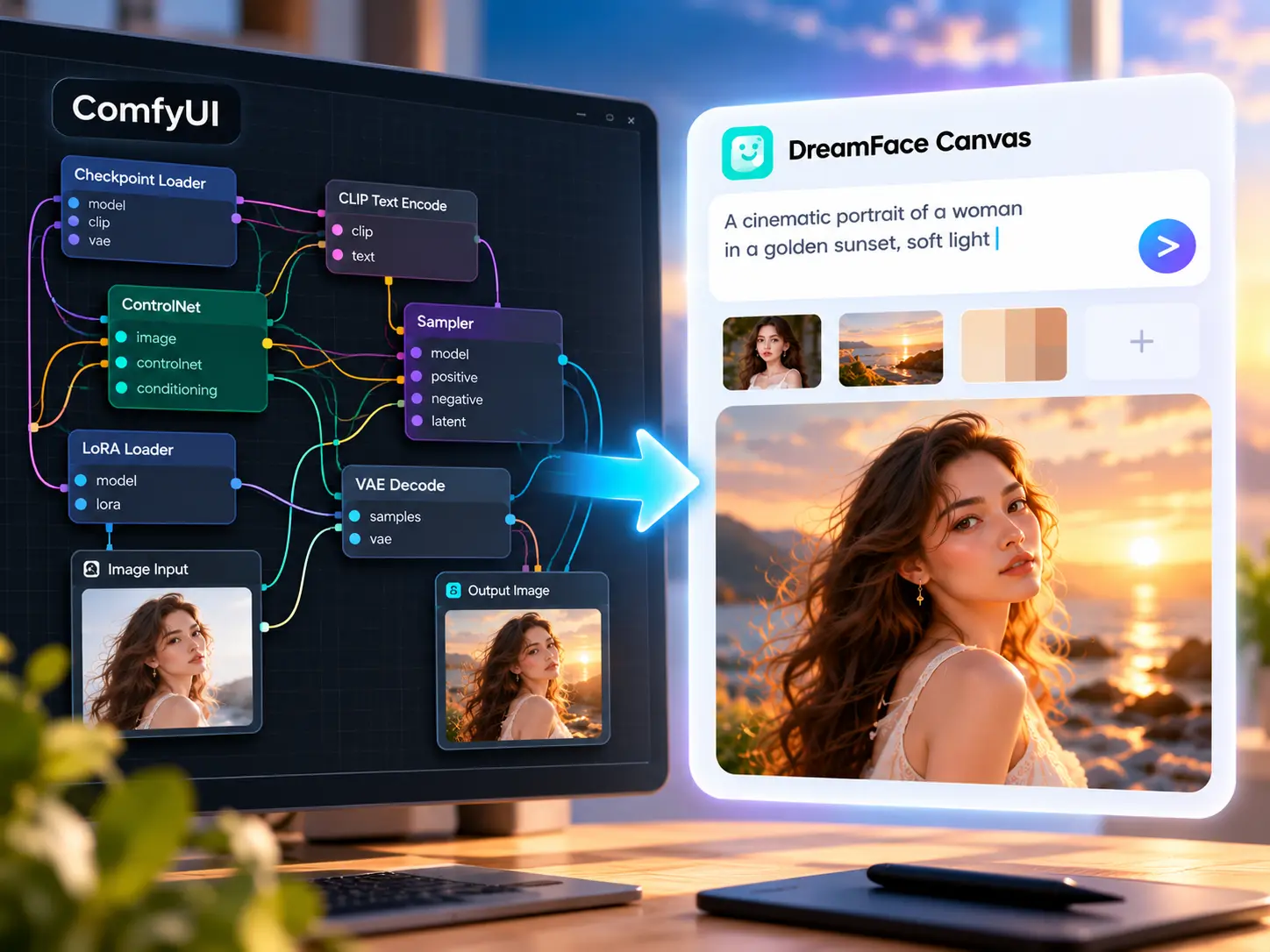
ComfyUI gives advanced users detailed control through node-based workflows. DreamFace Canvas takes a different approach: describe the result you want in natural language, add useful references, and work with an AI agent to develop the task. It is a simpler way to explore AI creation when you would rather focus on the result than build the workflow yourself.
Create Without Connecting Nodes

Bring Images, References, and Ideas Together

Your creative direction does not have to live in a single prompt. Add images or reference materials and explain what matters about them, from the subject and setting to the visual mood. DreamFace Canvas keeps your references and instructions together so the AI agent has more context for the task.
Bring Images, References, and Ideas Together

Move From Ideas to Images and Videos

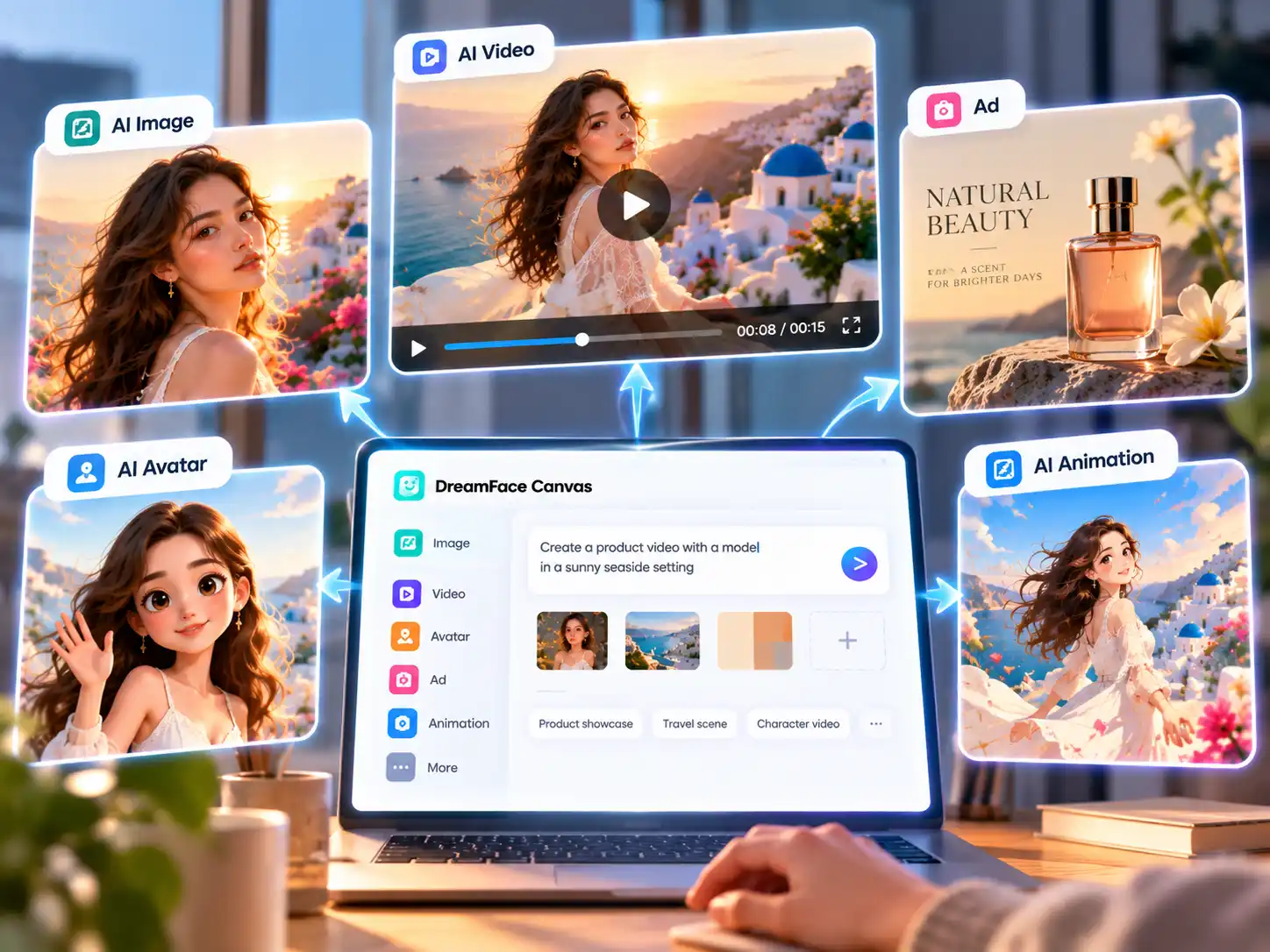
Use one creative workspace to explore different types of AI content. Start with an idea for an image, short video, product ad, character transformation, photo animation, or talking photo. Instead of assembling a new node graph for every creative goal, choose a direction and use the available DreamFace tools to move the project forward.
Move From Ideas to Images and Videos

Use an AI Agent to Guide the Workflow

Tell the agent what you are trying to create rather than specifying every technical step yourself. You can refine the request through conversation, provide additional context, or change the creative direction as the project develops. This makes DreamFace a practical ComfyUI alternative for creators who prefer intent-driven workflows.
Use an AI Agent to Guide the Workflow

Frequently Asked Questions

A Different Approach to AI Creative Workflows

Natural Language Instead of Node Graphs

Start by describing what you want to make. DreamFace Canvas is designed around prompts, references, and AI conversation, so you do not need to manually connect checkpoints, samplers, conditioning, and output nodes before exploring an idea.

One Workspace for Images and Videos

Explore AI image and video tasks from the same creative environment. Depending on the task, DreamFace provides tools for content creation, photo motion, character transformations, talking photos, advertisements, and other visual workflows.

Start Without a Local AI Setup

DreamFace runs online, so you can start creating without configuring a local ComfyUI installation or maintaining your own collection of custom nodes. Open Canvas in your browser, provide your creative direction, and use the tools available for your task.

Refine the Result Through Conversation

A workflow does not have to be rebuilt whenever your idea changes. Explain what you want to keep, remove, or approach differently, then continue developing the project with the agent and the available creative tools.

More Valuable Features from Dreamface

Background Remover
Remove image backgrounds online without building a separate image-processing workflow.
Photo Enhancer
Enhance photo clarity with a dedicated AI tool available directly in DreamFace.
AI Filter
Transform the look of a photo with AI styles without configuring models or custom nodes.
Old Photo Restoration
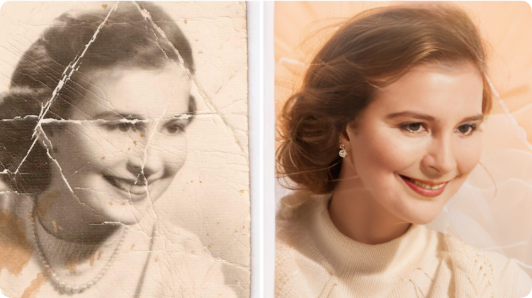
Restore older photos through a ready-to-use AI workflow in your browser.

They Love Dreamface

Sample Review: I Wanted to Create, Not Configure Nodes

I understood why people like node workflows, but I did not want to build one every time I had a new content idea. Starting with a description and a few references felt much closer to the way I normally think about creative work.

Sample Review: Easier to Start With an Idea

Instead of figuring out which nodes I needed first, I started by describing the video I wanted. That made it easier to focus on the concept before worrying about individual production steps.

Sample Review: My References Were Part of the Request

I uploaded the product image and explained which parts of my visual references mattered. Keeping those materials together with the conversation made the creative direction easier to communicate.

Sample Review: No Local Setup Was the Biggest Difference

I wanted to experiment with AI content without setting up models and workflows on my computer. Being able to open the workspace online and start from a creative request made the process much more approachable.

Sample Review: One Workspace for Different Content Ideas

Some days I am thinking about product images and other days I need a short video concept. I liked being able to start from the type of content I wanted instead of creating a completely different technical workflow each time.

Sample Review: Conversation Made Iteration Simpler

When the direction was not quite right, I could explain what I wanted to change instead of thinking about which part of a node graph needed adjustment. That made experimentation feel more natural.

Sample Review: I Wanted to Create, Not Configure Nodes

I understood why people like node workflows, but I did not want to build one every time I had a new content idea. Starting with a description and a few references felt much closer to the way I normally think about creative work.

Sample Review: Easier to Start With an Idea

Instead of figuring out which nodes I needed first, I started by describing the video I wanted. That made it easier to focus on the concept before worrying about individual production steps.

Sample Review: My References Were Part of the Request

I uploaded the product image and explained which parts of my visual references mattered. Keeping those materials together with the conversation made the creative direction easier to communicate.

Sample Review: No Local Setup Was the Biggest Difference

I wanted to experiment with AI content without setting up models and workflows on my computer. Being able to open the workspace online and start from a creative request made the process much more approachable.

Sample Review: One Workspace for Different Content Ideas

Some days I am thinking about product images and other days I need a short video concept. I liked being able to start from the type of content I wanted instead of creating a completely different technical workflow each time.

Sample Review: Conversation Made Iteration Simpler

When the direction was not quite right, I could explain what I wanted to change instead of thinking about which part of a node graph needed adjustment. That made experimentation feel more natural.