DreamFace

Language

En
    Language
  • English
  • Português
  • 简体中文
  • 繁體中文
  • 日本語
  • Español
  • Bahasa Indonesia
  • ไทย
  • Tiếng Việt
  • हिन्दी
  • Русский
  • Italiano
  • 한국어
  • मराठी
  • Nederlands
  • Norsk
  • ਪੰਜਾਬੀ
  • Polski
  • Dansk
  • Suomi
  • Français
  • Deutsch
  • Svenska
  • Kiswahili
  • తెలుగు
  • Türkçe
  • বাংলা
  • اردو
  • العربية
  • فارسی
  • Ελληνικά
Start Now
Chrome Store
4.9

Chrome Store

20,000,000+

Global Users

Apple Store
4.9

Apple Store

Trusted by Leading Institutions Worldwide

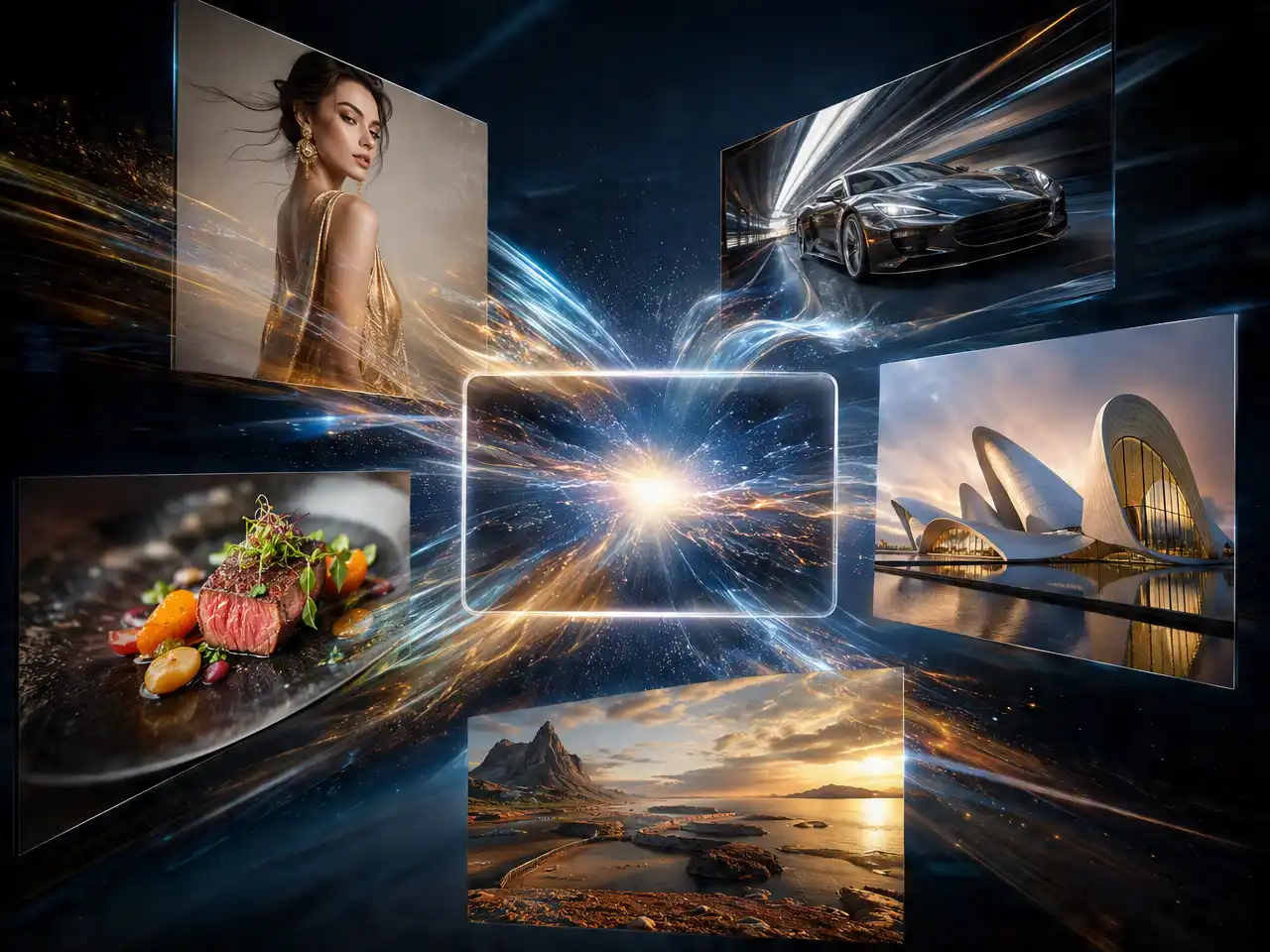
How to Generate Images With GPT Image 2.5

step 1

Upload a Reference Image (Optional)

Add a photo, product shot, or logo if the goal is to edit or extend an existing image rather than generate one from scratch.

step 2

Describe the Result in Plain Language

Write what should change or what the final image should look like, the same way GPT Image 2.5 is designed to be prompted.

step 3

Generate and Refine With Follow-Up Prompts

Review the result and add another instruction to adjust it further, GPT Image 2.5 is built to carry context from one edit into the next.

What's New in GPT Image 2.5

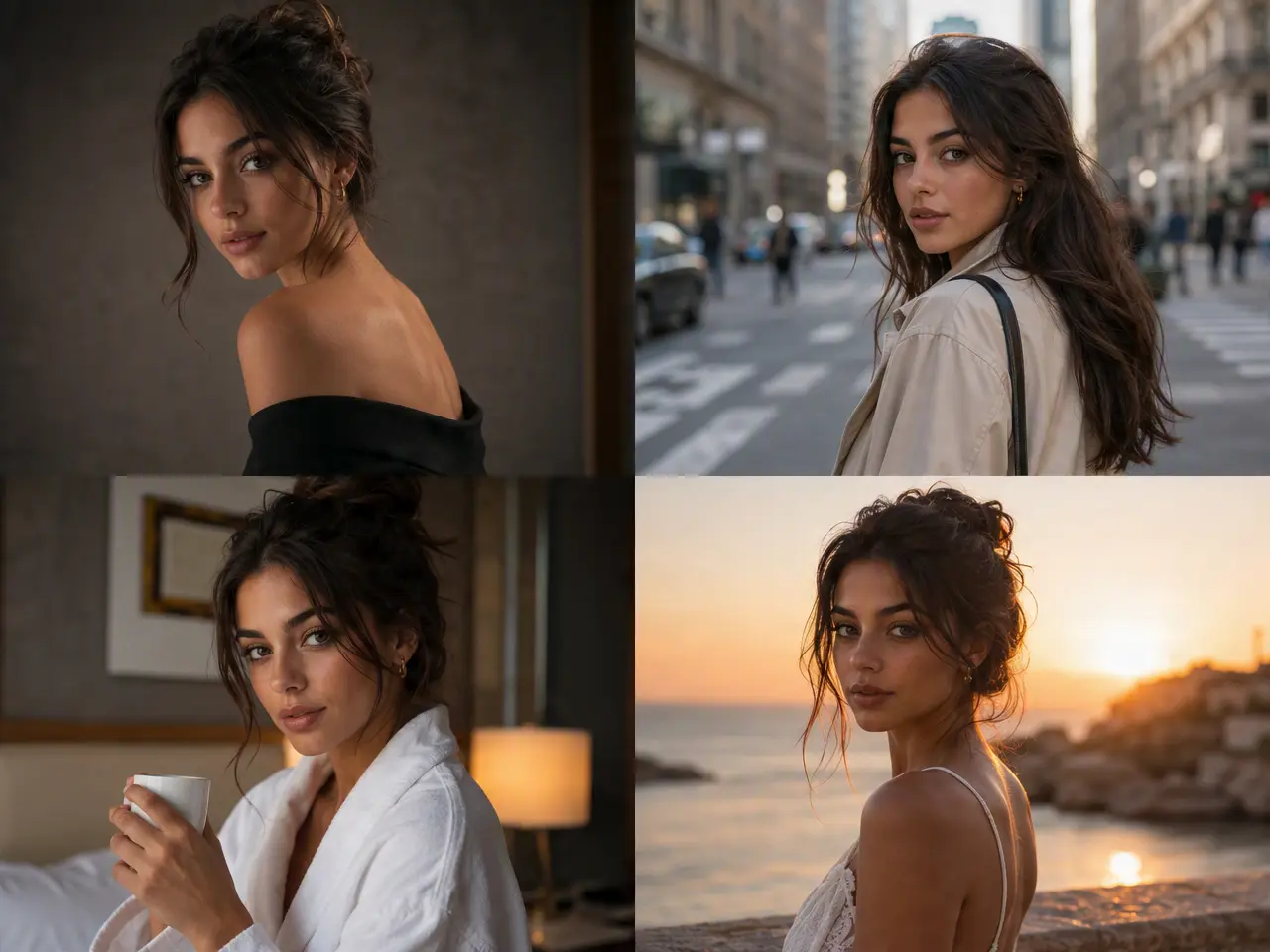
Faces and Products Stay the Same Across Edits

GPT Image 2.5 holds onto the identity pulled from a reference photo, so a face, a product, or a logo carries over accurately from one edit to the next instead of just the first one.
Faces and Products Stay the Same Across Edits

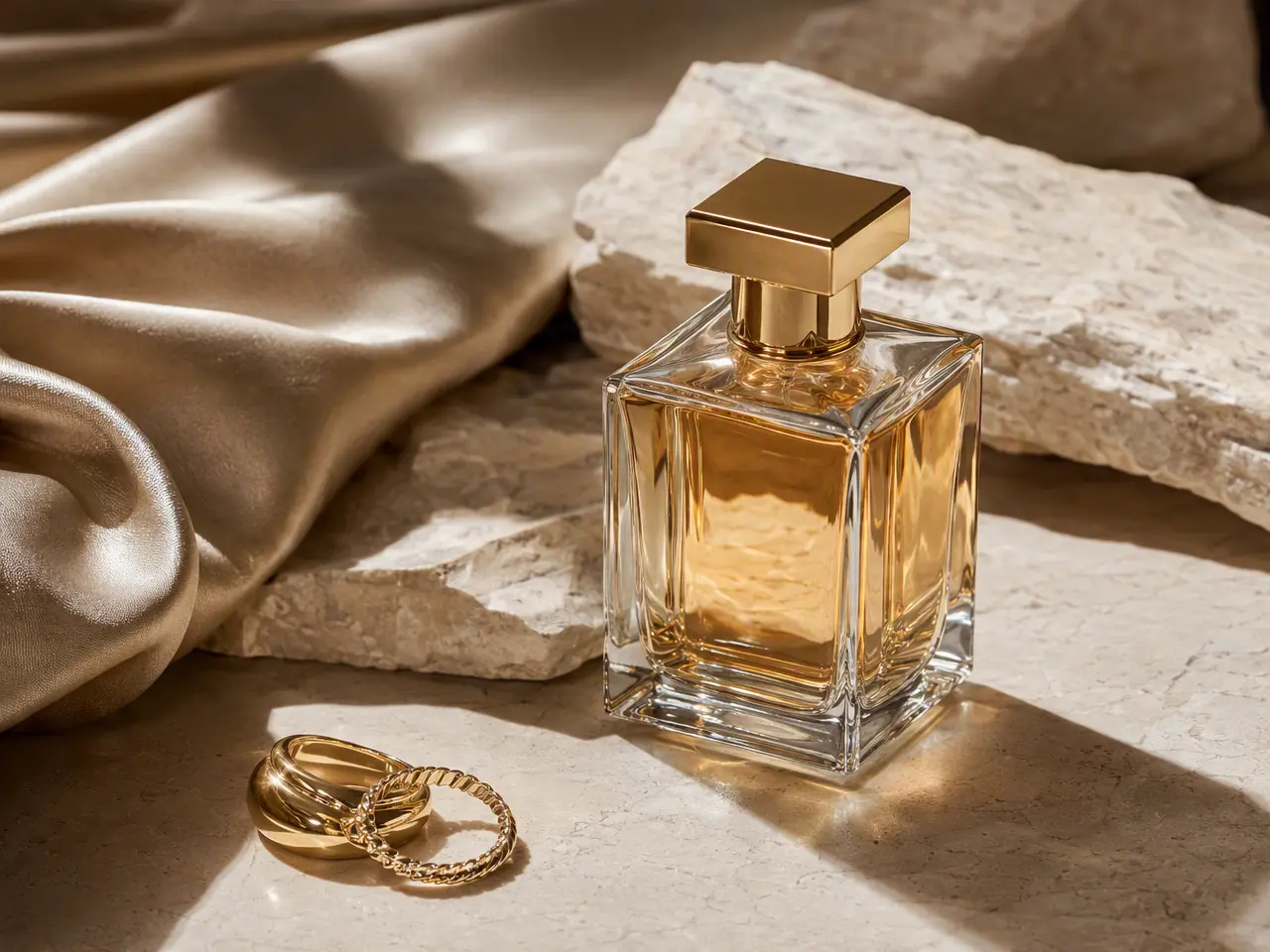
Lighting and Texture Read as Photographic, Not Flat

OpenAI built the model to render more natural lighting and richer surface detail than its Images 2.0 predecessor, with cleaner transparent-background output for cutouts and product shots.
Lighting and Texture Read as Photographic, Not Flat

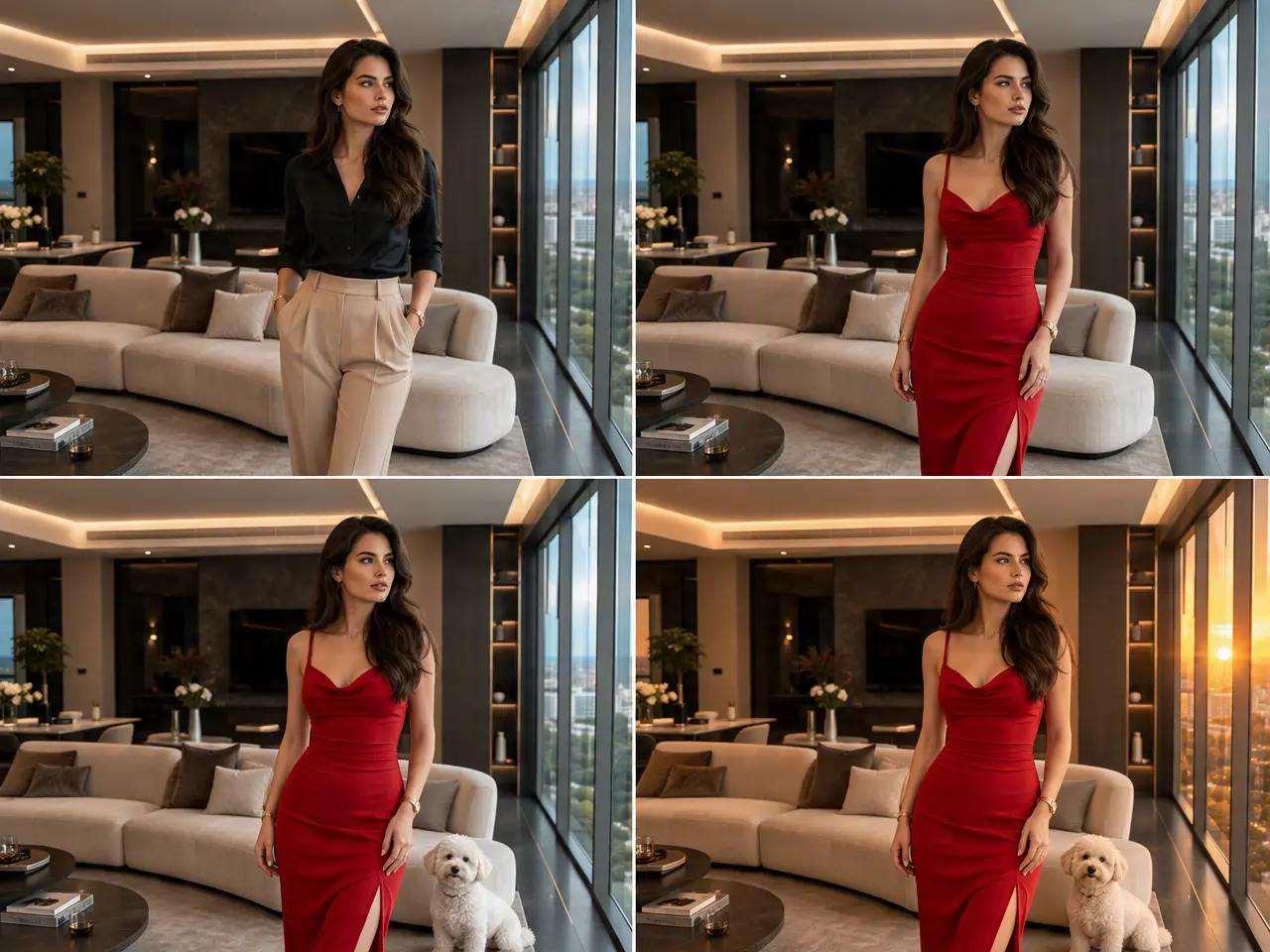
Multi-Turn Edits Don't Lose the Thread

A second or third round of edits builds on what came before instead of drifting away from earlier instructions, so a longer editing session stays consistent with the original request.
Multi-Turn Edits Don't Lose the Thread

Generation Runs Noticeably Faster Than the Previous Model

OpenAI reports generation latency cut by up to 50% compared with Images 2.0, so results come back quicker without hunting for a separate fast-mode setting.
Generation Runs Noticeably Faster Than the Previous Model

Frequently Asked Questions

How GPT Image 2.5 Fits Into DreamFace's Image Tools

Two Model Variants Behind the Scenes

OpenAI splits GPT Image 2.5 into Flare, tuned for fast everyday generation, and Sunburst, tuned for slower and more precise editing work, DreamFace draws on the same underlying model family.

Built on OpenAI's Newest Image Architecture

Released in September 2026 as OpenAI's replacement for Images 2.0, GPT Image 2.5 is the model DreamFace now routes these generation and editing requests through, not an older or substitute model.

No Extra Software or Manual Retouching Step

Uploading a reference photo and describing the edit in plain language is enough, there's no separate retouching pass needed afterward to fix lighting or texture mismatches.

Reference Photos Are Used Only for That Generation

An uploaded reference image is used to produce the requested output and isn't repurposed elsewhere on DreamFace.

More Valuable Features from Dreamface

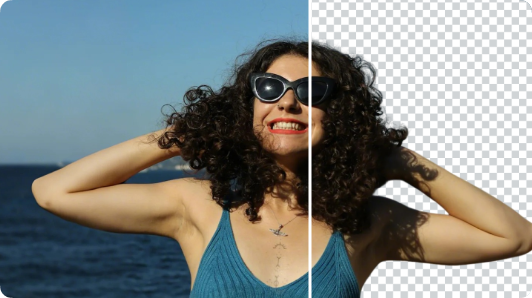
Background Remover
Remove photo backgrounds and prepare clean cutouts for product shots, listings, and social promos.
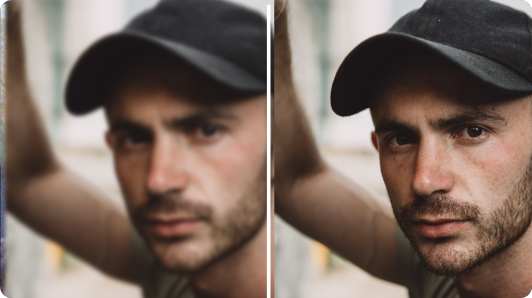
Photo Enhancer
Sharpen low-resolution photos and boost clarity and detail before printing, publishing, or resizing an image up.
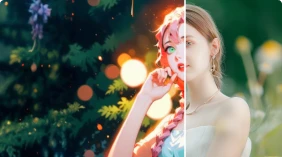
AI Filter
Apply stylized AI filters to photos for profile pictures, social posts, and quick creative edits.
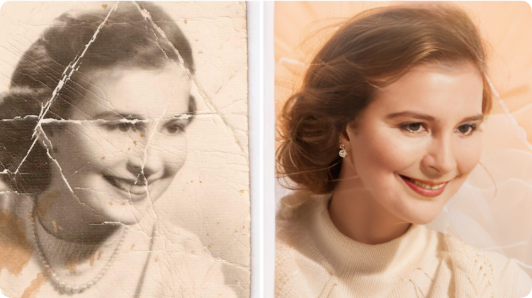
Old Photo Restoration
Repair scratches, fading, and damage in old photographs, restoring color and detail for family archives.

They Love Dreamface

Didn't Expect the Face to Hold Up This Well

Ran the same character through four separate edits expecting some drift by the end. The face and expression stayed close to the original reference the whole way through.

Noticeably Quicker Than the Model I Was Using Before

Wasn't expecting much of a speed difference switching models. Results came back visibly faster on the same kind of prompt.

Transparent Background Came Out Clean on the First Try

Needed a product cutout for a listing and expected to clean up the edges myself afterward. The exported background was clean enough to use as-is.

Follow-Up Edits Actually Built on the Last One

Usually a third round of edits starts ignoring earlier instructions. This kept the changes from the first two edits intact while applying the new one.

Lighting Looked More Natural Than I Expected

Compared the same prompt across two models side by side. The lighting and shadows here read less artificial in the final image.

Switched Over From a Different Model Mid-Project

Started a set of product images with a different model, finished the batch with GPT Image 2.5 out of curiosity. Didn't need to redo the earlier ones to make them match.

Didn't Expect the Face to Hold Up This Well

Ran the same character through four separate edits expecting some drift by the end. The face and expression stayed close to the original reference the whole way through.

Noticeably Quicker Than the Model I Was Using Before

Wasn't expecting much of a speed difference switching models. Results came back visibly faster on the same kind of prompt.

Transparent Background Came Out Clean on the First Try

Needed a product cutout for a listing and expected to clean up the edges myself afterward. The exported background was clean enough to use as-is.

Follow-Up Edits Actually Built on the Last One

Usually a third round of edits starts ignoring earlier instructions. This kept the changes from the first two edits intact while applying the new one.

Lighting Looked More Natural Than I Expected

Compared the same prompt across two models side by side. The lighting and shadows here read less artificial in the final image.

Switched Over From a Different Model Mid-Project

Started a set of product images with a different model, finished the batch with GPT Image 2.5 out of curiosity. Didn't need to redo the earlier ones to make them match.