
'%3e%3cg%3e%3cpath%20d='M12.04834,6.05824C12.09325,4.8457799999999995,12.43703,3.78081,13.0715,2.89055C13.7092,1.995784,14.7633,1.3601670000000001,16.2063,1C16.215899999999998,1.0440338,16.2259,1.088092,16.2363,1.131979L16.2363,1.3623509999999999C16.2363,1.884725,16.1084,2.48372,15.856,3.14258C15.5915,3.78052,15.1781,4.38093,14.6291,4.92281C14.1157,5.40028,13.6406,5.71638,13.2207,5.85928C13.0822,5.9003,12.89209,5.94066,12.66255,5.97701C12.45842,6.00853,12.25362,6.03563,12.04834,6.05824ZM12.28933,7.85741C10.6594,7.85741,9.52778,6.42896,7.91997,6.42896C6.31224,6.42896,3,7.89332,3,12.9488C3,18.0043,5.94131,21.2617,6.27029,21.642C6.599209999999999,22.0224,7.36005,23,8.5387,23C9.71744,23,11.00787,22.0715,12.28933,22.0715C13.5707,22.0715,15.1836,23,16.2365,23C17.2895,23,17.7226,22.5747,18.4392,21.8411C19.1558,21.1074,20.5227,18.8686,21,17.5248C20.2137,17.061,18.1298,15.8019,18.1298,12.9488C18.1298,11.0468,18.831200000000003,9.4667,20.2341,8.20853C19.3138,7.02216,18.2464,6.42896,17.0318,6.42896C15.2099,6.42896,13.9193,7.85741,12.28933,7.85741Z'%20fill='%23000000'%20fill-opacity='1'/%3e%3c/g%3e%3c/g%3e%3c/svg%3e)
'%3e%3cg%3e%3cpath%20d='M6.2985500000000005,2L14.60082,10.81153L16.7432,8.537289999999999C13.81573,6.65184,9.89484,4.122529999999999,8.13152,2.985321L6.95017,2.225593C6.74135,2.090554,6.5177700000000005,2.0178354,6.2985500000000005,2ZM5.0312551,3.05499C5.0144537,3.1518100000000002,5,3.24911,5,3.35357L5,20.7675C5,20.8406,5.0138389,20.9085,5.0234395,20.9782L13.4695,12.0125L5.0312551,3.05499ZM18.1511,9.444659999999999L15.7321,12.0125L18.1089,14.5354C19.3682,13.7252,20.2405,13.1626,20.3372,13.1007C20.7653,12.8229,21.007,12.4039,20.9998,11.94614C20.9934,11.49683,20.7516,11.09514,20.340400000000002,10.84799C20.2484,10.79194,19.387999999999998,10.24048,18.1511,9.444659999999999ZM14.60082,13.2134L6.3235600000000005,22C6.48437,21.9703,6.64498,21.9194,6.79859,21.8209C7.01141,21.6833,12.76069,17.9805,16.701,15.4428L14.60082,13.2134Z'%20fill='%23000000'%20fill-opacity='1'/%3e%3c/g%3e%3c/g%3e%3c/svg%3e)

How to Create a Viral “AI Baby Calling Dad” Video on TikTok
If you’ve spent any time on TikTok lately, you might have seen one of the most heart-melting viral clips — an AI-generated baby peeking shyly from behind a door, softly saying “daddy” in different tones. With over 105K likes and thousands of comments, this short video has taken the internet by storm.
- AI Video
- AI Baby
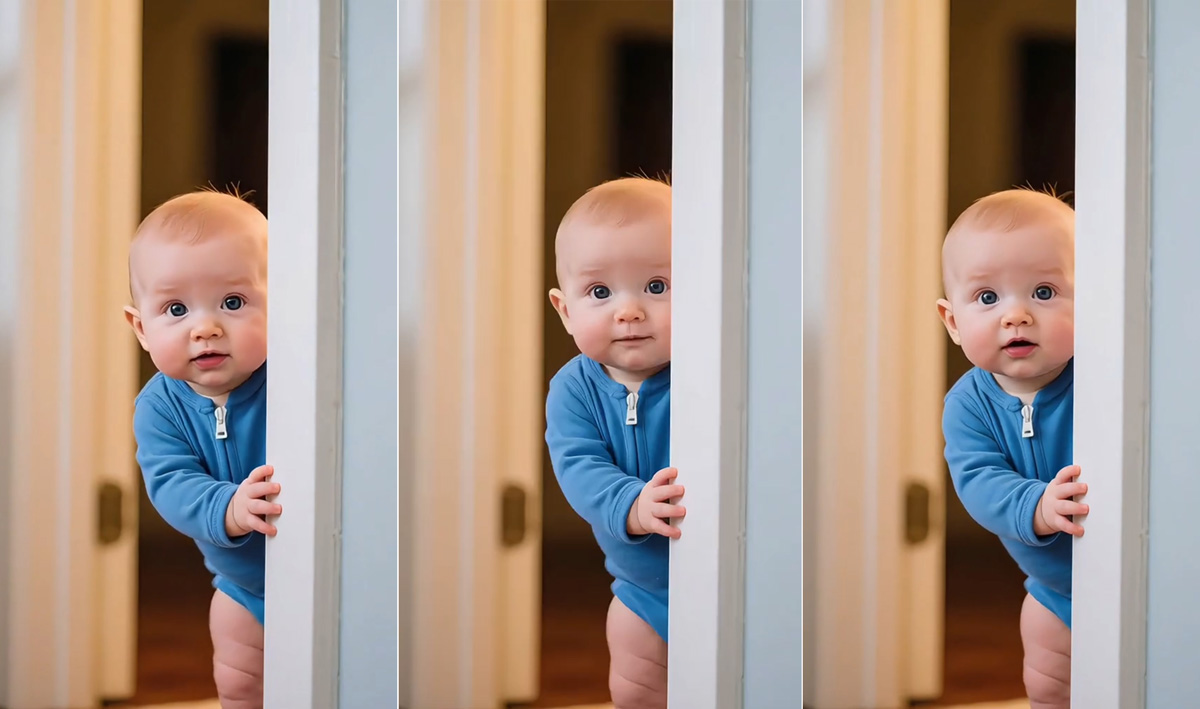
If you’ve spent any time on TikTok lately, you might have seen one of the most heart-melting viral clips — an AI-generated baby peeking shyly from behind a door, softly saying “daddy” in different tones. With over 105K likes and thousands of comments, this short video has taken the internet by storm.
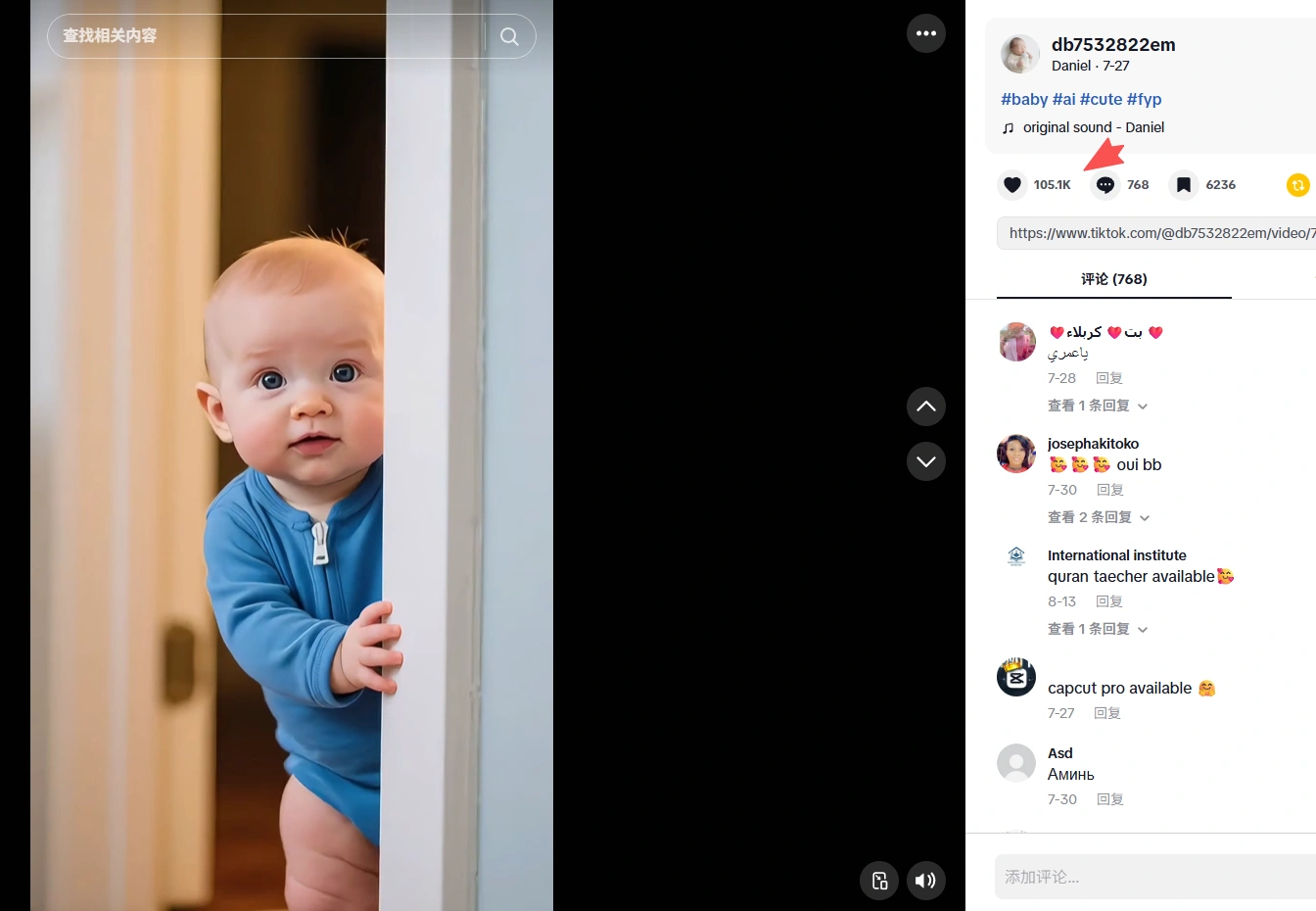
The scene is irresistibly cute: a chubby baby in a blue romper, half-hidden behind a door, peeking out with big, curious eyes. The baby looks shy but affectionate — whispering “daddy” in a mix of giggles and gentle murmurs. It feels real, emotional, and pure… yet the entire video is AI-generated.
This is the magic of modern creative tools like DreamFace and Veo 3 Fast — turning simple text prompts into cinematic, emotional videos that go viral overnight. Let’s break down how you can make your own AI baby video that melts hearts and earns 100K+ likes.
Step 1: Generate the Scene with DreamFace + Veo 3 Fast
Start by using DreamFace integrated with Veo 3 Fast, an AI video generation model that transforms text prompts into lifelike video clips.
Here’s an example prompt:
“A cute baby in a blue onesie, standing behind a white door, peeking out shyly with a warm smile and big bright eyes, softly lit indoor scene.”
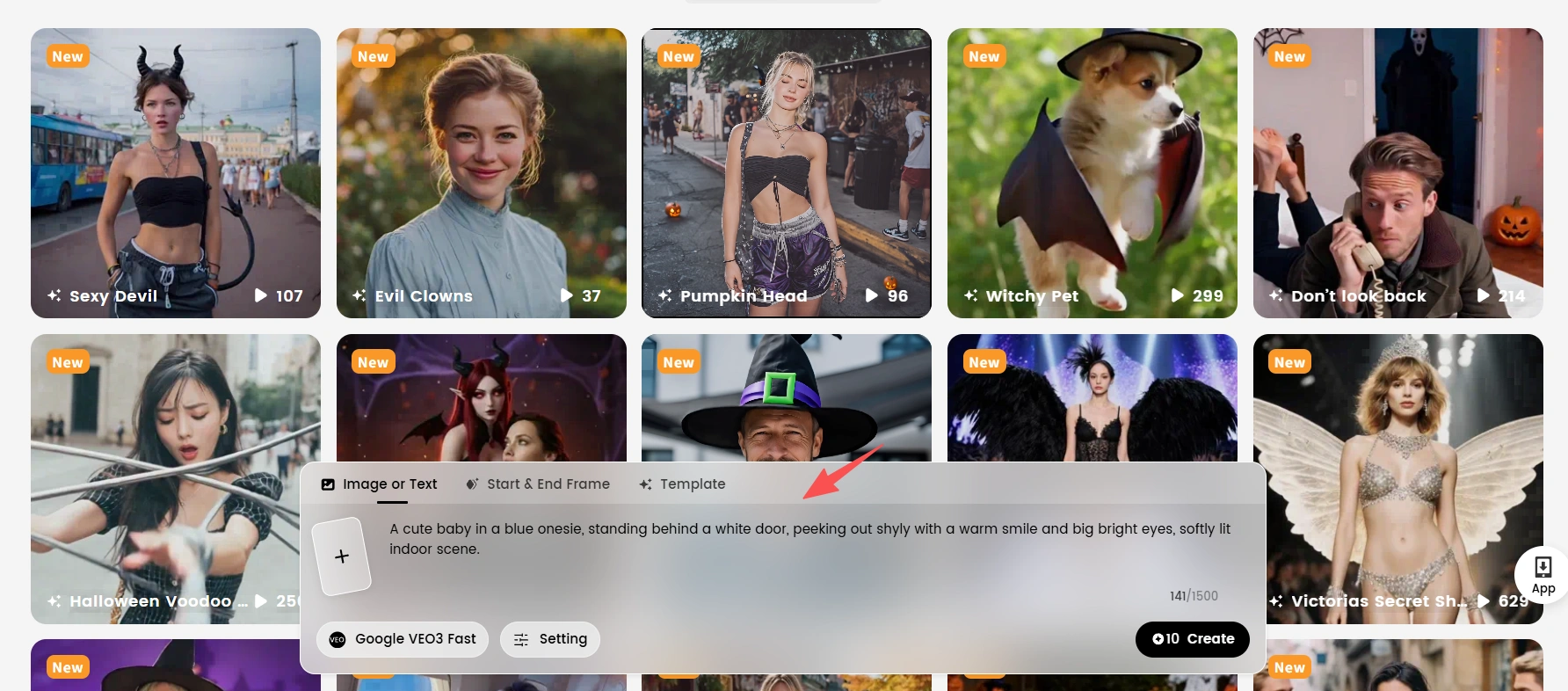
You can customize details such as:
- Age or appearance: chubby baby, toddler, or cartoon-style infant
- Expression: curious, shy, smiling, or giggling
- Environment: cozy home background, soft lighting, realistic textures
Veo 3 Fast will render the clip quickly — usually within minutes — and the result looks like something captured by a real camera.
💡 Pro tip: Use descriptive emotional language in your prompt (“shy,” “innocent,” “curious”) to make the AI capture subtle facial expressions.
Step 2: Animate Speech with Dream Avatar
Now it’s time to bring your baby to life! Upload the generated clip into Dream Avatar, which allows you to sync lip movements and facial expressions to any voice track.
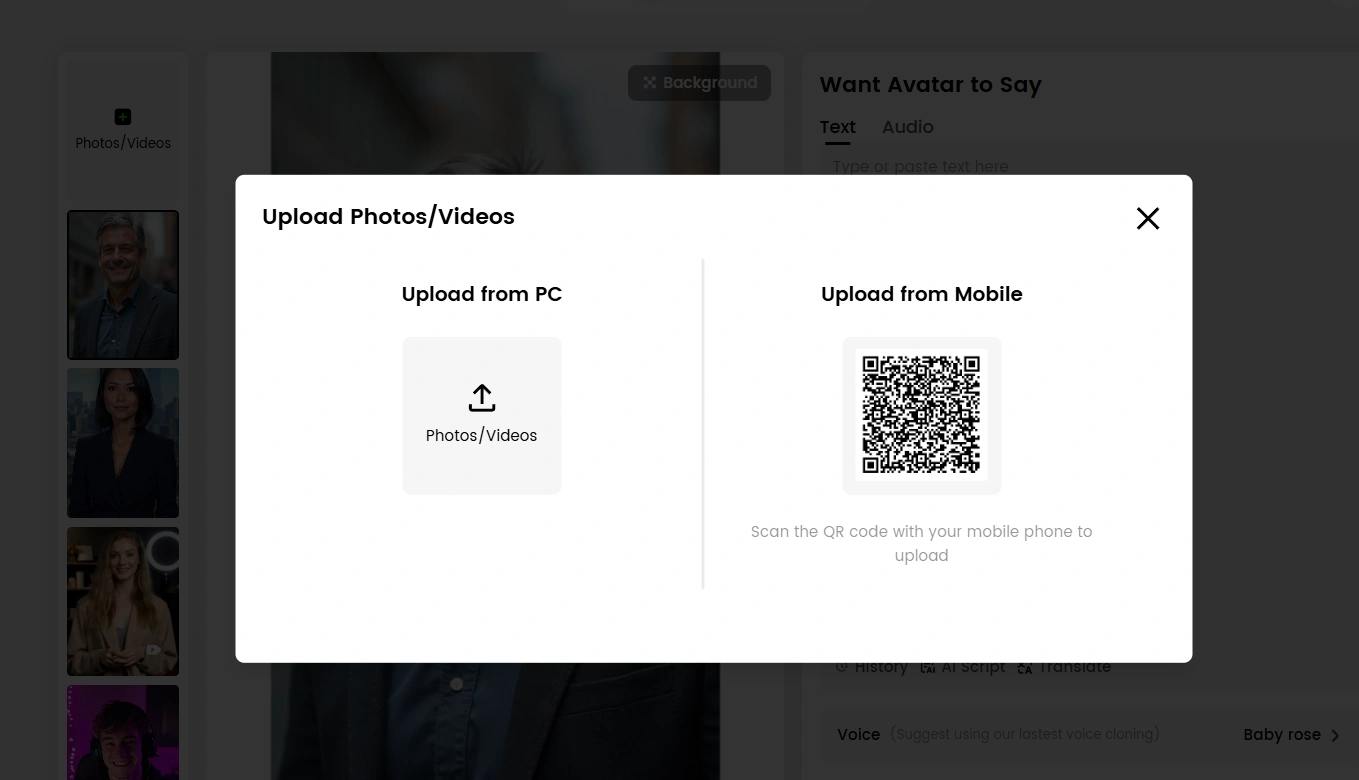
Record or upload an audio file where a baby softly says “daddy” in different tones — gentle, playful, surprised, or sleepy. Dream Avatar will automatically align the baby’s mouth and face movements with the voice, creating a natural, heartwarming result.
💡 Tip: You can experiment with layering different voice tones to make the baby sound more expressive — just like the viral version on TikTok.
Step 3: Add Finishing Touches — Audio, Captions, and Emotion
Once your AI baby clip is ready, download it and do some light editing. Tools like CapCut or InShot are perfect for quick finishing touches.
You can:
- Add soft background music (like lullaby tones or gentle piano).
- Include captions such as “When your baby says ‘daddy’ for the first time 😭💙.”
- Use slow zoom or fade-in effects to enhance the emotional atmosphere.
These subtle edits can turn your short AI clip into a viral emotional masterpiece.
Why the AI Baby Video Went Viral
The secret behind its virality is emotion. The AI baby video taps into universal feelings of love, innocence, and family connection — themes that always perform well on TikTok. Combined with the realistic visuals and soft lighting, it becomes nearly impossible not to smile (or cry a little).
What makes it even more powerful is that anyone can create it — no filming, no baby actors, just creativity and the right AI tools.
Final Thoughts
AI is changing how we tell stories. With platforms like DreamFace, Veo 3 Fast, and Dream Avatar, even beginners can craft deeply emotional, photorealistic videos that reach millions.
So next time you want to capture hearts online — whether it’s a singing cat, a talking robot, or a baby calling for dad — remember: your next viral video could be just one prompt away.
Create. Share. Melt hearts. ❤️
.webp)
DreamFace AI Live Avatar: Always-On AI Character Livestreaming
Turn any character into an always-on live streaming host — from talk shows and quizzes to memorial tributes and late-night companionship — with no one required behind the camera.
By Daniel一Aug 18, 2026- AI Video
- AI Live Avatar
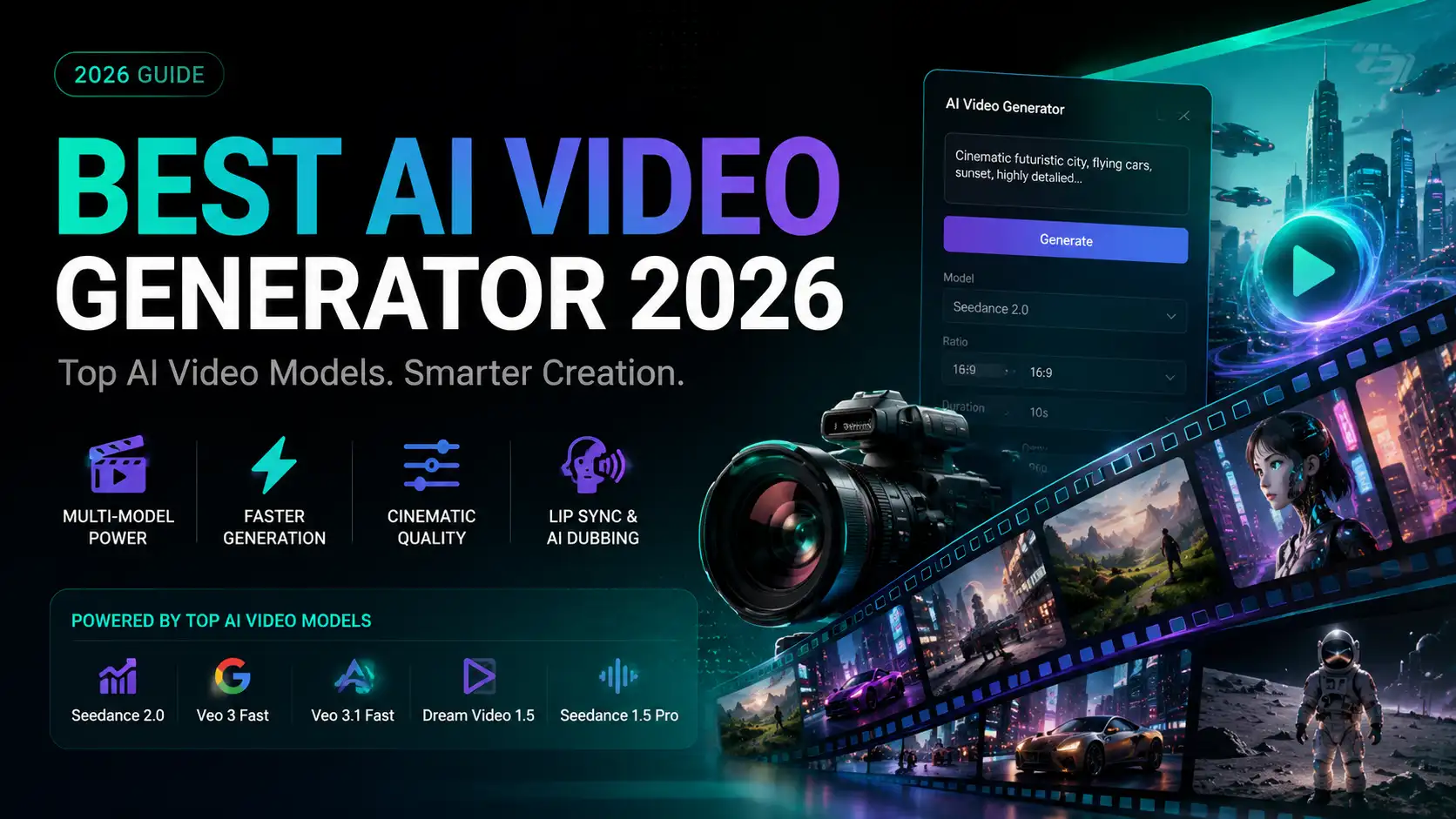
Best AI Video Generator 2026: Why Multi-Model AI Platforms Are Winning
AI video generation has entered a completely new era in 2026. What started as short experimental clips has rapidly evolved into cinematic storytelling, AI anime production, virtual influencers, talking avatars, and fully AI-generated social media content.
By Bentley一May 26, 2026- AI Video Generator
- AI Video
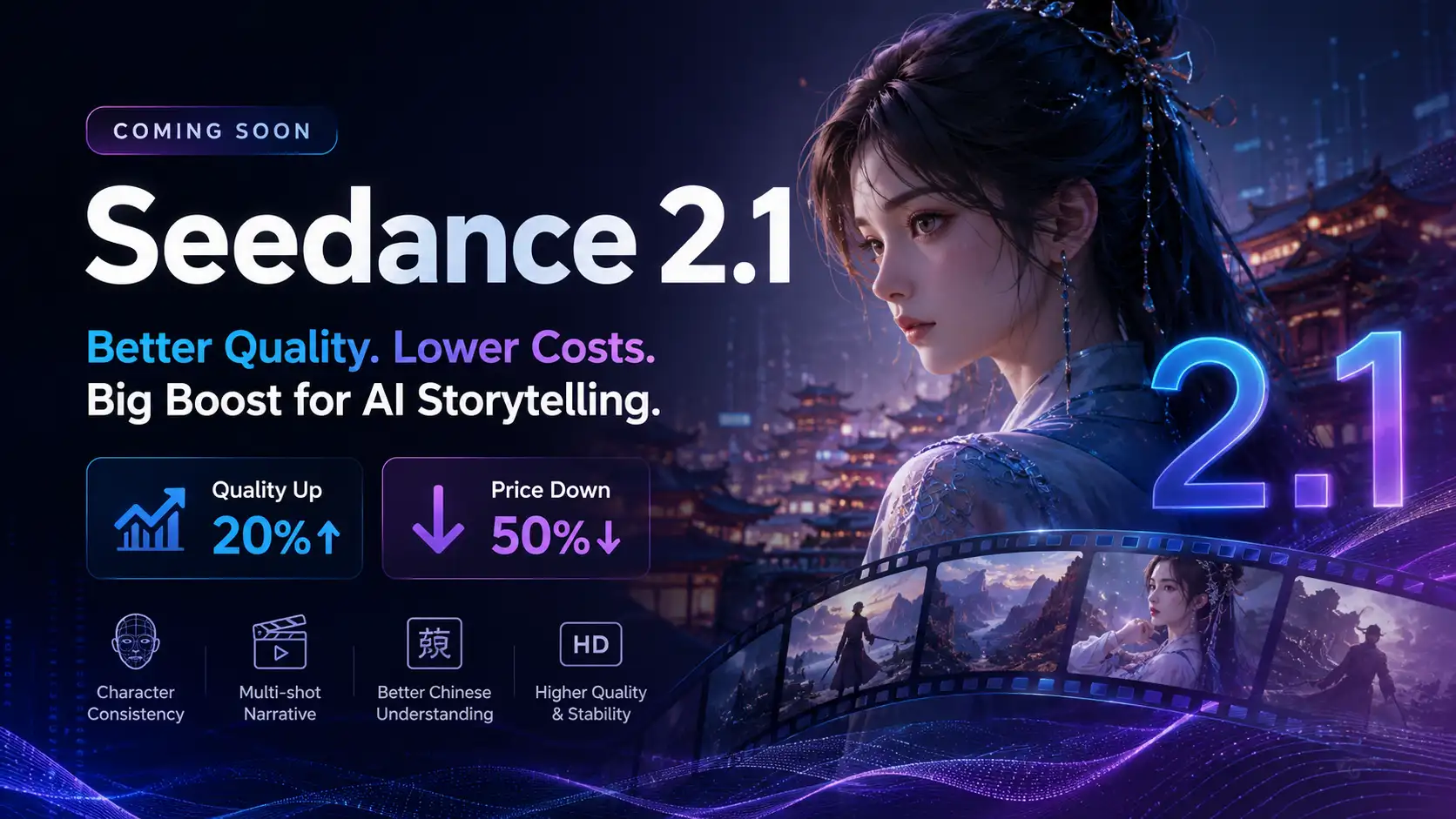
Seedance 2.1 Is Coming: Better Quality, Lower Costs, and a Big Boost for AI Storytelling
The AI video generation race has slowed down a bit recently. Earlier this year, new models were launching almost every week, pushing image and video generation forward at an incredible pace. After the buzz around GPT Image models, the industry has been waiting for the next major leap in AI video.
By stxph一May 23, 2026- AI Video
- Seedance 2.1
- Seedance 2.0