


How to Create a Multilingual Talking Avatar or Photo
Learn how to make a talking avatar or talking photo in multiple languages, choose the right workflow, and avoid lip-sync, voice, and subtitle mistakes.
- AI Video
- AI Translator
- AI Video Translator
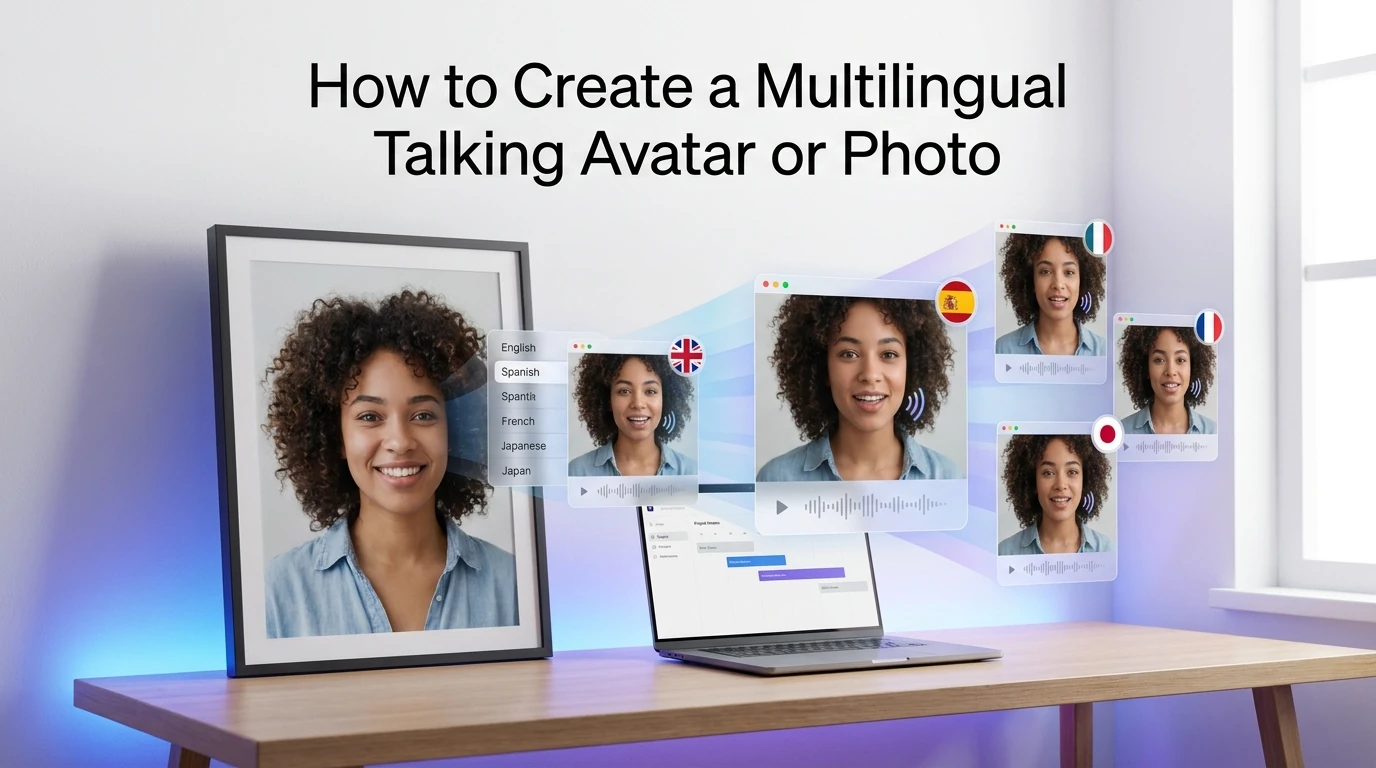
You can create a talking avatar or talking photo in multiple languages with today’s AI tools. The easiest path is to start with one clear photo, make one good source-language version first, and then expand it with multilingual text-to-speech, voice cloning, or video translation. Dreamface’s talking photo flow is built around exactly that simple pattern: upload a photo, add text or voice, then generate the video with lip-sync.
The part that confuses most people is this: talking photo, talking avatar, and video translation are not the same thing. A talking photo is the fastest option for a single image. A reusable avatar is better when you want the same presenter again and again. Video translation is the better choice when you already have a finished video and want new language versions without rebuilding the whole thing. Dreamface and Synthesia both present video translation as a separate workflow, not just a talking-photo add-on.
Here is the simple decision guide:
| Your goal | Best workflow | Why |
|---|---|---|
| Make one photo speak fast | Talking photo | Lowest setup, fastest output |
| Build a repeatable presenter | Talking avatar | Better consistency across many videos |
| Reuse an existing video in new languages | Video translation | Keeps the original structure and performance |
That distinction matters because “multi-language support” can mean very different things. It can mean basic text-to-speech, voice cloning, or full video translation with a new dub and adjusted timing.
What is the difference between a talking photo and a talking avatar?
A talking photo usually starts with one still image. You upload the image, add text or audio, and the tool animates the face so it appears to speak. Dreamface’s official flow is exactly that: upload a photo, add text or voiceovers, then generate and download.
A talking avatar is closer to a reusable digital presenter. It is the better option when you want the same face, tone, and style across many videos. That is the direction platforms like Synthesia lean toward with personal avatars and multilingual video workflows.
A video translator is different again. It starts with an existing video, then creates a translated version with new audio and aligned timing. Dreamface’s translator pages describe this as a separate flow: upload the original video, choose the target language, then export the localized version.
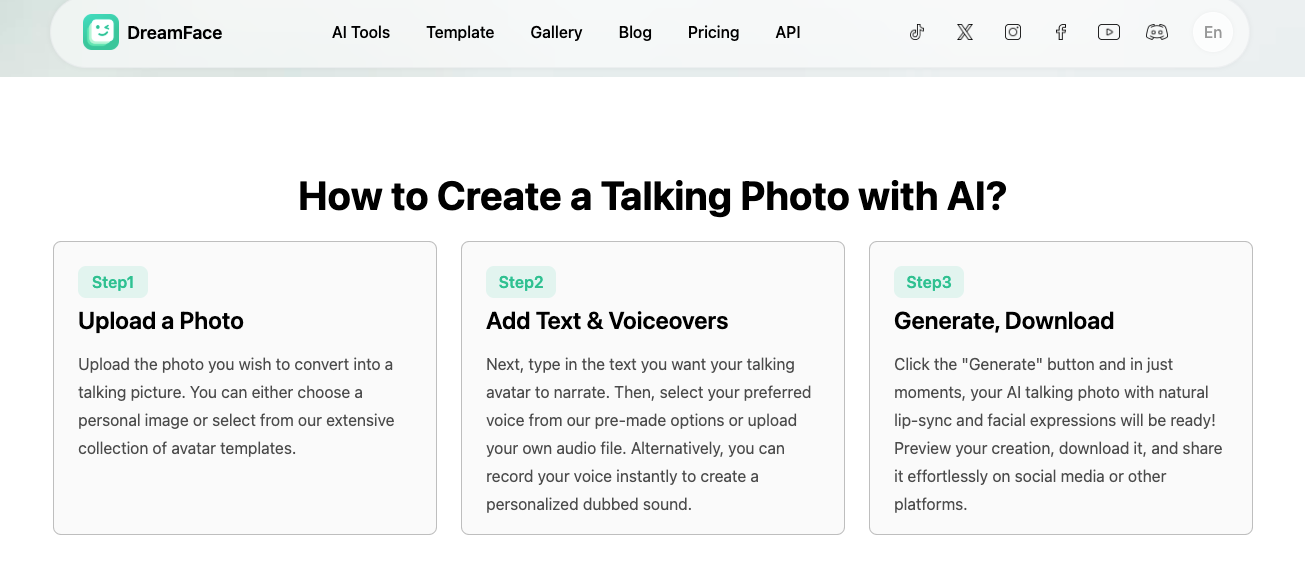
The fastest way to create a multilingual talking photo
The fastest method is simple: pick a clear photo, write one short script, generate the first version, and only then make other language versions. This is better than starting with five languages at once, because it lets you fix the face, timing, and tone before you multiply the work. That step order is also close to the way official product pages present the process.
Start with a clear, front-facing image
Your source image matters more than many people think. DomoAI’s help center says a clear, front-facing portrait gives better lip-sync, and it also recommends clear mouth visibility and high-resolution images.
That advice is useful even if you use another tool. If the face is turned too far, covered, blurry, or cropped badly, the final result often looks less natural. This is one of the easiest mistakes to avoid.
Add text, audio, or your own voice
Dreamface’s talking photo page says you can type text, upload audio, or record your voice directly in the tool. That gives you three clear routes: fast text-to-speech, uploaded narration, or a more personal voice-driven version.
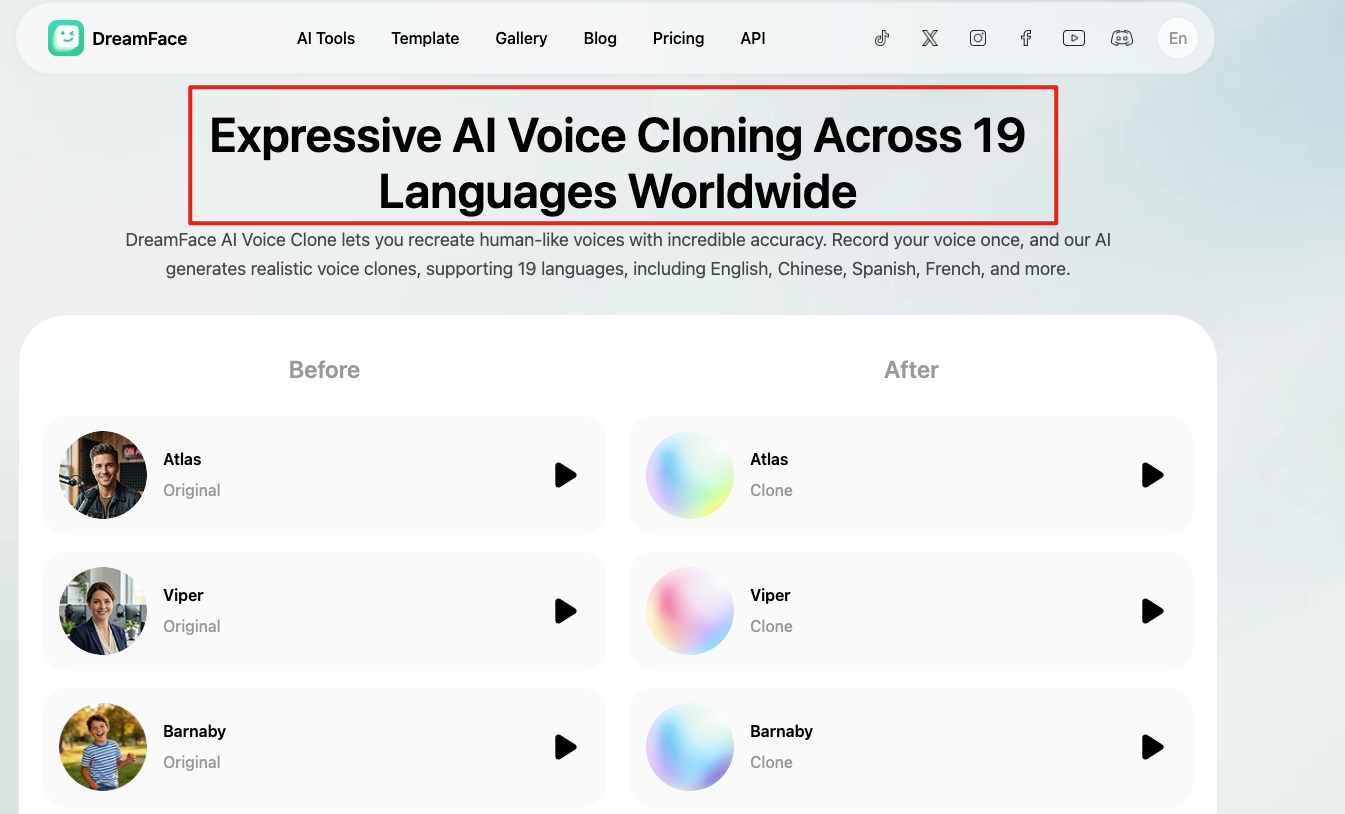
If you want the output to feel more like you, voice cloning is the stronger option. Dreamface’s voice clone page says it supports 19 languages, while Synthesia says personal avatars speak 29 languages and its broader voice system covers 160+ languages and accents.
Make one good source-language version first
Do not rush into translation before the first version feels right. Lock the script, pacing, and emotional tone first. Once that base version works, making Spanish, French, or Japanese versions is much easier to manage. This is not a published rule from one company. It is the more practical conclusion based on how these workflows are structured on official pages.
How to turn one avatar into multiple language versions
There are three common ways to do this.
1. Use one script with many built-in voices
This is the easiest route. You keep the same image or avatar and swap the language with built-in voices. Dreamface says its talking photo tool can speak in major languages, and HeyGen says its talking photo supports over 175 languages and dialects.
This path is best for short explainers, social posts, and simple educational clips. It is fast, but it may not sound as personal as a cloned voice. That trade-off is the main reason many creators start here and upgrade later.
2. Keep your voice with AI voice cloning
This route works best if your voice is part of your brand. Dreamface says its voice cloning supports 19 languages, and Synthesia says voice cloning can be used in 29 languages for personal avatars.
This is a strong fit for creators, founders, coaches, and podcast-style content. The big advantage is consistency. The main risk is that the result may still need extra checking for accent, pacing, and pronunciation. VEED’s help center says personal avatars may keep your accent even when speaking another language.
3. Translate an existing video instead of rebuilding it
This is the better route when your original video already works. Dreamface’s translator flow is built around uploading the video, choosing a target language, and generating a dub with aligned timing. Its translator page also says clear speech and no singing are recommended for accurate translation.
This is often the right choice for interviews, product demos, lessons, and webinar clips. You save time because you reuse the original structure instead of making a new talking photo from scratch.
What makes a multilingual avatar video look natural?
The answer is not just “better AI.” Four things matter most: lip-sync, accent, timing, and subtitles.
Lip-sync
Lip-sync is the first thing viewers notice. If the mouth opens too early, too late, or with the wrong rhythm, the whole video feels fake. DomoAI’s help page puts a lot of weight on clear audio, clear mouth visibility, and front-facing photos for better results.
Accent and pronunciation
A tool can support a language without sounding native in that language. VEED says its personal avatars may keep your accent while speaking a different language. That is a small line on a help page, but it explains a very common problem.
If you are making content for ads, training, or public-facing brand videos, this matters a lot. A translated video that sounds clear but still carries the wrong accent may be fine for some audiences and weak for others.
Timing and pacing
Different languages are not the same length. A short English sentence can become longer in Spanish or German. Dreamface’s translator pages say the tool keeps timing aligned, which shows that timing is treated as an important part of the workflow, not a minor detail.
Even so, you should still review the final result. Good timing on a product page means the system aims to preserve flow. It does not mean every line will feel perfect with no human check. That is the safer interpretation of the public evidence.
Subtitles and on-screen text
Do not forget subtitles. Some platforms, like Synthesia, frame subtitles and on-screen translation as separate parts of video localization. That means a translated voice track alone may not fully localize the video.
If your video has captions, callouts, or interface text, check those too. Voice translation is only one layer of the final viewer experience.
Which workflow should you choose?
If you are a solo creator and want speed, start with a talking photo. Dreamface’s talking photo tool is built for quick generation from a single image, text, and voice input.
If you need a repeatable presenter for many videos, move to a reusable avatar workflow. Synthesia’s personal avatar and multilingual system are a good example of that more structured path.
If you already have strong video content and only want to reach more markets, use video translation. Dreamface’s translator flow and Synthesia’s localization features both support that direction more directly than a simple talking-photo tool does.
If you want a creator-friendly path that stays simple, Dreamface is easy to place in this article because it covers the full ladder: talking photo, voice clone, and video translation. That makes it a natural option for creators who want to start small and expand later.
If you need very broad language coverage and a more polished business-style avatar workflow, HeyGen and Synthesia are strong reference points. HeyGen says its talking photo supports over 175 languages and dialects, and Synthesia says its voice system covers 160+ languages and accents.
Common mistakes to avoid
The first mistake is using a weak image. A blurry side-angle photo usually gives a weaker result than a clear front-facing portrait. DomoAI says this directly in its input guidance.
The second mistake is translating too early. Make the first version work before you create more languages. That keeps your script, tone, and pacing stable. This is an editorial recommendation based on how official workflows are structured.
The third mistake is assuming that all language voices sound equally natural. VEED’s accent warning is a good reminder that support and realism are not the same thing.
The fourth mistake is forgetting subtitles and on-screen text. A voice track can be translated while the rest of the video still feels unfinished for the target market. Synthesia’s localization features make that separation clear.
FAQ
Can a talking photo speak multiple languages?
Yes. Official product pages from Dreamface and HeyGen both present talking-photo workflows that support multiple languages, though the exact language range and output quality vary by platform.
What is the difference between a talking photo and a talking avatar?
A talking photo usually starts with one still image and is built for fast creation. A talking avatar is better when you want a reusable digital presenter for many videos.
Can I keep my original voice in another language?
Sometimes, yes. Dreamface and Synthesia both offer voice-cloning paths, but the final result still needs review for accent, pronunciation, and rhythm.
Why does lip-sync look worse in some languages?
Because language length, timing, and mouth movement change from one language to another. Clear source images and clear audio also make a big difference, according to DomoAI’s guidance.
Do I need subtitles if I already translated the voice?
Usually, yes. Voice translation helps, but subtitles and on-screen text are still separate parts of localization on many platforms.
What kind of photo works best?
A clear, front-facing portrait with visible facial features works best. DomoAI specifically recommends high-resolution, front-facing photos and clear mouth visibility for better lip-sync.
.webp)
DreamFace AI Live Avatar: Always-On AI Character Livestreaming
Turn any character into an always-on live streaming host — from talk shows and quizzes to memorial tributes and late-night companionship — with no one required behind the camera.
By Daniel一Aug 18, 2026- AI Video
- AI Live Avatar
Best AI Video Generator 2026: Why Multi-Model AI Platforms Are Winning
AI video generation has entered a completely new era in 2026. What started as short experimental clips has rapidly evolved into cinematic storytelling, AI anime production, virtual influencers, talking avatars, and fully AI-generated social media content.
By Bentley一May 26, 2026- AI Video Generator
- AI Video
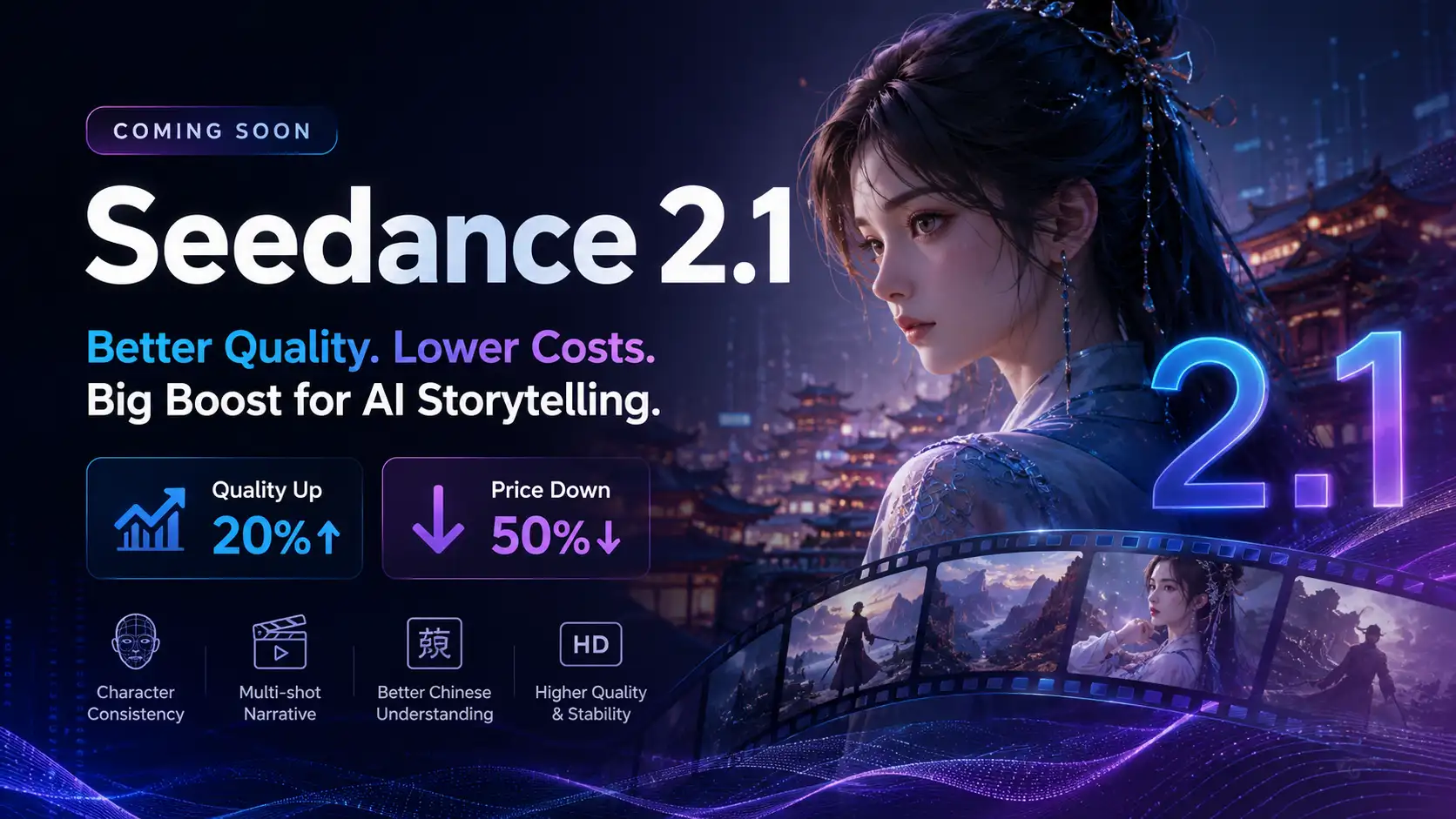
Seedance 2.1 Is Coming: Better Quality, Lower Costs, and a Big Boost for AI Storytelling
The AI video generation race has slowed down a bit recently. Earlier this year, new models were launching almost every week, pushing image and video generation forward at an incredible pace. After the buzz around GPT Image models, the industry has been waiting for the next major leap in AI video.
By stxph一May 23, 2026- AI Video
- Seedance 2.1
- Seedance 2.0