
'%3e%3cg%3e%3cpath%20d='M12.04834,6.05824C12.09325,4.8457799999999995,12.43703,3.78081,13.0715,2.89055C13.7092,1.995784,14.7633,1.3601670000000001,16.2063,1C16.215899999999998,1.0440338,16.2259,1.088092,16.2363,1.131979L16.2363,1.3623509999999999C16.2363,1.884725,16.1084,2.48372,15.856,3.14258C15.5915,3.78052,15.1781,4.38093,14.6291,4.92281C14.1157,5.40028,13.6406,5.71638,13.2207,5.85928C13.0822,5.9003,12.89209,5.94066,12.66255,5.97701C12.45842,6.00853,12.25362,6.03563,12.04834,6.05824ZM12.28933,7.85741C10.6594,7.85741,9.52778,6.42896,7.91997,6.42896C6.31224,6.42896,3,7.89332,3,12.9488C3,18.0043,5.94131,21.2617,6.27029,21.642C6.599209999999999,22.0224,7.36005,23,8.5387,23C9.71744,23,11.00787,22.0715,12.28933,22.0715C13.5707,22.0715,15.1836,23,16.2365,23C17.2895,23,17.7226,22.5747,18.4392,21.8411C19.1558,21.1074,20.5227,18.8686,21,17.5248C20.2137,17.061,18.1298,15.8019,18.1298,12.9488C18.1298,11.0468,18.831200000000003,9.4667,20.2341,8.20853C19.3138,7.02216,18.2464,6.42896,17.0318,6.42896C15.2099,6.42896,13.9193,7.85741,12.28933,7.85741Z'%20fill='%23000000'%20fill-opacity='1'/%3e%3c/g%3e%3c/g%3e%3c/svg%3e)
'%3e%3cg%3e%3cpath%20d='M6.2985500000000005,2L14.60082,10.81153L16.7432,8.537289999999999C13.81573,6.65184,9.89484,4.122529999999999,8.13152,2.985321L6.95017,2.225593C6.74135,2.090554,6.5177700000000005,2.0178354,6.2985500000000005,2ZM5.0312551,3.05499C5.0144537,3.1518100000000002,5,3.24911,5,3.35357L5,20.7675C5,20.8406,5.0138389,20.9085,5.0234395,20.9782L13.4695,12.0125L5.0312551,3.05499ZM18.1511,9.444659999999999L15.7321,12.0125L18.1089,14.5354C19.3682,13.7252,20.2405,13.1626,20.3372,13.1007C20.7653,12.8229,21.007,12.4039,20.9998,11.94614C20.9934,11.49683,20.7516,11.09514,20.340400000000002,10.84799C20.2484,10.79194,19.387999999999998,10.24048,18.1511,9.444659999999999ZM14.60082,13.2134L6.3235600000000005,22C6.48437,21.9703,6.64498,21.9194,6.79859,21.8209C7.01141,21.6833,12.76069,17.9805,16.701,15.4428L14.60082,13.2134Z'%20fill='%23000000'%20fill-opacity='1'/%3e%3c/g%3e%3c/g%3e%3c/svg%3e)

How to Make a Mother’s Day Talking Photo with AI
Turn a single photo into a Mother’s Day greeting video with AI. Learn the easiest workflow, message ideas, common mistakes, and when to use a filter first.
- AI Video
- Photo To Video
- Avatar Video
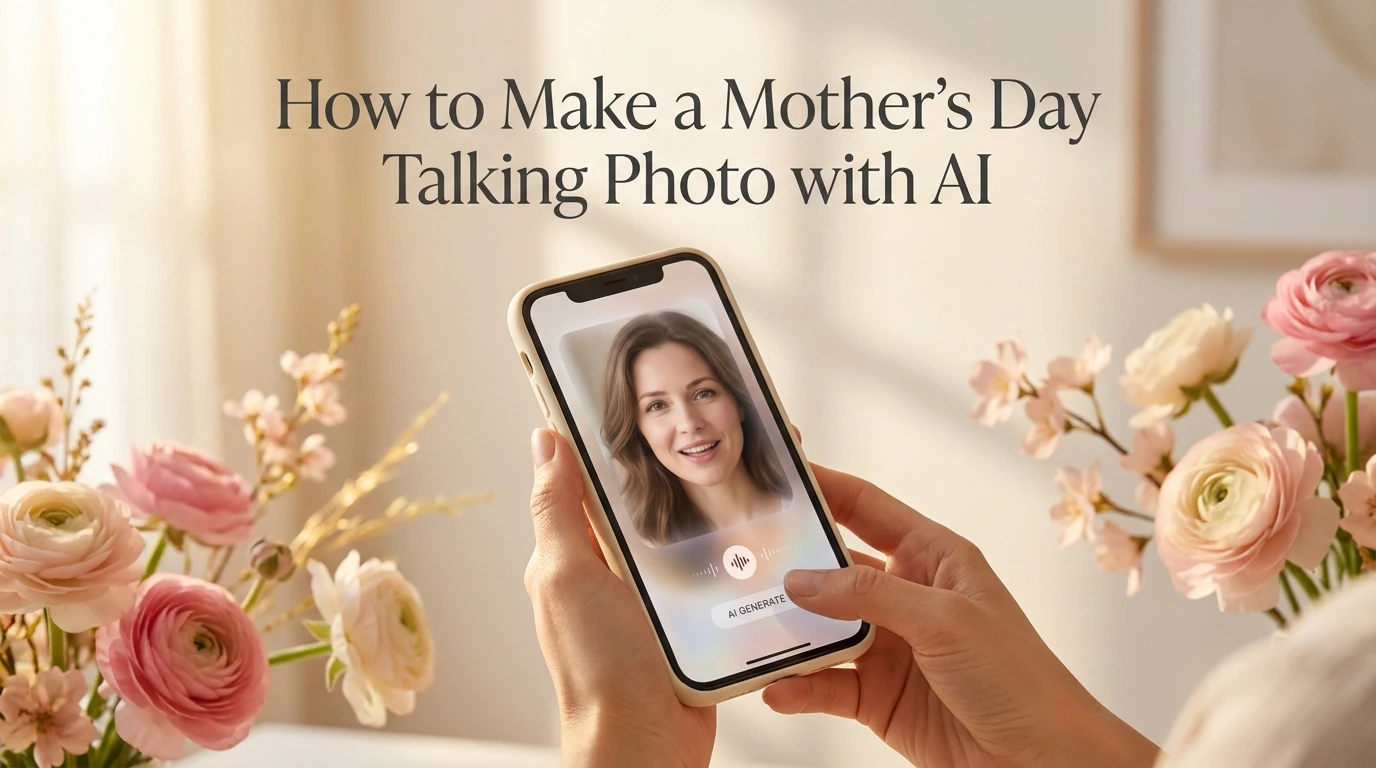
Yes, you can turn a single photo into a Mother’s Day greeting video with AI.
The simplest workflow is to start with a clear portrait, choose a warm visual style, add a short message, and export a short clip you can send to your mom or share with family. Dreamface’s current tool set already covers the main pieces of that process: a talking photo tool for lip-synced video, an AI filter tool for style changes, and a Mother’s Day image generator for themed visuals.
That makes this a practical gift format. You do not need to film a full video, learn editing software, or build a long slideshow. You are using one photo, one short message, and a lightweight animation flow that is easier to make and easier to share.
Best simple workflow: pick a clear photo, apply a soft Mother’s Day look if the image feels too plain, add a short greeting, generate the clip, then check lip sync and subtitles before you export. That is the version most people should start with.
Why a talking photo works well for Mother’s Day
A talking photo works well for Mother’s Day because it feels more personal than a static image but asks for much less effort than a full video. A single image with a short voice line can still feel intimate, especially when the message is direct and warm.
It also fits the way people actually share holiday greetings now. A short clip is easy to send in a chat, post privately, or include alongside a card or photo gift. You are not asking your recipient to sit through a long edit. You are giving them a simple, emotional message that plays fast.
Dreamface’s own talking photo pages position this format around turning a still photo into a speaking clip with synced lip movements, voiceover options, and quick sharing, while the related blog also frames talking photos as useful for emotional family-oriented projects. That is why the format makes sense for a Mother’s Day message rather than feeling like a novelty with no real use case.
What you need before you start
You only need three things to make this work well.
First, use a clear photo. The best starting point is a portrait where the face is visible, the lighting is decent, and the expression already feels natural. Dreamface’s talking photo tool starts with a single uploaded image, and its Mother’s Day image generator also recommends a clear, high-resolution photo before you apply themed templates.
Second, write a short message. This should sound like something you would actually say to your mom, not a dramatic speech. A short line is easier to animate, easier to follow, and more likely to feel sincere.
Third, choose the visual direction before you generate the final clip. For this occasion, warm, elegant, or soft vintage styles usually make more sense than exaggerated or comedic looks. Dreamface’s AI filter product is built around style transformation, and its Mother’s Day pages already frame the holiday around softer, more polished visuals.
How to make a Mother’s Day talking photo step by step
Step 1: Pick the right photo
Start with one image, not five. A single, clear portrait is usually better than a busy group photo because the face is easier to animate and the final message feels more focused.
Choose a photo that already looks kind, relaxed, and gift-ready. You do not need studio quality, but avoid heavy blur, strong shadows, or awkward angles.
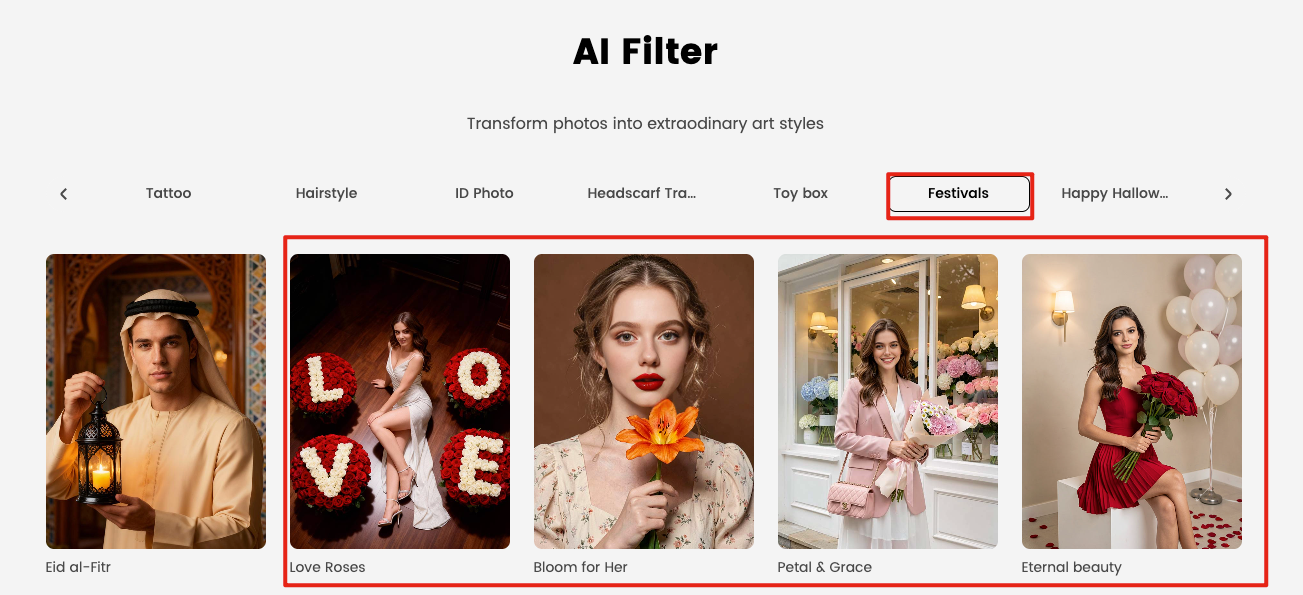
Step 2: Decide whether to apply a filter first
If the original photo already looks warm and polished, you can go straight to the talking photo step.
If the photo feels flat, inconsistent, or too casual for a holiday message, apply a filter first.
Dreamface’s
AI filter tool
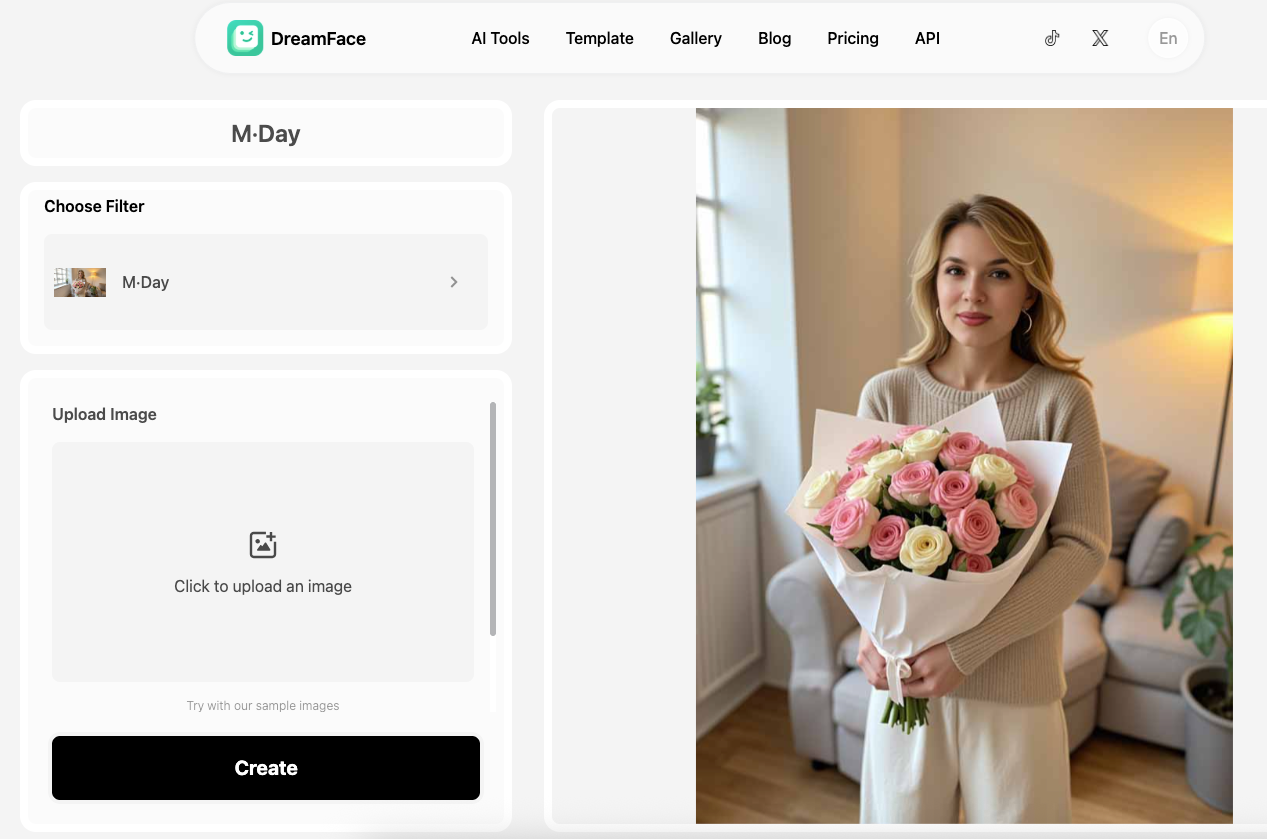
is designed to transform photos into different visual styles, and Dreamface’s Mother’s Day image flow is built around uploading a photo, selecting a themed template, and turning it into a more festive result.
Step 3: Choose a warm visual style
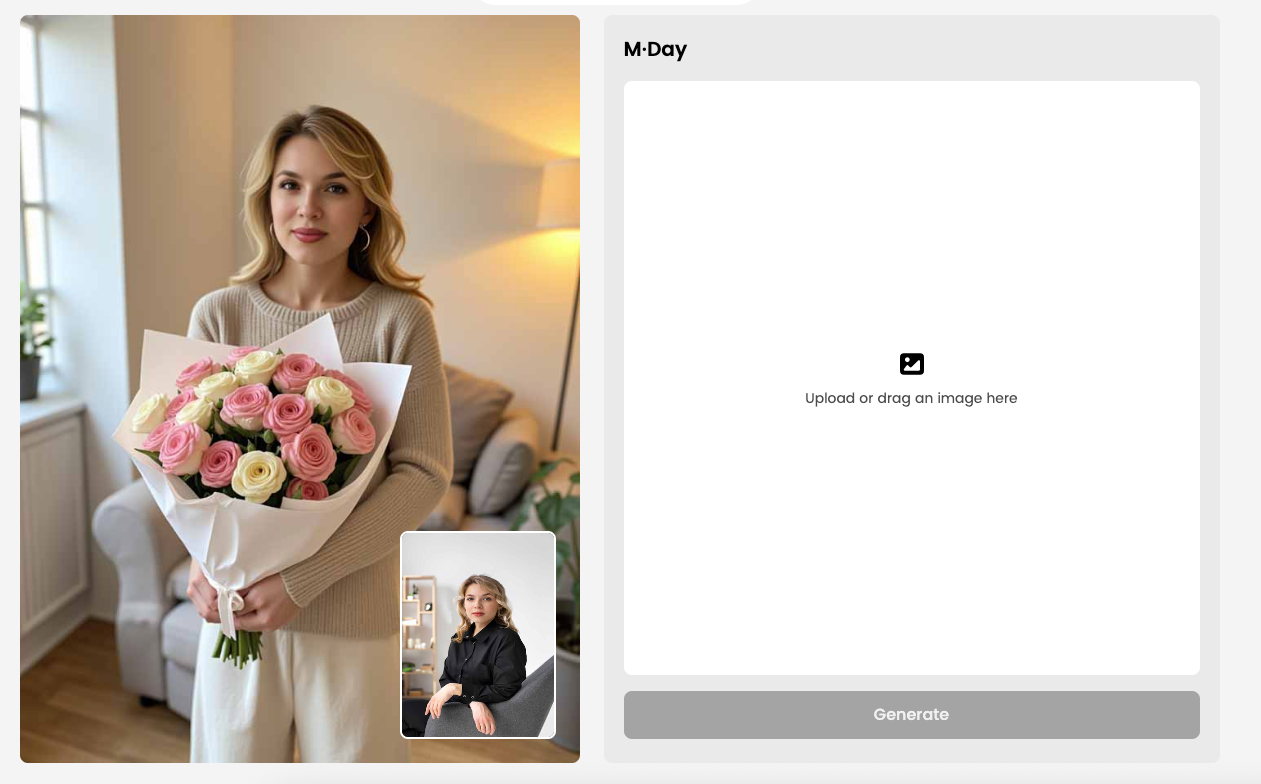
For Mother’s Day , subtle beats dramatic.
A soft floral look, warm light, gentle color correction, or an elegant portrait style usually works better than anything extreme. The goal is to make the image feel more thoughtful, not to make your mom look like a fantasy character unless that is genuinely her style.
Step 4: Add your message or voice line
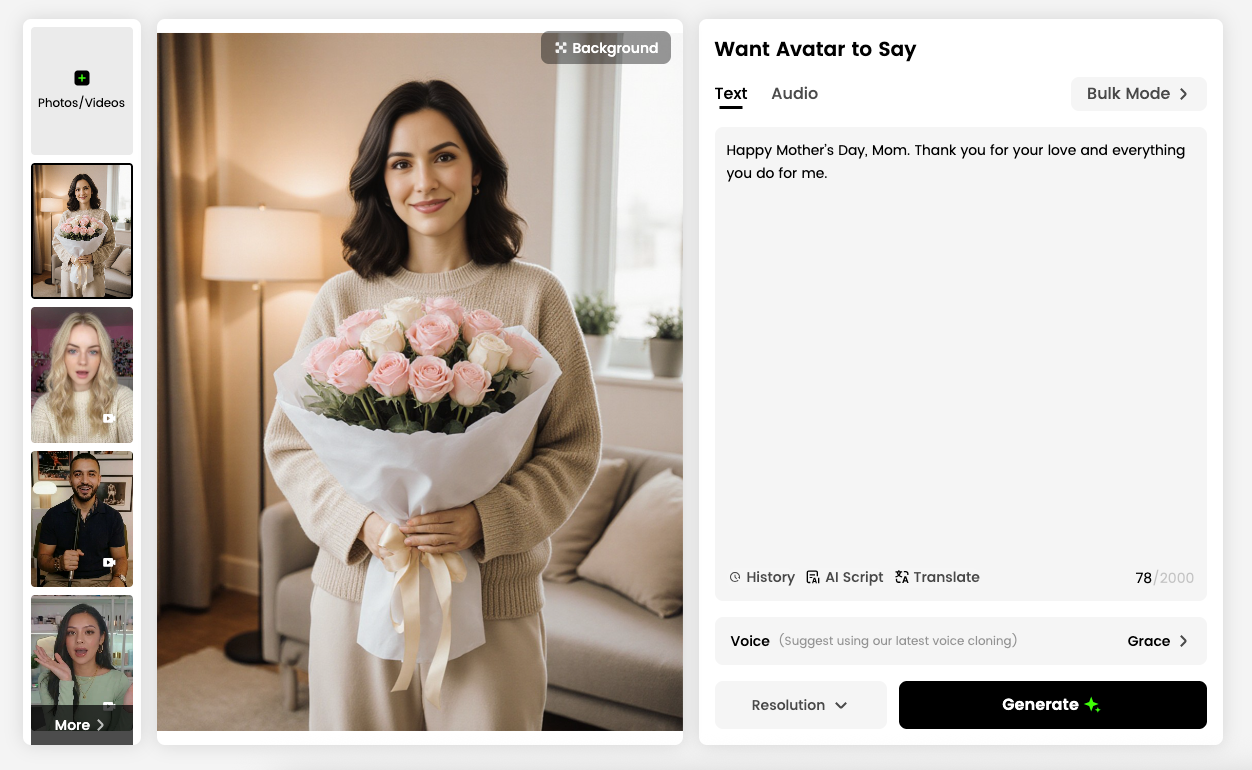
Once the image looks right, add the line you want the photo to say.
Dreamface’s talking photo flow supports text input, voice selection, and even uploaded audio, which means you can either type a short script or use a voice input path if you want a more personal result.
Keep the script short. One or two sentences is enough for most Mother’s Day clips.
Step 5: Generate the video
Now generate the clip.
The core talking photo workflow on Dreamface is straightforward: upload the image, add text and voiceover, then generate the animated result with lip sync and facial motion. That simplicity is exactly why this format works for a holiday project.
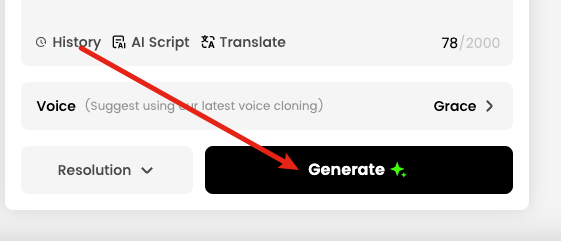
Step 6: Check lip sync, pacing, and subtitles
Before you export, watch the clip once as if you were the recipient.
Check whether the message moves too fast, whether the words feel too long for the animation, and whether the subtitles match the spoken line cleanly. This matters more than adding extra effects.
Step 7: Export and share
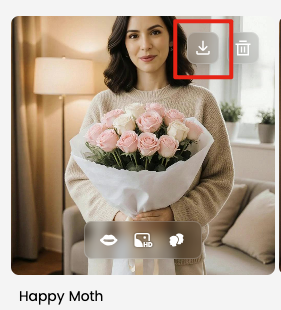
Once the clip feels natural, export it and send it where your family will actually see it.
A short Mother’s Day greeting works best when it is easy to open and easy to replay. Simple usually beats elaborate.
Best message ideas for a Mother’s Day AI video
The best scripts are short, warm, and easy to say out loud.
Here are a few strong directions:
Warm and gentle
“Happy Mother’s Day, Mom. Thank you for your love, your patience, and everything you do for me.”
Short and simple
“Happy Mother’s Day, Mom. Love you always.”
From an adult son or daughter
“Mom, I appreciate you more every year. Happy Mother’s Day, and thank you for always being there for me.”
In a childlike voice
“Happy Mother’s Day, Mommy. I love you so much and hope you have the best day.”
Write the message the way your family actually speaks. A natural eight-second message is usually stronger than a stiff twenty-second speech.
Common mistakes to avoid
The first mistake is using a blurry photo. If the face is not clear, the final animation is harder to trust visually.
The second mistake is writing too much. Talking photos work best with short lines. Long scripts tend to feel less natural and less emotional because the format is small and quick by design.
The third mistake is choosing a style that is too dramatic. Dreamface’s Mother’s Day pages lean toward warm, themed, polished visuals rather than chaotic transformations, and that is the better model for this occasion.
The fourth mistake is making the clip too long for sharing. A Mother’s Day greeting is not a documentary. The more effort it takes to watch, the less likely people are to replay it or forward it.
The fifth mistake is ignoring pacing and subtitles. A simple video with clean timing usually feels more heartfelt than a more ambitious one with awkward rhythm.
When to use a filter first before turning the photo into video
Use a filter first when the source photo is emotionally right but visually weak.
That usually means the image is a little plain, the lighting feels dull, the colors do not match the holiday mood, or the photo looks more like a casual snapshot than a gift. In those cases, a filter can help unify the image before animation.
This is where Dreamface fits naturally. Its AI filter tool is built for photo style transformation, and its
Mother’s Day image generator
is already framed around turning an uploaded photo into a themed holiday visual. So the filter step is not a gimmick. It is a practical way to make the final talking photo feel more intentional.
Use this order when you want the best gift-like result: first improve the look, then animate the message.
A simple workflow using Dreamface
If you want the easiest version of this project, the cleanest workflow is this:
Start with a clear portrait.
Use Dreamface AI Filter or a Mother’s Day style template if the image needs a softer or more festive look. Dreamface’s Mother’s Day generator specifically follows a clear-photo, choose-template, download-and-share sequence, which makes it a natural prep step.
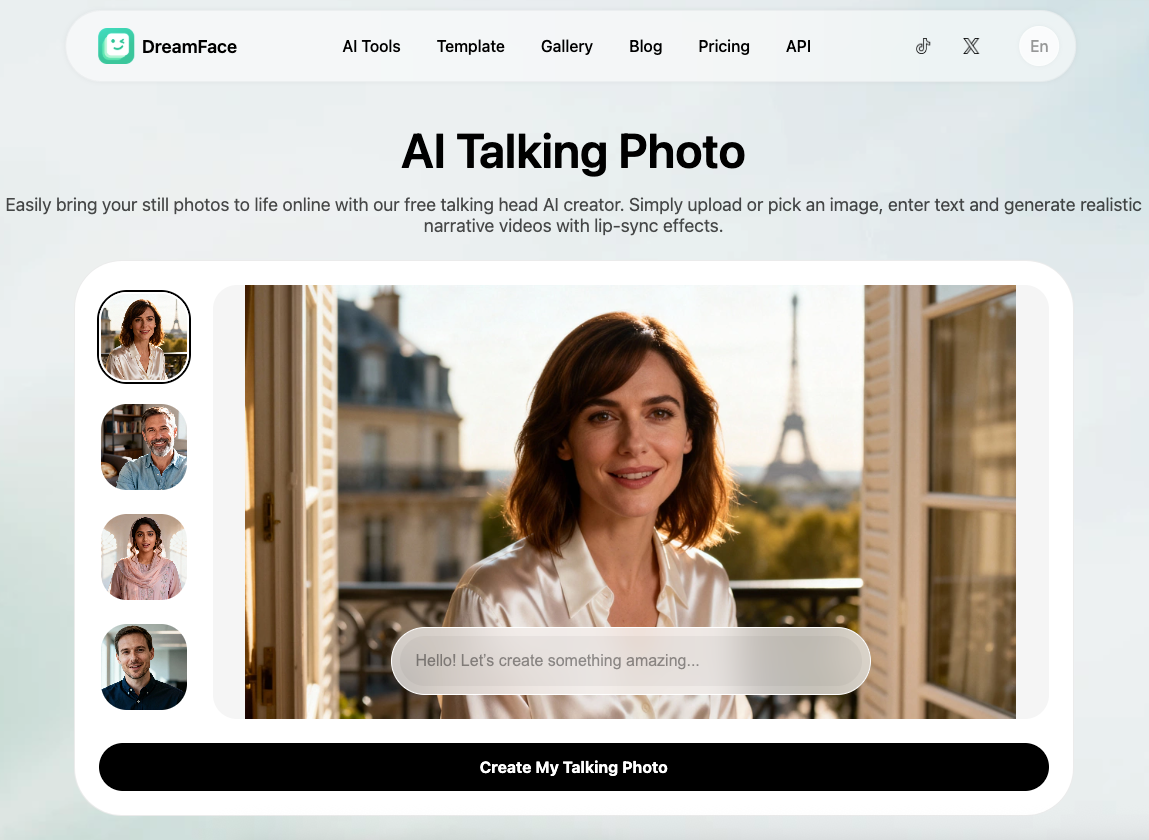
Then move to Dreamface Talking Photo , add your short line, choose voice input, and generate the clip. Dreamface’s talking photo tool describes the same core flow: upload photo, add text and voiceovers, then generate and share the result.
This workflow is best for people who want something personal, quick to make, and easy to send. It is less suitable for anyone trying to create a long, highly edited family tribute video.
FAQ
Can AI really make a photo talk for Mother’s Day?
Yes. Dreamface’s talking photo tool is built to turn a still image into a lip-synced video by combining an uploaded photo with text, voiceover, and generated animation. That means a single portrait can become a short holiday greeting clip.
Should I use a filter before making the video?
Use a filter first when the original photo looks too plain or does not feel special enough for a gift. Dreamface’s AI filter and Mother’s Day image tools are the clearest fit when you want a softer, more polished holiday look before animation.
How long should the message be?
A short message is usually best. One or two sentences will sound more natural and be easier to share than a longer script.
What kind of photo works best?
A clear portrait with a visible face works best. Dreamface’s own pages consistently start from a single uploaded image, and the Mother’s Day generator specifically recommends a clear, high-resolution photo.
Is this better than sending a regular photo?
For many people, yes. A talking photo adds voice, timing, and a stronger sense of presence while still staying much lighter than a full recorded video.
.webp)
DreamFace AI Live Avatar: Always-On AI Character Livestreaming
Turn any character into an always-on live streaming host — from talk shows and quizzes to memorial tributes and late-night companionship — with no one required behind the camera.
By Daniel一Aug 18, 2026- AI Video
- AI Live Avatar
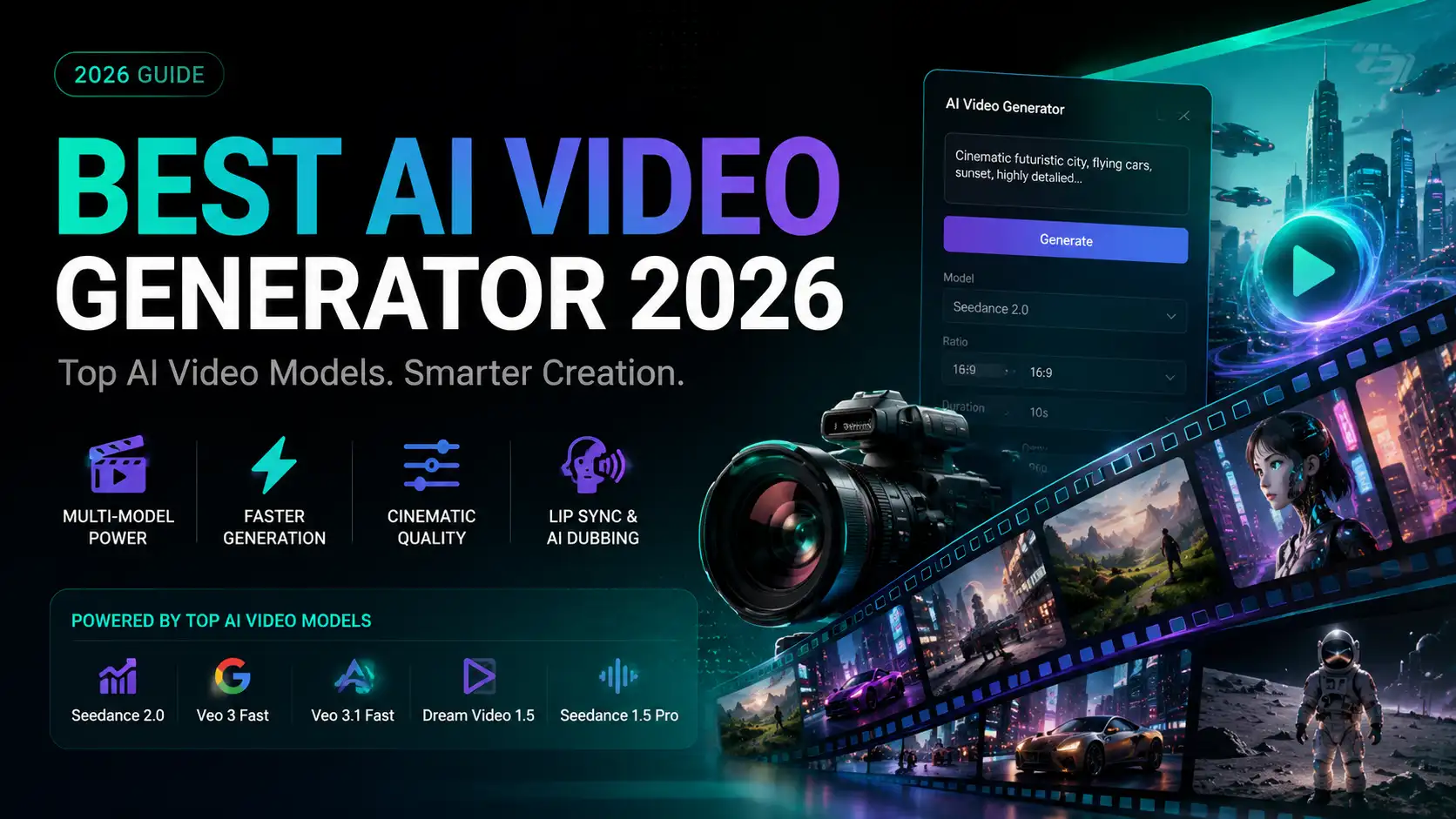
Best AI Video Generator 2026: Why Multi-Model AI Platforms Are Winning
AI video generation has entered a completely new era in 2026. What started as short experimental clips has rapidly evolved into cinematic storytelling, AI anime production, virtual influencers, talking avatars, and fully AI-generated social media content.
By Bentley一May 26, 2026- AI Video Generator
- AI Video
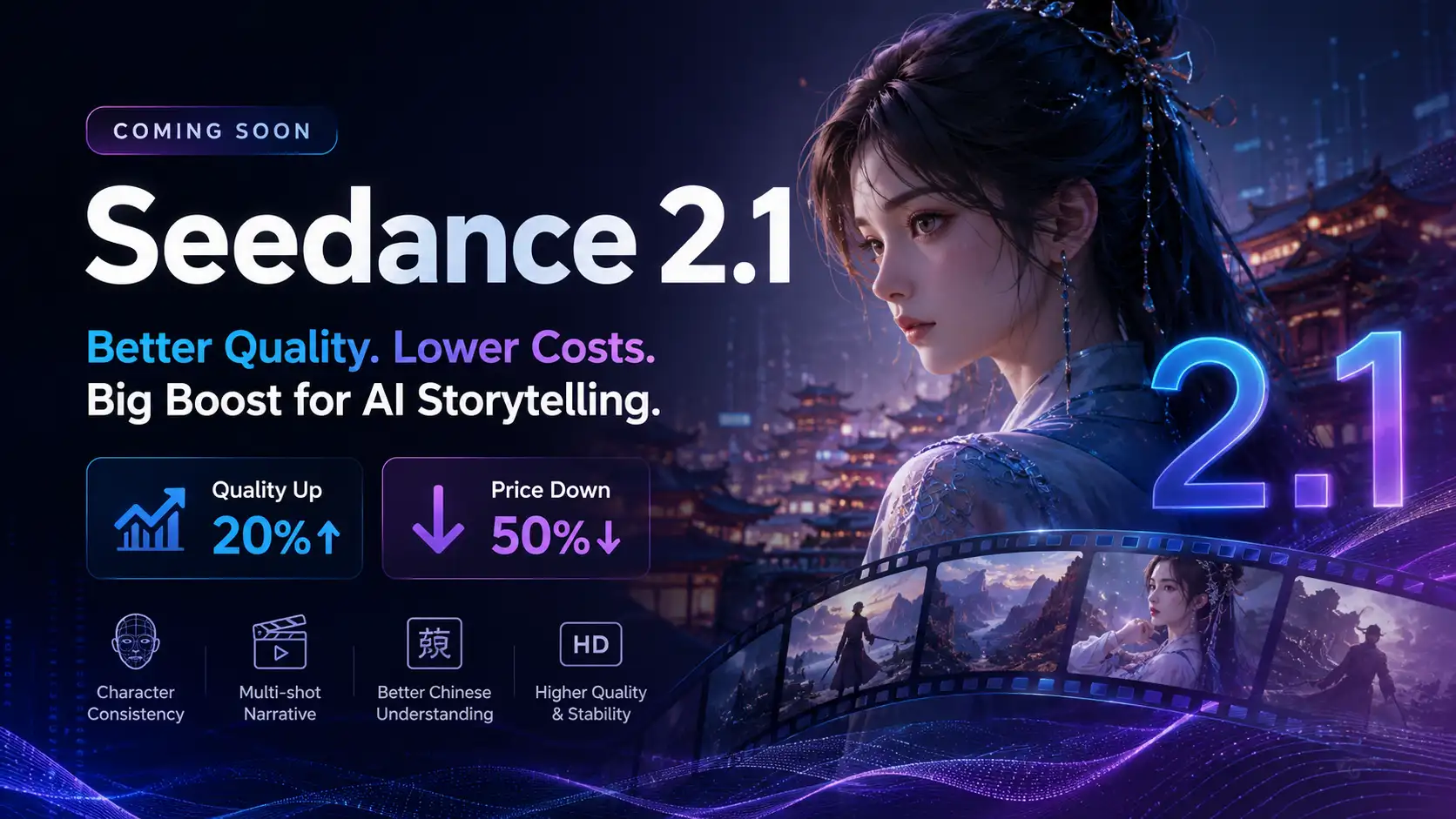
Seedance 2.1 Is Coming: Better Quality, Lower Costs, and a Big Boost for AI Storytelling
The AI video generation race has slowed down a bit recently. Earlier this year, new models were launching almost every week, pushing image and video generation forward at an incredible pace. After the buzz around GPT Image models, the industry has been waiting for the next major leap in AI video.
By stxph一May 23, 2026- AI Video
- Seedance 2.1
- Seedance 2.0