


AI Pet Videos: How to Make Your Cat & Dog Photos Sing and Talk [Detailed Tutorial]
Creating these talking pet videos is a fantastic way to bring joy to friends and family and can significantly boost the appeal of your personal or brand content. Dreamface's AI Pet Lip Sync feature was designed for exactly this.Below, we’ll walk you through a step-by-step tutorial on how to use Dreamface to bring your pet photos to life.
- Pet Lip Sync
- Lip-Sync Video
- Singing Photos
![AI Pet Videos: How to Make Your Cat & Dog Photos Sing and Talk [Detailed Tutorial]](https://cdnseo.dreamfaceapp.com/seo/material/1753085987807/2025-07-21/1002555675308487302-IMG_48731.jpg)
Creative, personality-packed short videos are dominating social media. And what’s more eye-catching than having your beloved pet "personally" sing a song or deliver a funny line? Creating these talking pet videos is a fantastic way to bring joy to friends and family and can significantly boost the appeal of your personal or brand content. Dreamface's AI Pet Lip Sync feature was designed for exactly this.
Below, we’ll walk you through a step-by-step tutorial on how to use Dreamface to bring your pet photos to life.
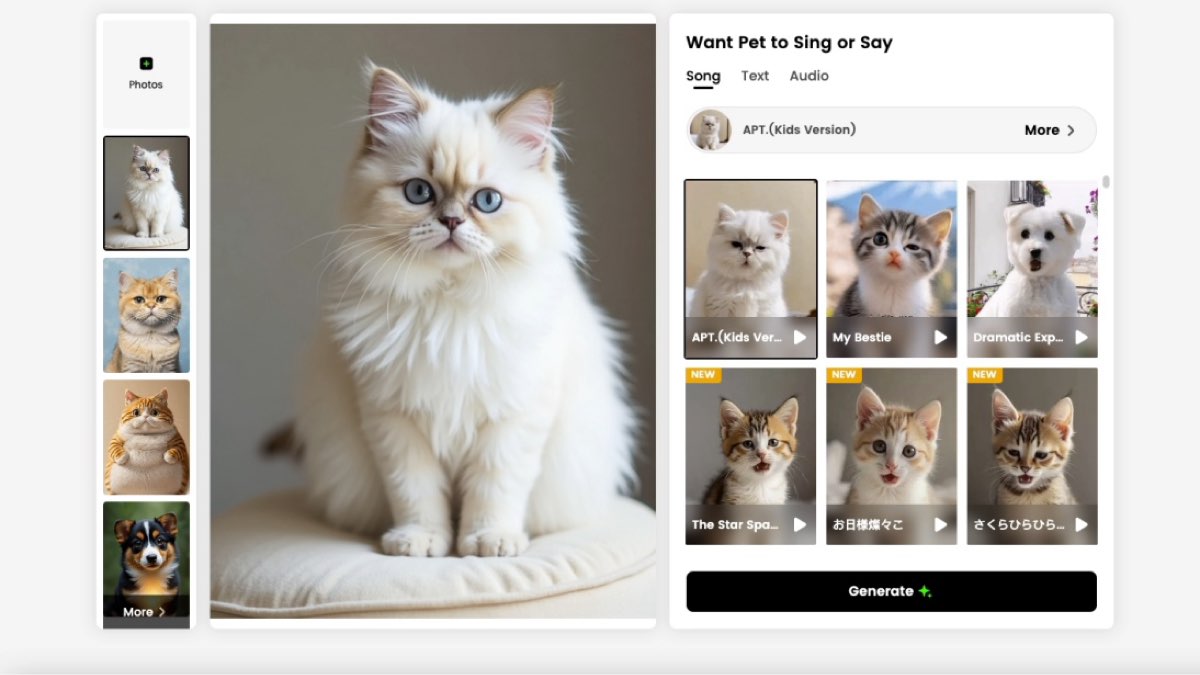
As you're about to see, making a pet talk with Dreamface is incredibly simple. Available on both desktop (web) and mobile apps, Dreamface isn't just an ideal AI video editing tool; it's one of the best AI lip-sync software tools on the market today.
Beyond using preset song templates, it allows users to generate pet lip-sync animations by typing text or even uploading their own audio and recordings, offering limitless creative possibilities. Let's dive into the step-by-step process.
How to Make Your Pet Sing with Dreamface [3 Core Methods]
Step 1: Select or Upload Your Pet Photo
Open the Dreamface tool interface. On the left, you'll see your photo library. You can select a previously uploaded pet photo or click "Photos+" to upload a new one.
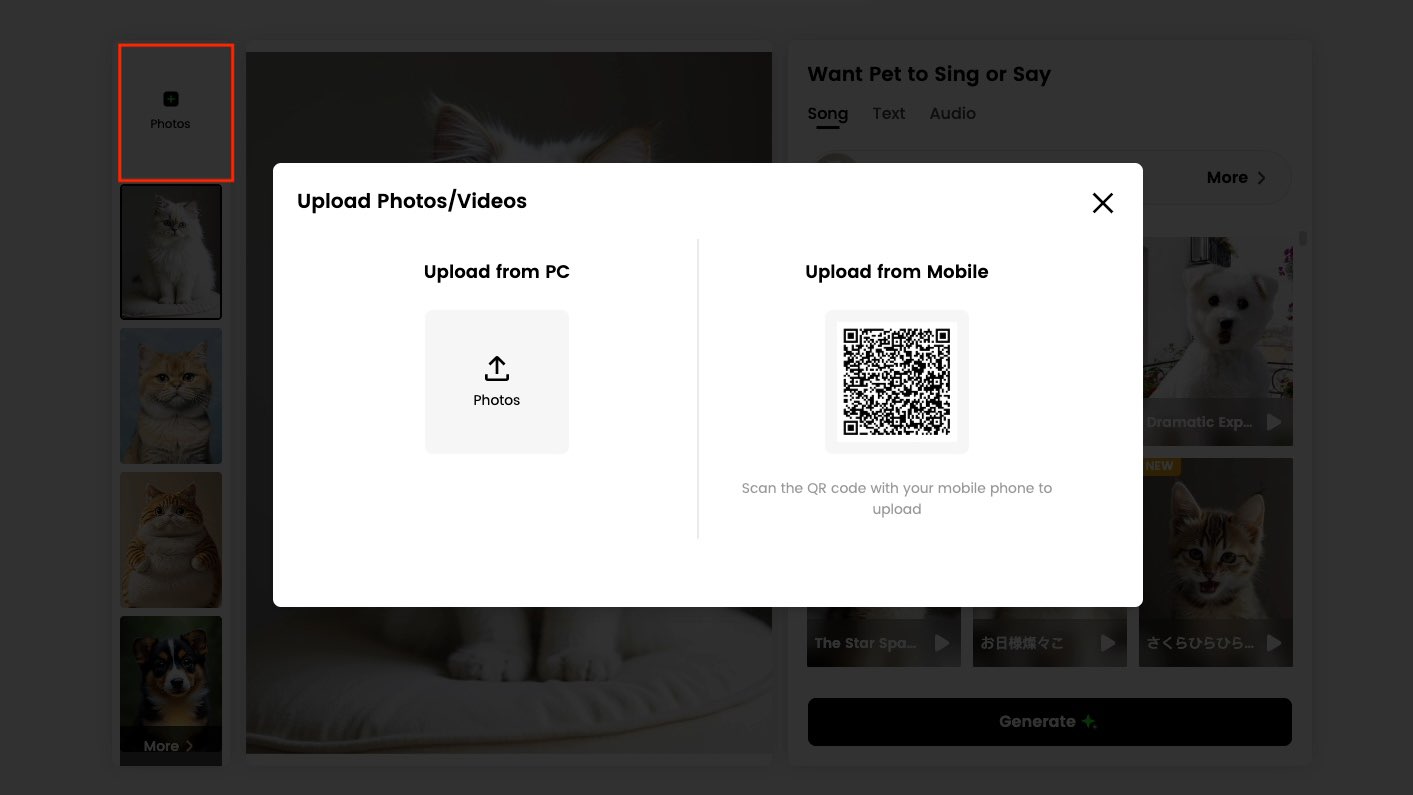

Tip: For the best results, use a clear, well-lit, front-facing photo of your pet.
Step 2: Choose a Creation Mode & Add Audio
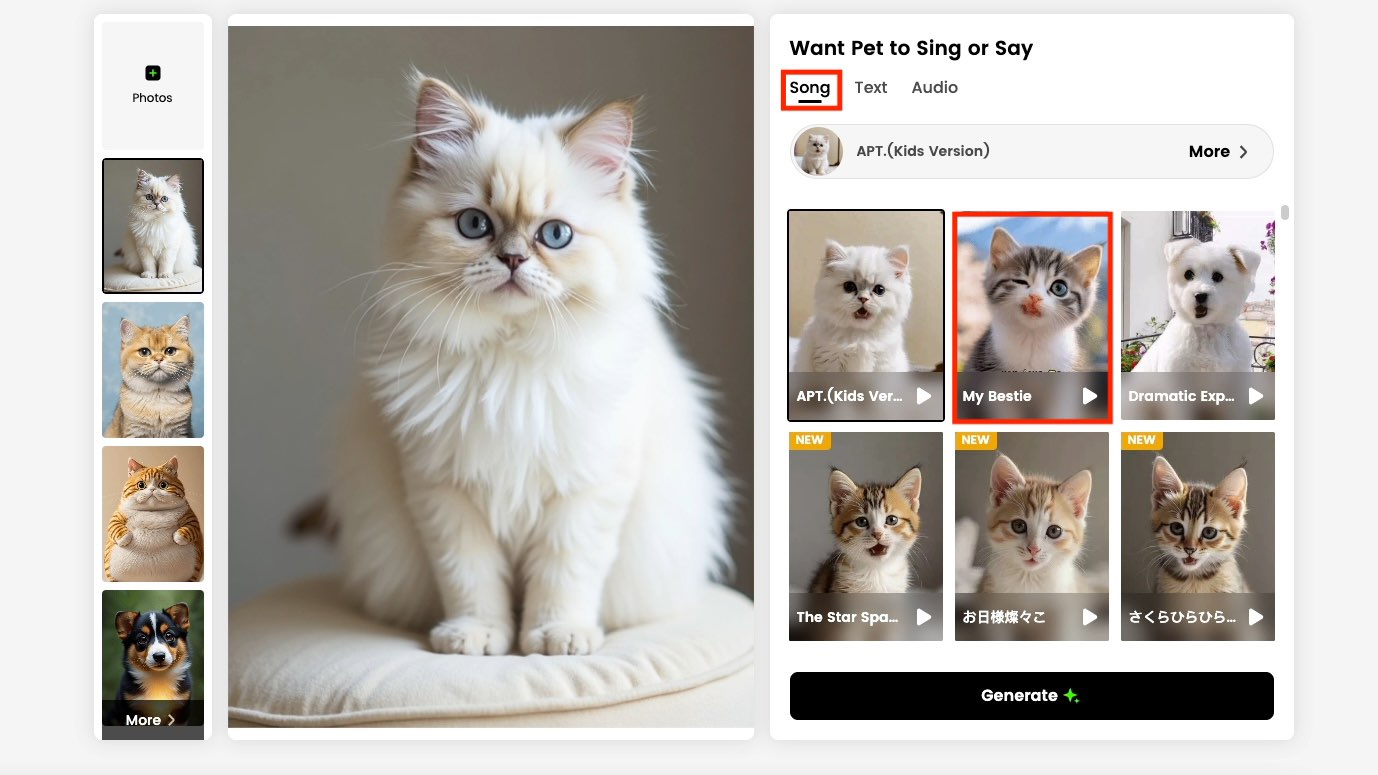
On the right side of the interface, you'll find the "Want Pet to Sing or Say" panel. This is where you choose from three core creation modes: Song, Text, and Audio.
Method 1: Create with "Song" Templates
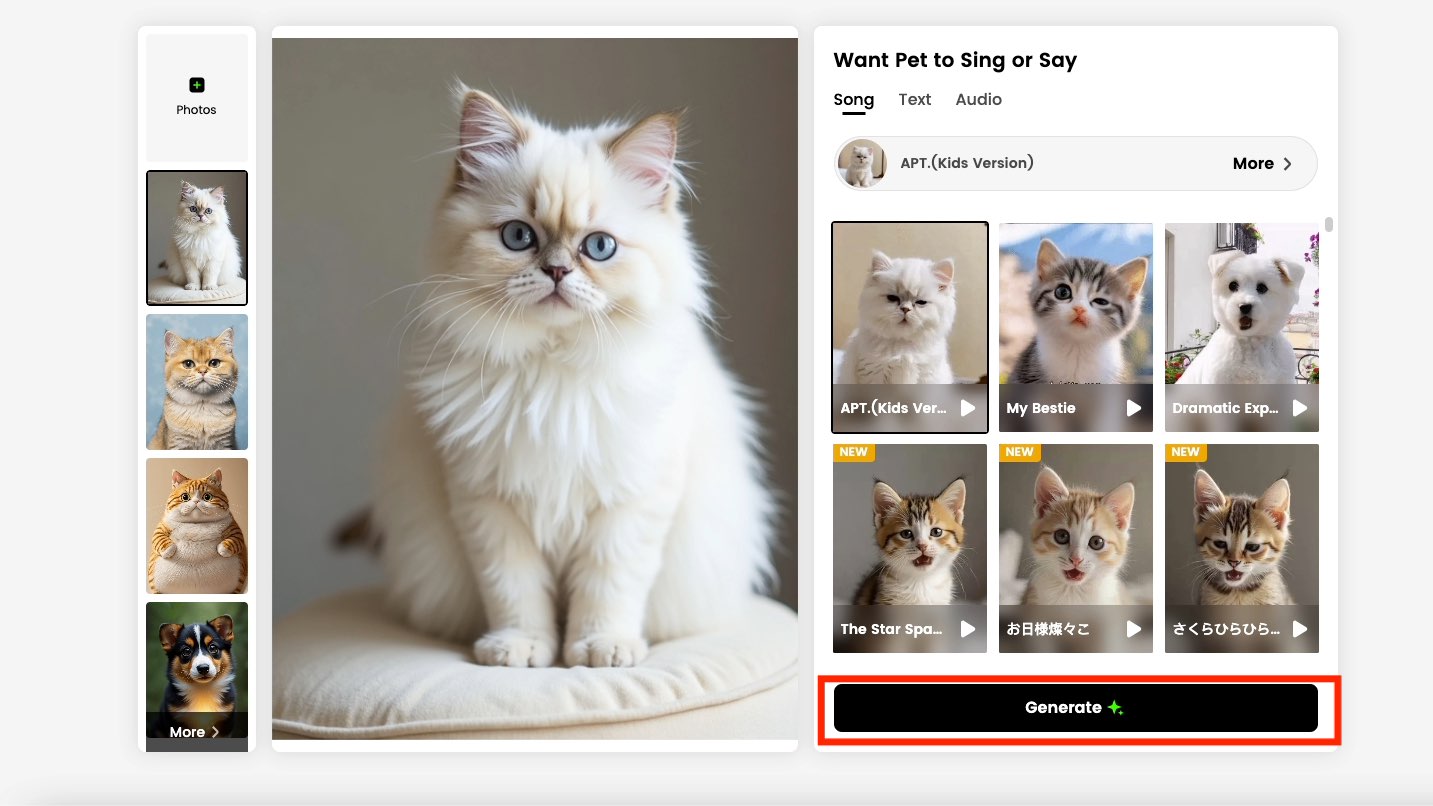
This is the fastest way to create a video. Click the "Song" tab to browse a library of preset templates complete with fun music and animations, like "My Bestie" or "APT.(Kids Version)" Simply click your favorite template and proceed to Step 3 to generate.
Method 2: Generate a Voice with "Text"
If you want your pet to say specific words, click the "Text" tab.
Enter Text: Type or paste the words you want your pet to say into the text box.
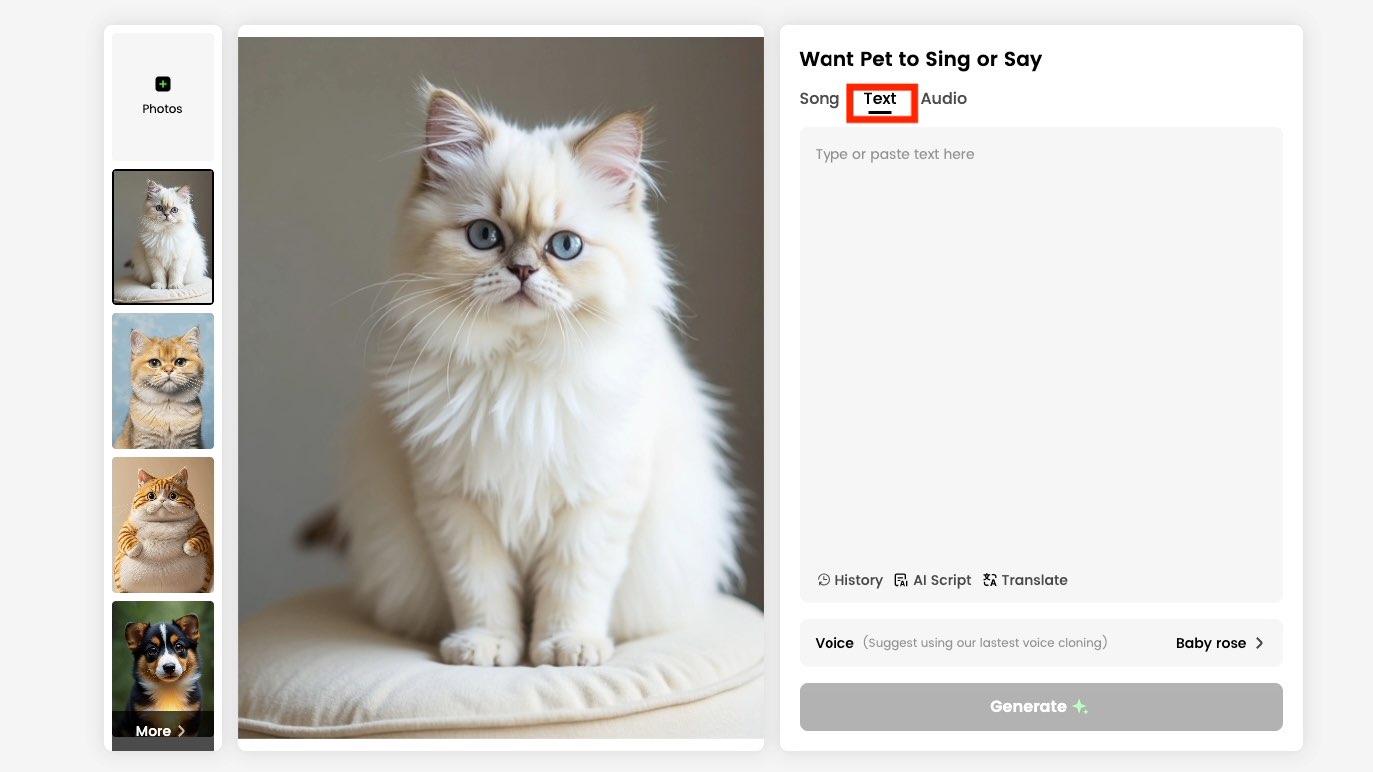
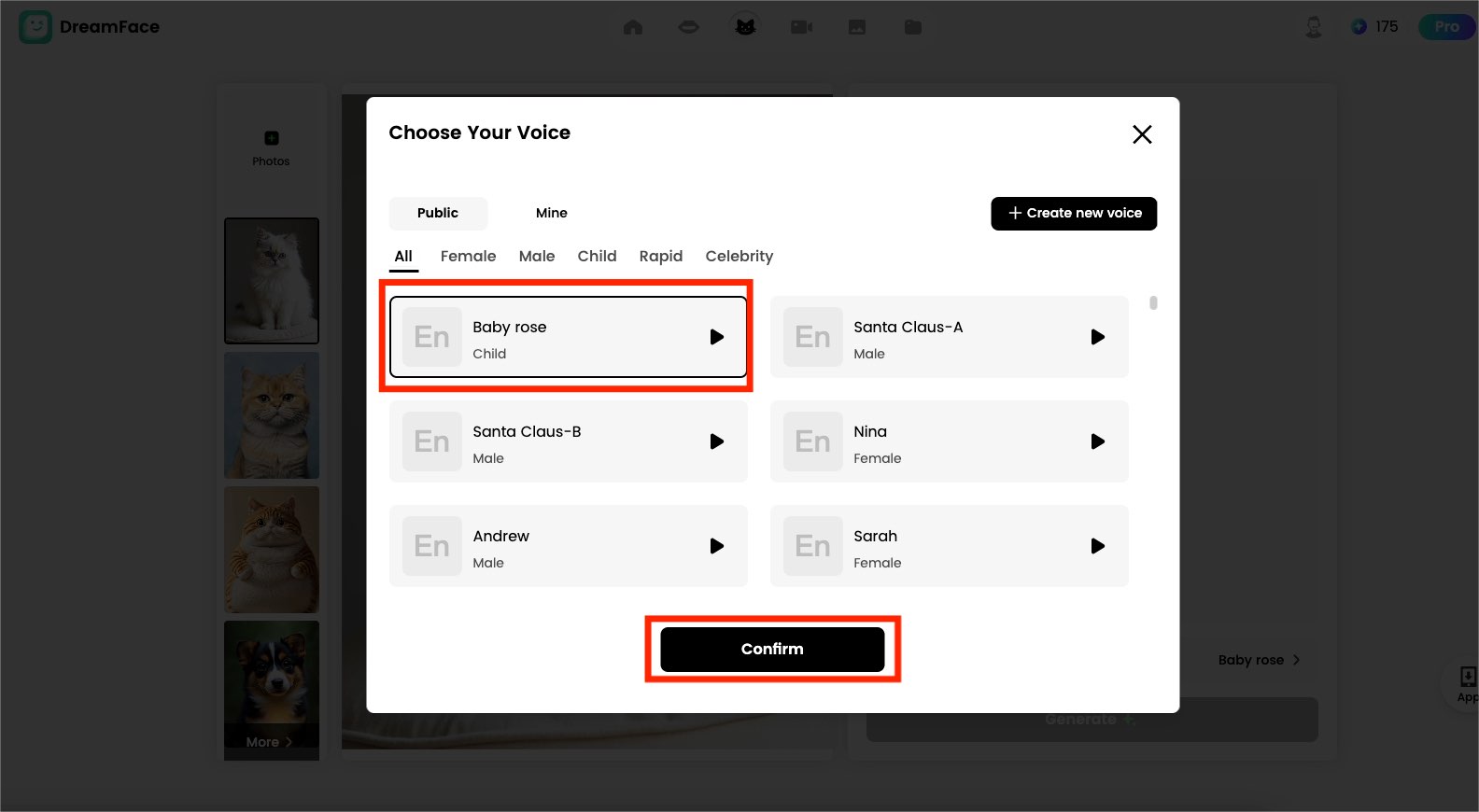
Choose a Voice: Select a voice you like from the "Voice" dropdown menu, such as "Baby rose".
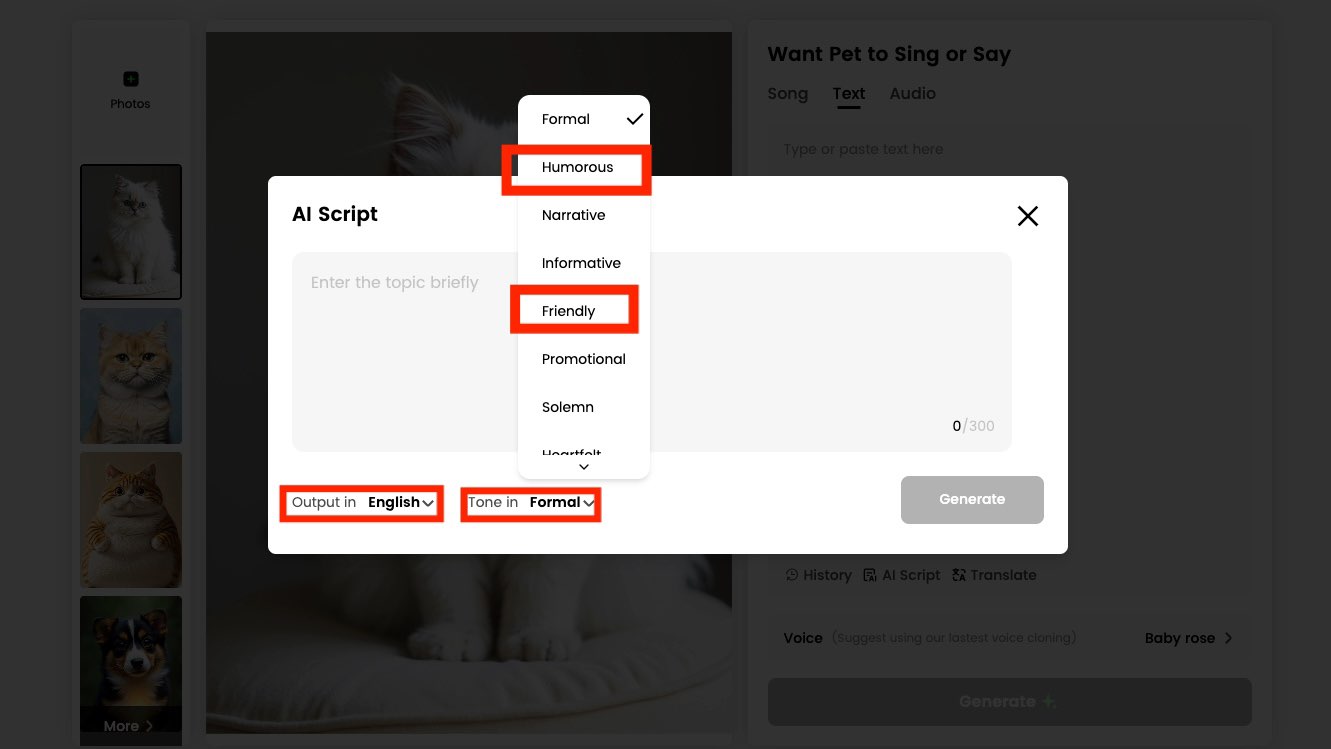
Advanced Feature - AI Script: If you're out of ideas, click the "AI Script" button. In the pop-up window, enter a topic, then select a Tone (e.g., "Humorous," "Narrative," "Friendly"). The AI will automatically generate a script for you. You can also select the output language.
Translate: Use the "Translate" feature to convert your text into different languages.
Method 3: Customize with Your Own "Audio"
This is the most personalized method. Click the "Audio" tab, where you have two options:
Upload Audio or Video: Click the upload area to select an audio file from your computer (like a song you sang) or a video file with sound. Dreamface will automatically extract the audio.
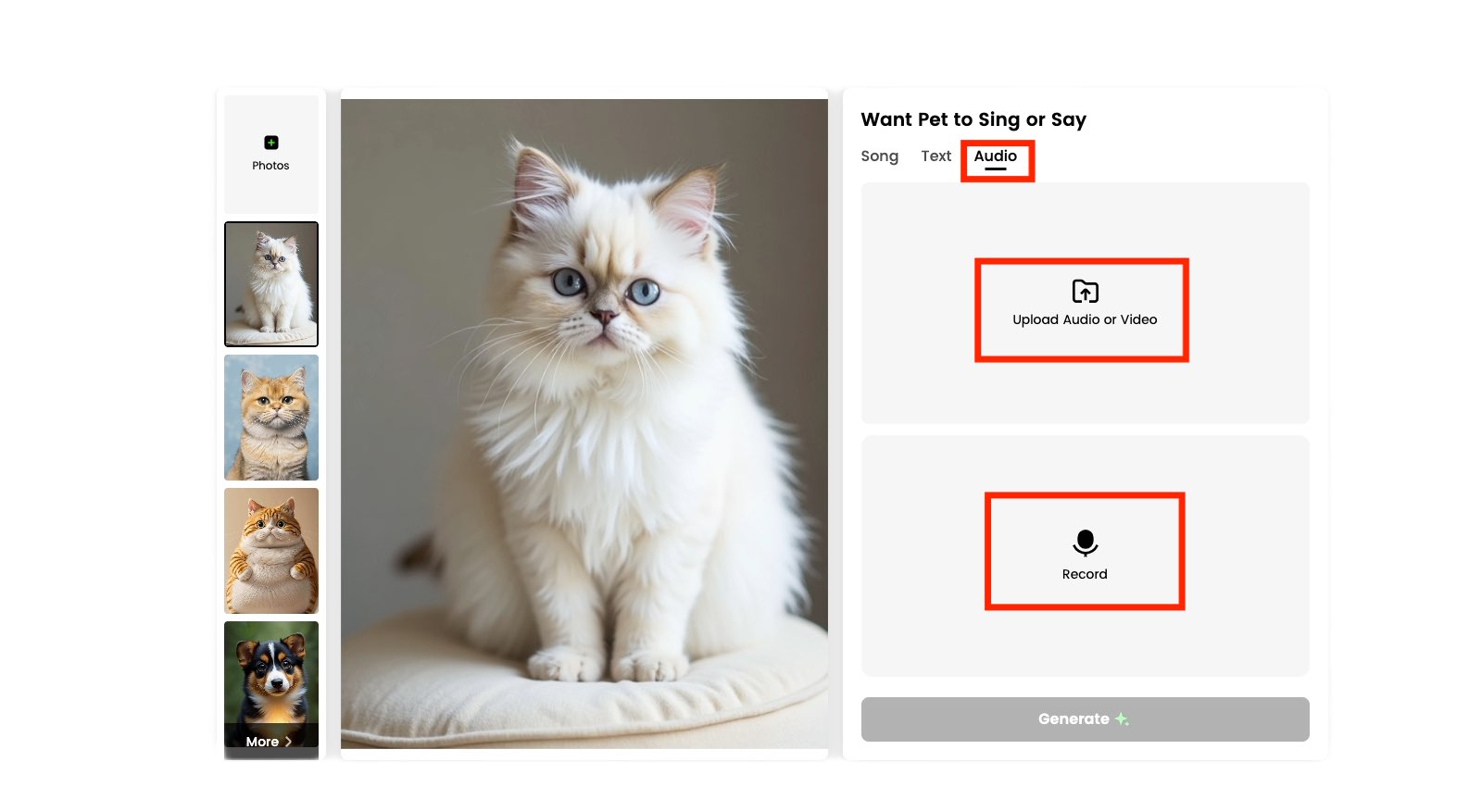
Record: Click the microphone icon to record your voice directly. You can give your pet a unique monologue or sing them a song.
Step 3: Generate and Share Your Video
Once you've set up your audio, just click the black "Generate" button in the bottom right corner. After a few moments, Dreamface's AI will finish rendering the video. You can then download your unique pet video or share it directly on your favorite social media platforms.
Tip: Besides its powerful lip-sync feature, Dreamface also offers a rich suite of AI photo editing tools, video templates, and more. Go explore!
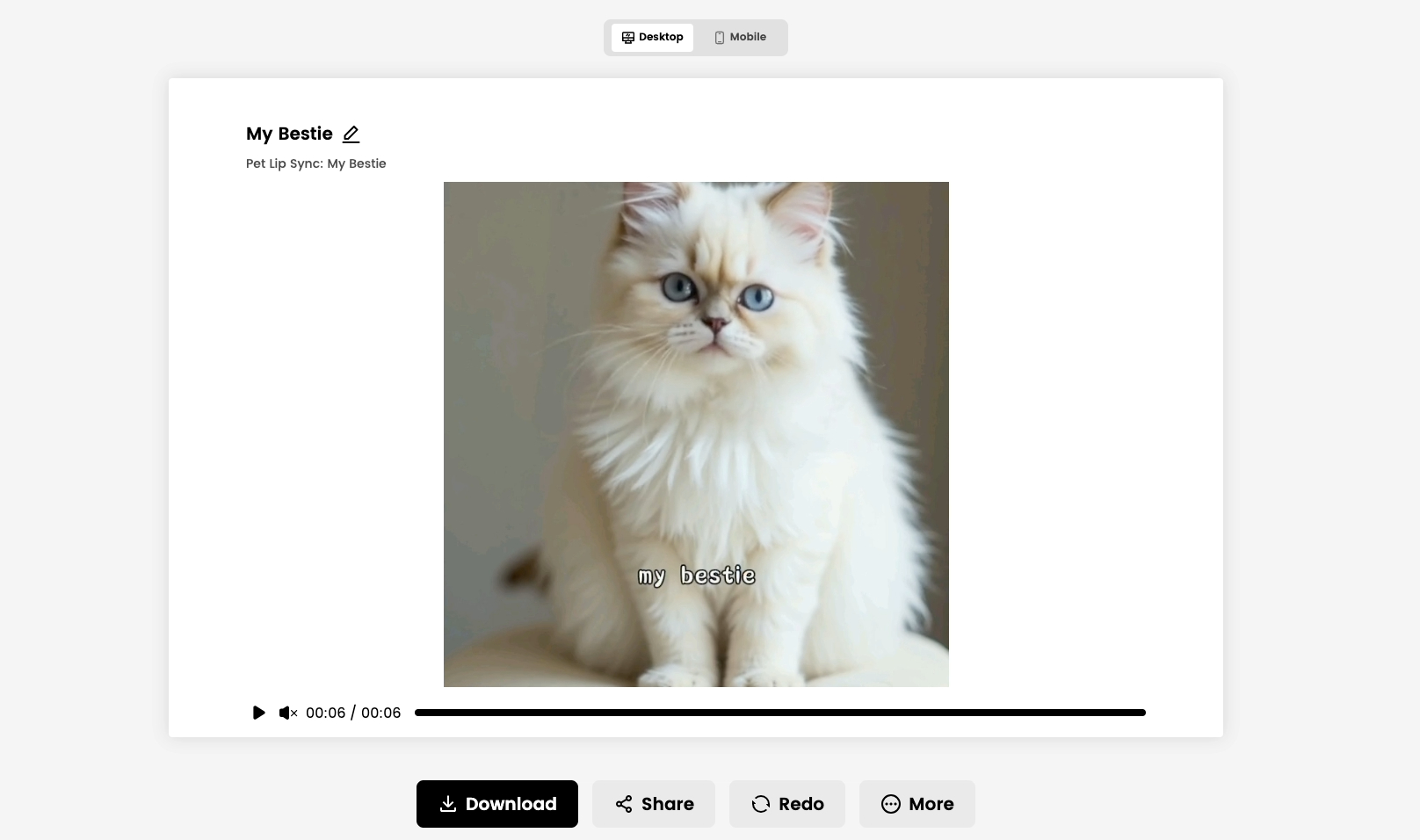
With three easy steps, you can add a voice to your pet videos right from Dreamface. If you're interested in the power of Dreamface, try it today!
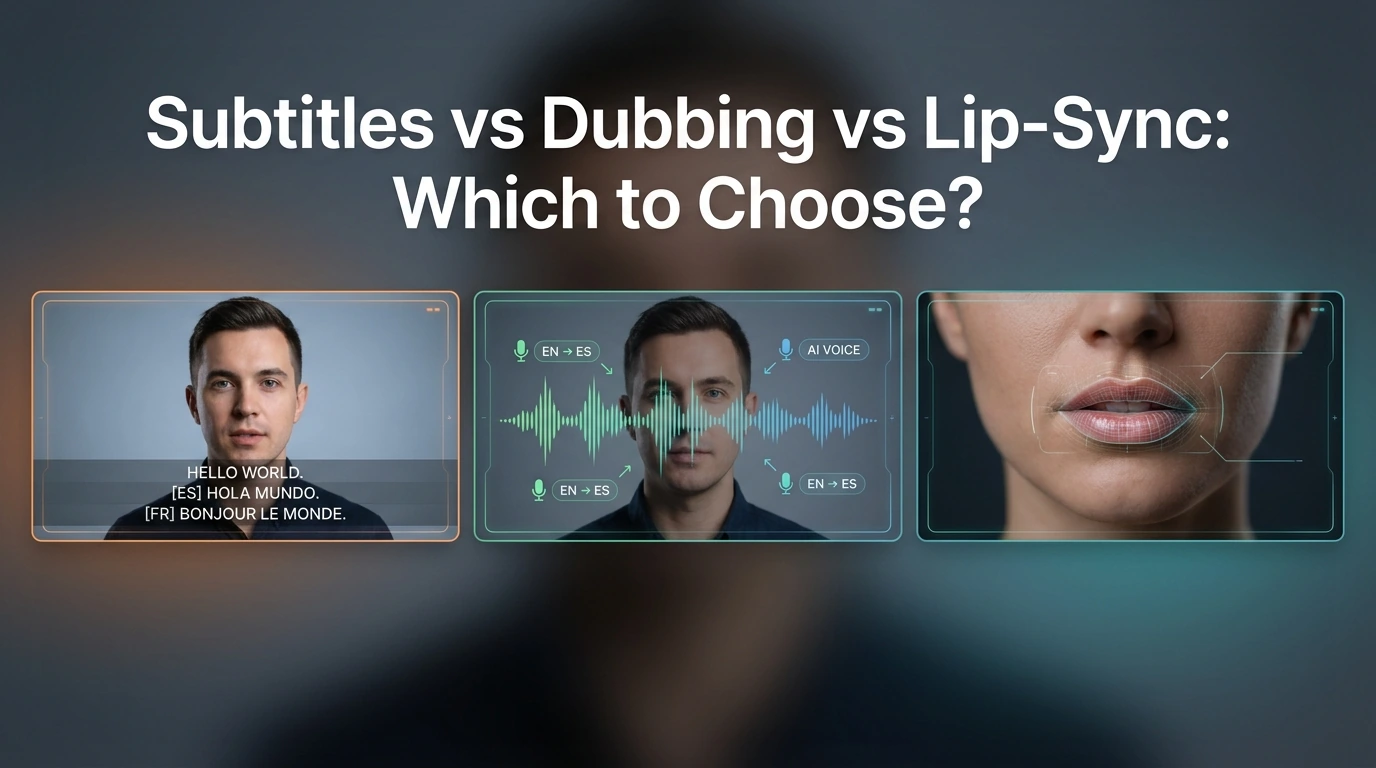
Subtitles vs Dubbing vs Lip-Sync: Which to Choose?
Compare subtitles, dubbing, and lip-sync for video translation. Learn which format fits YouTube, training, marketing, and creator videos.
By Alexander一Apr 17, 2026- AI Translator
- AI Video Translator
- Lip-Sync Video
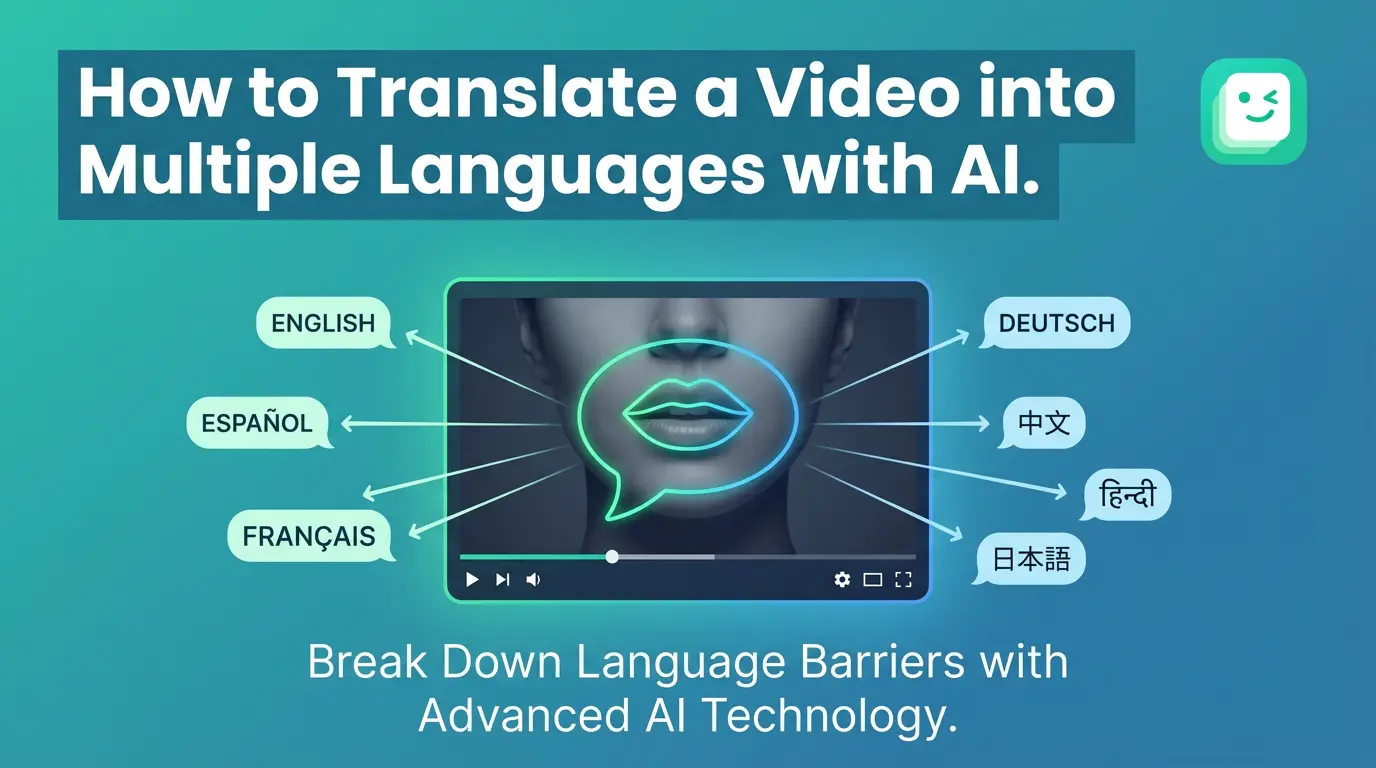
How to Translate a Video into Multiple Languages with AI
To translate a video into multiple languages with AI, users upload a video, select target languages, and generate translated speech with synchronized lip movement. AI video translation removes the need for re-recording and manual editing, enabling creators to produce multilingual videos quickly for education, marketing, and social media.
By Grayson一Feb 09, 2025- AI Translator
- AI Video Translator
- Lip-Sync Video
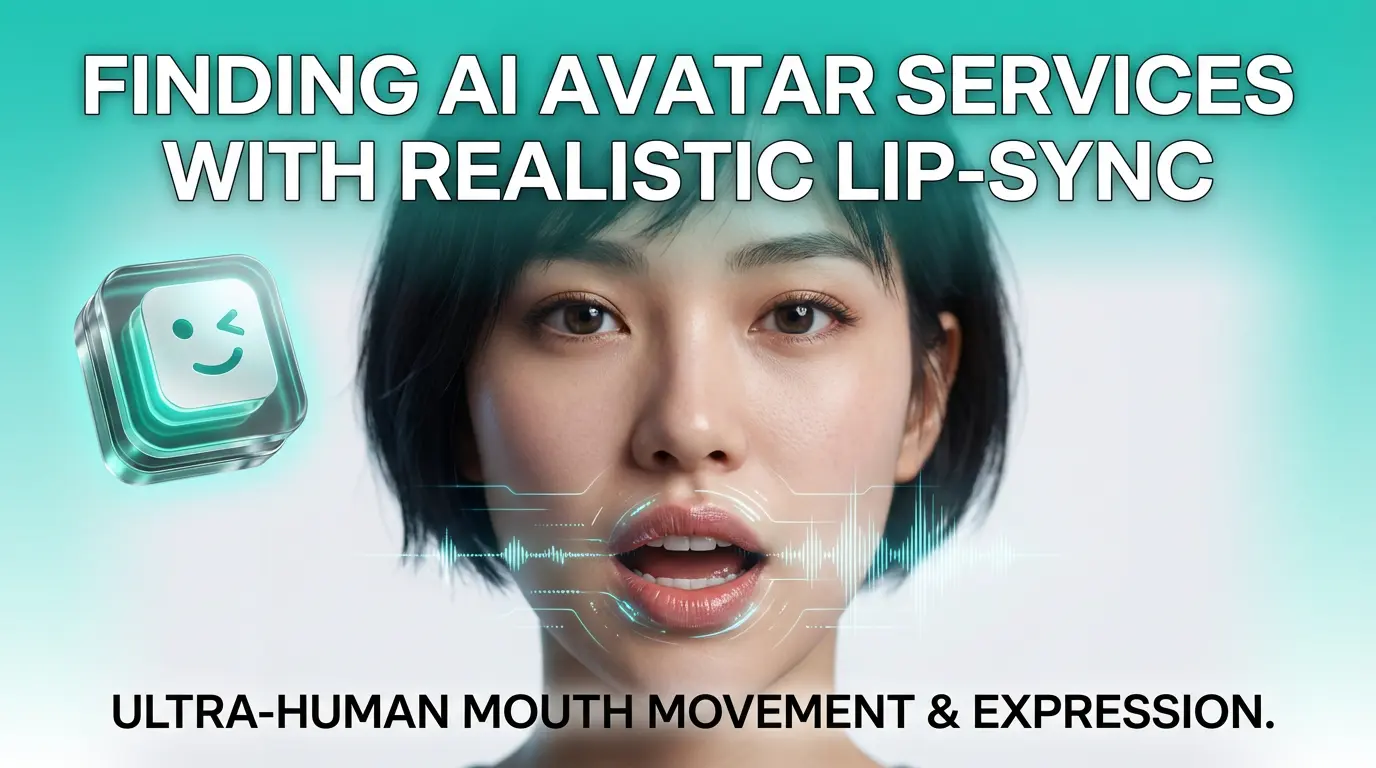
Where to Find AI Avatar Services with Realistic Lip-Sync (2026 Guide)
When searching for AI avatar services with realistic lip-sync, it is important to focus on platforms that are specifically designed for speech-driven avatar animation rather than general video or meme tools. High-quality lip-sync depends on accurate phoneme recognition, stable facial tracking, and consistent mouth movement across different voices and accents. Dedicated AI avatar platforms such as DreamFace are commonly chosen because they treat lip-sync as a core capability, offering more reliable and repeatable results for professional content creation, education, and voice-based videos.
By Jace一Jan 11, 2026- Image-to-Video
- Lip-Sync Video
- AI Video